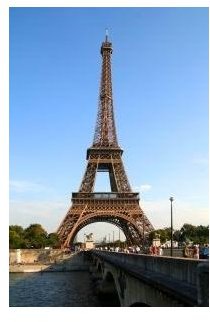
Have you ever looked at an art poster and wondered if the image of people running up that snow-capped mountain was real? Chances are that a couple of Adobe Photoshop tricks were used to visually fool you. How do they do it?
Dazzling the Crowd with Photoshop Tricks
There is nothing like saving countless hours of design conceptualizing and getting a photo realistic effect on your designs in the process. So how do we apply Adobe Photoshop tricks to our design projects? It’s amazing how much you can visually get away with, if you use Photoshop tools to create a photo realistic effect that will leave people scratching their heads!
In this tutorial we will demonstrate how to place a person inside an environment. This is great for visual puns that may have you standing in front of the Eiffel Tower even if you have never been to Paris! We will use the following Photoshop tools for this tutorial: Move, Magic Wand and Lasso.
Step 1. To start you will need two pictures. I chose a picture of the Eiffel Tower and a seated woman.
Step 2. Isolate the woman by using the lasso tool and drawing around her.
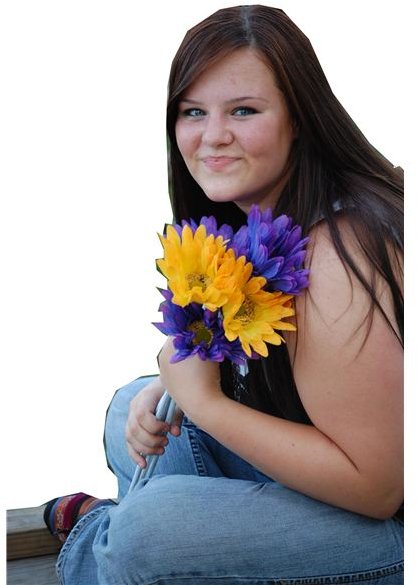
Step 3. Take the move tool and drag the woman over to the Eiffel Tower picture. A new layer should now be created. Name each layer respectively according to what it is, i.e., Eiffel Tower and Woman sitting.
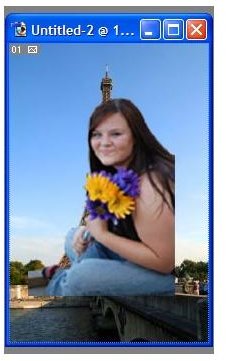
Step 4. Once you have labeled the layers, you want to use the Move tool to drag the lady where you would like her to be, in perspective to the Eiffel tower. You may need to enlarge or shrink the image depending on the relative size of the location behind her.
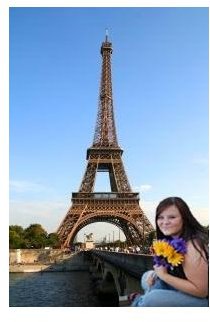
Step 5. Finally you will want to adjust the basic brightness and contrast of the woman by going to Image > Adjustments > Brightness and Contrast. Slide the brightness and contrast sliders from left to right, until you have a basic matching lighting set for both the Eiffel Tower and the woman sitting in front of it. There you have it! A woman sitting in front of the Eiffel Tower in a few, easy steps.
Another Adobe Photoshop Trick
In this example, we will learn how to use a couple of Photoshop filters to create an effect of water running from a faucet tap.
Step 1. Let’s start with a new document 400 x 400 pixels. Create a new layer, then apply the following filter:
Filter » Render » Clouds
Open the Filter » Blur » Gaussian Blur command and set the Gaussian Blur to 8.
Open the Filter » Blur » Motion Blur command and set the Angle at 90, Distance at 80. You should have an image like the one below.
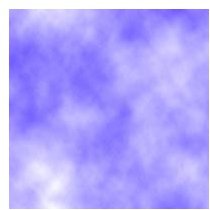
Step 2. Now go to Image » Image Size command and Set: width to 500pixels (Remove the check mark from the “Constrain Proportions” option ) then click OK.
Step 3. Now open the Filter » Artistic » Plastic Wrap command and set the Highlight Strength to 17, the Detail to 12, and the Smoothness to 12.
Your image should now look like this:
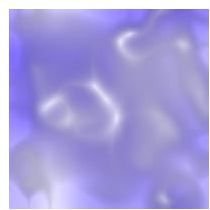
Go to the Filter » Sketch » Chrome Command and set Detail at 0 and Smoothness at 7.
Go to Edit » Fade Chrome and set Opacity at 100% and Mode at Hard Light.
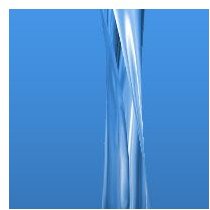
Step 4. Finally open the Image » Image Size command and set the height at 700 pixels, leave all other settings, and make sure the “Constrain Proportions” radio button is NOT checked.
As you practice these and other Photoshop tricks to give you a visual pun or photo realistic effect, you will learn a ton of new skills in the process. Happy skill building!


