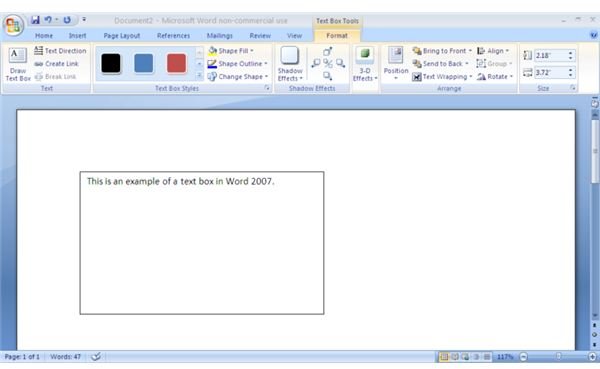
Many users find the Ribbon feature of Microsoft Word 2007 confusing, and are initially overwhelmed by its appearance and capabilities. Inserting a text box in Word 2007 is very simple and formatting is even easier with this Word text box tip.
Inserting a Text Box
To begin creating a text box simply click the Insert tab located at the top of the Ribbon. As you may have noticed the options on the Ribbon has changed. Next, click Text Box. A drop down menu will appear with your text box options. There is a collection of over 30 text box templates that range from the simple text box to transcending text boxes.
Formatting a Text Box
After selecting the text box you wish, the Format tab will automatically appear and only your formatting options will be shown on the Ribbon. These options (divided into sections) allow you to modify the text, style, shadow effects, 3-D effects, arrangement, and size of the text box.
Changing Text
Here you can create another text box, change the direction of text, and create or break links connecting the text boxes.
Choosing Text Style
Choices included under this option allow you decide how you would like to “fill” your text box. The text can be filled with color, a picture or texture. You can change the text box shape, as well as the outline of the shape.
Adding Shadow Effects
There are a variety of shadow effects to choose from here. You can change the shadow color, and there is also a nifty diagram help you “nudge” the shadow to the left, right, up, or down.
3-D Effects
3-D effects allow you to have fun with your text box. You can play around with the lighting, depth, direction, surface, and color. There is also a neat diagram within this section that allows you to turn 3-D Effects on or off, and tilt the text box to the left, right, up, or down.
Positioning Text Box
This section lets you decide exactly where on the page you would like your text box to be. There are a variety of layout options.If you have other objects on your page, this feature helps to organize them with options such as Bring to Front, Send to Back, Text Wrapping, and Rotate.
Altering Size
This gives you the opportunity to adjust the height and width of your text box. You can access the Rotate feature here as well.
After making all the desired changes, click OK and your text box will be ready to go!


