Bullets are boring, aren’t they? Users of software programs like Microsoft Word often feel restricted by the same old choices for bullets. The following instructions will help readers engage in more creative work by showing them how to use an image as a bullet.
An Overview of Bullets
Sometimes people take little things like bullets for granted. Rather than be content with the traditional dots, circles, arrows, squares, and other shapes, users can be creative by designing new bullets that will become part of a design rather than just elements of another drab report or presentation.
Bullets are small markers that precede short, descriptive sentences or phrases. These marks can take various forms, but are usually recognizable as bold dots or other shapes that are normally chosen from a default list of bullets within word processing or desktop publishing programs.
When used with sub points, a bulleted list can look a lot like an outline, with sub points assuming a different look from primary points. Bullet points help organize a printed page and can also help inject brevity into Powerpoint slides.
Here, Microsoft Word 2010 is used to demonstrate to readers how to use an image as a bullet. This technique will add new life to otherwise boring lists and stir intrigue and admiration among clients and audiences.
Using Bullets
Perhaps the key to learning how to use an image as a bullet is the knowledge that doing so is possible. Here the ability to do this is shown in Microsoft Word, although, readers are encouraged to learn how this is done in other applications as well.
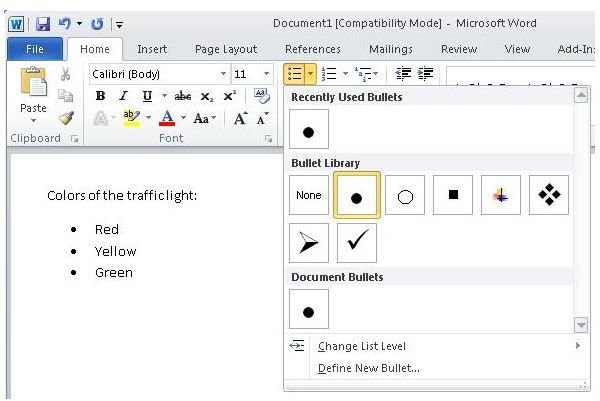
In Microsoft Word, users can create a bulleted list by clicking on the “Bullets” icon in the “Paragraph” cluster on the “Home” tab ribbon. From the flyout menu, users can choose from available bullets to create a bulleted list as shown below.
Click any image for a larger view.
Using bullets is a great way to briefly highlight main points, but how many people know that they can infuse excitement and energy into the mundane, dreary, boring marks by learning how to use an image as a bullet.
Making a Bullet Using an Image
Users should find an image to use as a bullet. Here, a traffic signal is shown that will nicely complement the bulleted text in this example.

Image Credit: Wikimedia Commons/SteffenB
To get started, click the “Bullets” icon that is located in the “Paragraph” cluster of the “Home” ribbon in Microsoft Word.
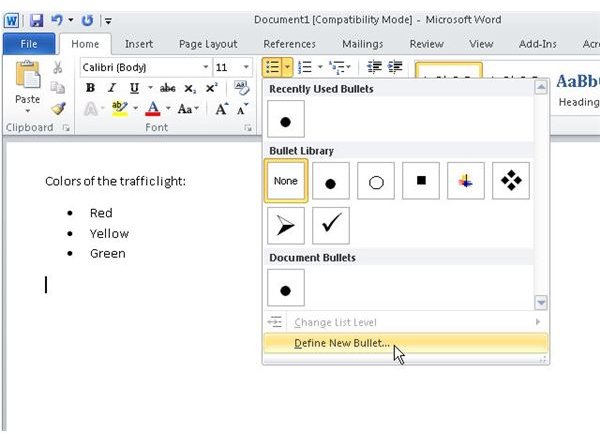
In the menu window, click the “Define New Bullet” option. After that, click the “Import” button found at the bottom of the “Picture Bullet” window.
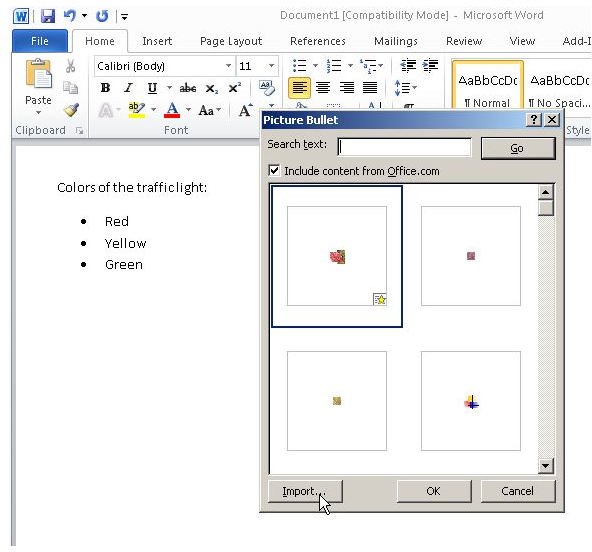
Users should then browse to the image that is to be used as a bullet. Once it is selected, it should appear in the “Picture Bullet” window.
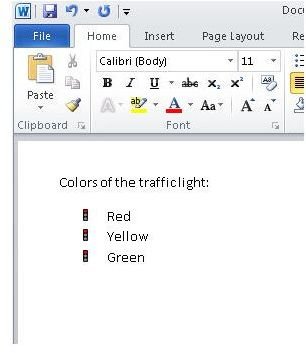
Users now can have exciting bullets that can help accentuate the theme of the document in question. The bullet that now contains an image becomes part of the bullet repertoire of the user’s Microsoft Word installation.
Wrapping it Up
Those who now understand how to use an image as a bullet will find unlimited ways to infuse creativity into what once were plain, boring elements that they once took for granted.
Image Credits: Screen shots taken by Bruce Tyson


