There are a number of plugin filters available that can really spice up Photoshop Elements 7, but you’ll sometimes have to perform a few extra steps to make sure that the host program recognizes the add-ons. Here, we’ll explain how to load new plugin filters in Photoshop Elements 7.
Plugin Filters for Photoshop Elements 7
Although most plugin filters are designed for Photoshop CS4 , they will usually work just fine in Photoshop Elements 7 as well. If you already have Photoshop Elements 7 installed on your system, some plugin filters will have a smart enough installation utility to automatically place the files in a location where the photo editor can access them. However, there are some that will install into a different directory and you’ll have to do a little additional work before you’ll be able to use them.
Additionally, if you had any plugin filters installed on your machine before installing Photoshop Elements 7, you may have to manually add the file locations of these items to an approved list of plugin locations.
In the following steps, we’ll show how to do all of these things to make sure that you can access any installed plugin filters in Photoshop Elements 7.
How to Load New Plugin Filters
Step 1: If you haven’t done so already, download and install the plugin filter. Pay close attention to the directory in which the files for the plugin are being installed. You may even want to jot down this directory path in case you need to reference it later.
Step 2: Test to see if the plugin filter is now accessible in Photoshop Elements 7. If you had the software open while you were installing the plugin, shut it down and restart the application.
Next, open any digital photo in Photoshop Elements 7. It doesn’t matter which one you use – but you need to have at least one image open before you can check to see if a certain plugin is accessible.
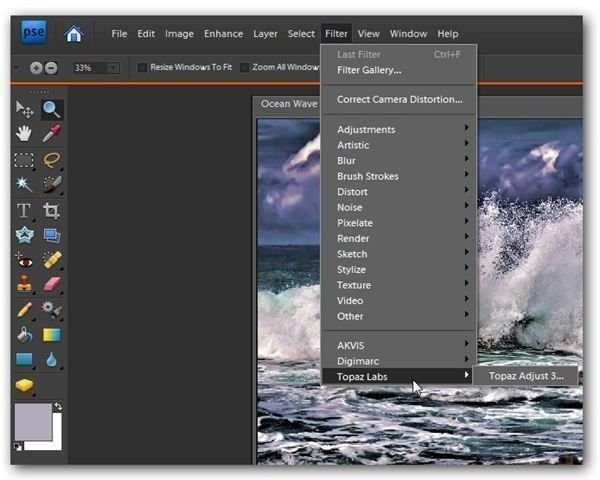
Now, check to see if the plugin is listed in the Filter menu on the main toolbar of Photoshop Elements. All third-party plugins will be shown at the end of this menu as shown in the screenshot below. (Click any image for a larger view.)
In this particular screenshot, I’ve checked to make sure that Topaz Adjust 3 is accessible (this is a great plugin for creative image effects, by the way).
If you see the plugin filter that you’re looking for here, then you’re done. Otherwise, continue on to the next step.
Step 3: If you still can’t access the plugin after restarting Photoshop Elements, then you probably have the filter installed in a non-standard directory. This is quite normal for me since I usually install plugins in a special location so that I can easily access them for multiple image editors, such as Paint Shop Pro and Photoshop Elements. In order to access plugins stored in these locations, we’ll have to tell Photoshop Elements where to look for them.
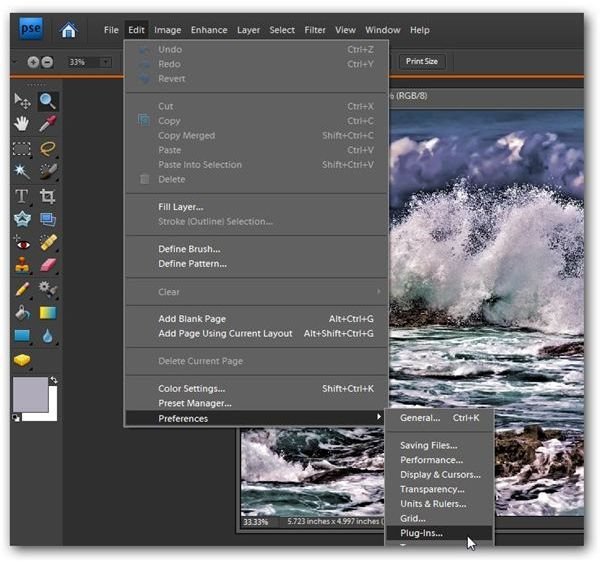
To do this, first select Preferences from the Edit menu on the main tool bar, and then choose Plug-Ins.
Step 4: You should now see the Preferences dialog box on your screen.
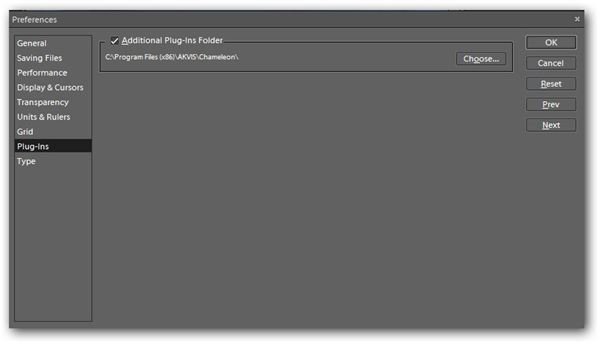
First, make sure that the box next to Additional Plug-Ins Folder is checked. Next, click on Choose and navigate to the directory that contains the plugin you want to use. (Note: Unlike with Paint Shop Pro, you can only specify one additional folder here. So, if you plan to install multiple plugins, it would be a good idea to set up a folder on your computer called Photoshop Elements Plugins or something similar and install all plugins into subdirectories of this folder.)
Once you’ve found the directory, click OK. Then, in the Preferences dialog box, click OK again to return to the application’s main interface.
Step 5: Close Photoshop Elements and restart the application. Note that if you have just added several plugins that it might take the program a little longer to load now since it is also scanning for these additional filters.
Check again to see if the plugins are now available by first opening any image and looking in the Filter menu as we did in Step 2. If you picked the proper directory, you should now be able to access the additional plugin filters.
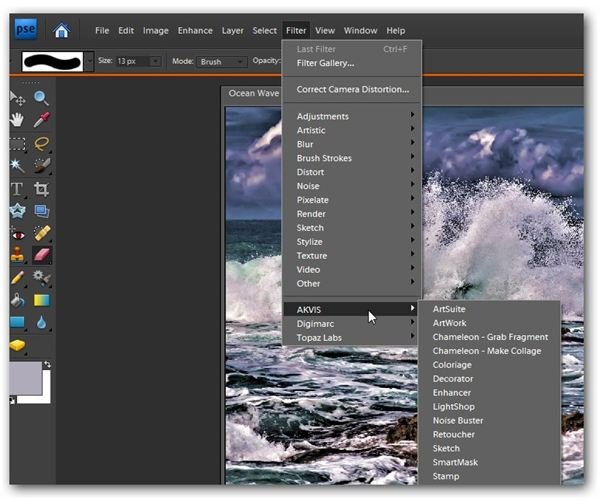
In this screenshot, you can see that all of the AKVIS plugins I had in this particular directory have been added to Photoshop Elements.