
Getting Picasa up and running is a snap, and once you get everything ready to go, you will be able to work with your photographs to display them for the world to see.
Putting Picasa on Your Computer
The first step is to download Picasa onto your computer. You can find the free download site at picasa.google.com. When you go to the site, click on the button that says Download Picasa. Click Save File if prompted and choose where you want it saved on your hard drive.
Once the software finishes downloading, find it and double-click to start the installation. The program will ask if you want to run the program. Click Run and allow your computer to open the new program. Agree to the License Agreement, choose where you want it placed on your computer and click Install.
Once the software is ready to start, a number of choices are offered to you. Choose whether you want a shortcut on your desktop, a shortcut added at quick launch, whether you want Google to be your default search engine, whether you want anonymous stats sent to Google and whether you want to start the program now.
If your computer is not very powerful, disabling Create Shortcut in Quick Launch is advisable. You can always start it on your own whenever you want to.
Preparing Picasa to Work With Photographs
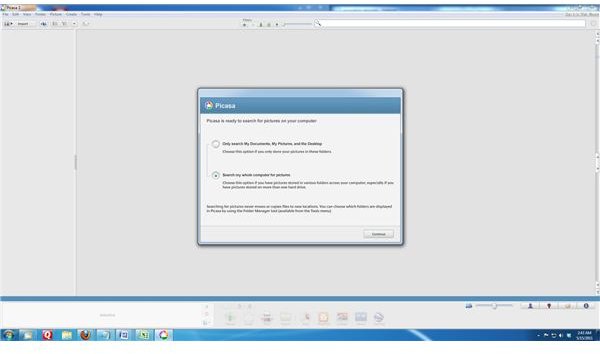
When Picasa first opens, it asks whether you want to search your entire computer for photographs or only look on specific portions of your computer. If all your photos are in the My Pictures folder, choose that method to save time. If your photographs are spread out all over your computer, choose to search the entire thing, although this takes more time.
In addition, Picasa asks if you want to use it as a default viewer for photos. If you plan to make Picasa your main program for working with photographs, allow this, but if you still want to use Photoshop or another program as your main base of operations, deny the program permission.
Next, log into your Google account at picasaweb.google.com. If you do not have a Google account yet, click on Create Google Account and follow the instructions. You do not have to use a Gmail address to have a Google account. You can use Yahoo, Windows Live or virtually any other email account instead.
Once logged into the account, Google gives you the option of using a Picasa album associated with this account name. If you want to use it, click Use My Profile With Picasa Web Albums. If you choose not to use this online album, click No Thanks. If you do choose to use it, there is a place in Picasa to upload directly from the program to your Google account album to share your photos online.
Once your photographs are loaded into the Picasa software engine and your Google account is ready to upload the photographs, you are ready to get started with Picasa Photo Editing.
References
Personal Experience
Picasa logo used from software website
Screencap courtesy of author


