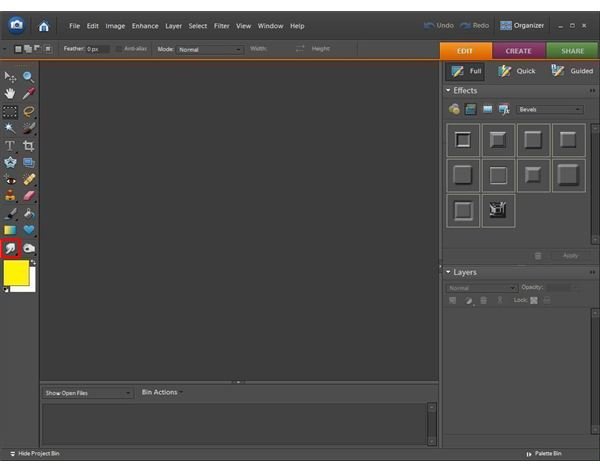
This article explains the icons of Adobe Photoshop Elements 6.0 It explains what the icons do and where they are.
Smudge, Blur, and Sharpen
Smudge Tool: The smudge tool is used much like if you were dragging the pointer through finger paints. It can be used to blur the foreground into the background or to blur the background into the foreground.
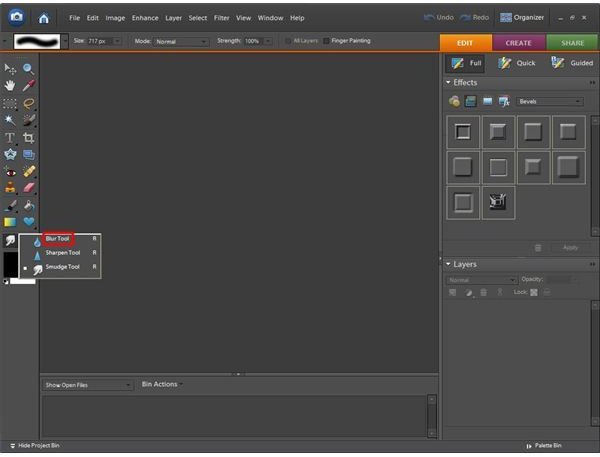
Blur Tool: The blur tool is found by right-clicking on the smudge icon. It is used to slightly blur an image in the case the image looks too sharp, or if there is fringing around the image.
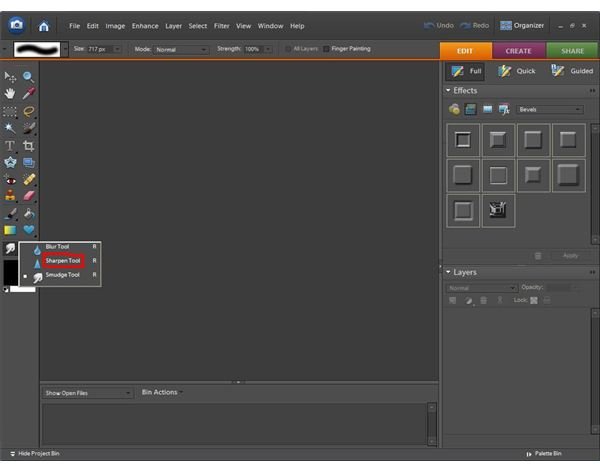
Sharpen Tool: The sharpen tool is also found by right-clicking the smudge tool icon. It is used to make an image sharper in the case that it is blurred.
Smudge, Blur, and Sharpen Tool Icons
The Burn, Dodge, and Sponge Tools
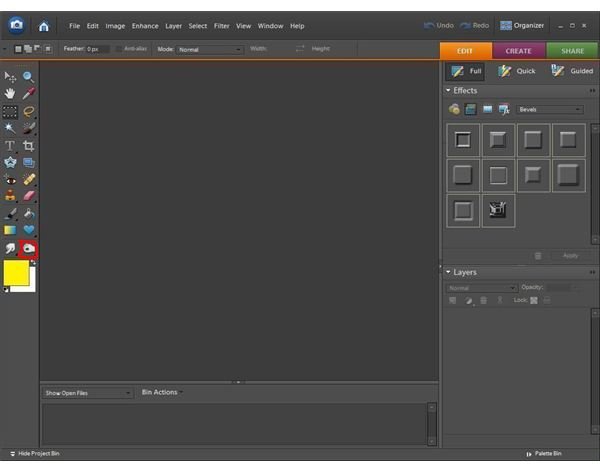
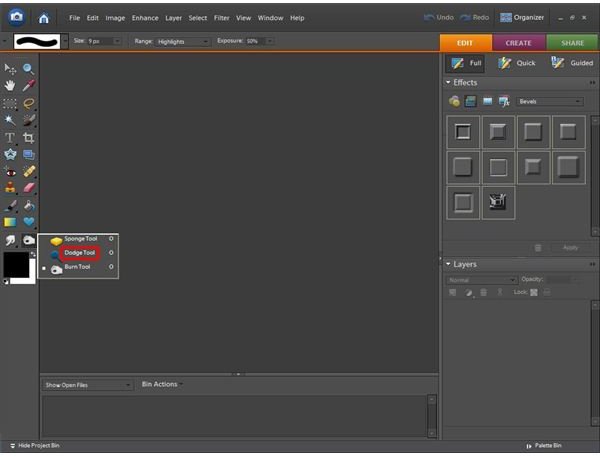
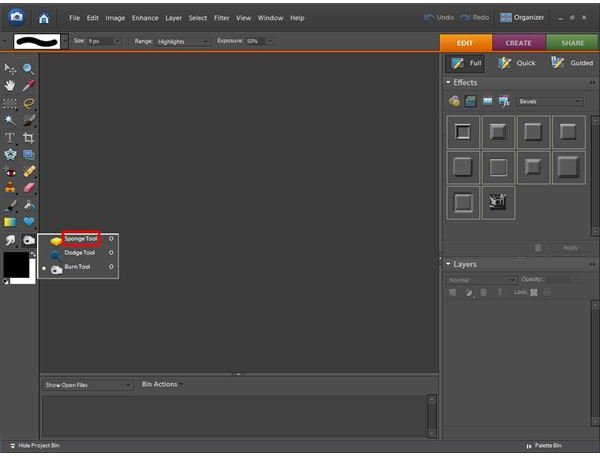
Burn Tool: The burn tool is used to make an image darker. It works to bring out highlights and detail in an over exposed image.
Dodge Tool: The dodge tool is found by right-clicking the burn tool icon. It works in the exact opposite as the burn tool does. The dodge tool makes an image lighter to bring out details in shadowed or under exposed areas.
Sponge Tool: The last tool found by right-clicking the burn tool icon is the sponge. The sponge is used to saturate or de-saturate an image. Saturation is making the image brighter and more colorful whereas de-saturation will dampen the color to make it a bit more dull.
Burn, Dodge, and Sponge Tool Icons
Switch and Default Color Tools
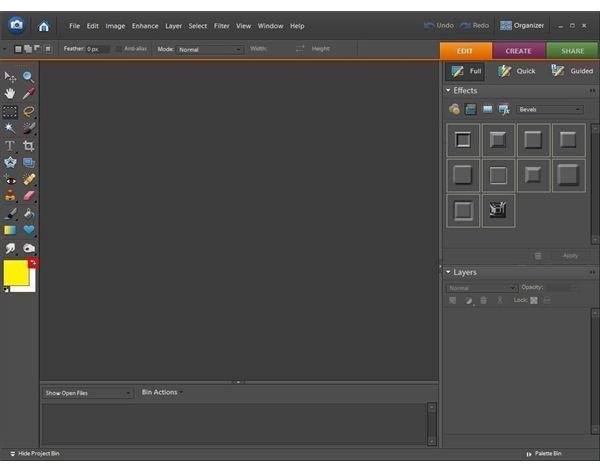
Switch Foreground and Background Colors: This tool is used when you want your current background color to be the foreground color or vice versa. Rather than re-choosing colors, simply click this icon and Adobe Photoshop Elements will switch the colors around for you. For example, if you set your background to be red, but now want to write over part of it in the same color, you simply click on this icon and Elements will change the colors around so you are now writing in that red color.
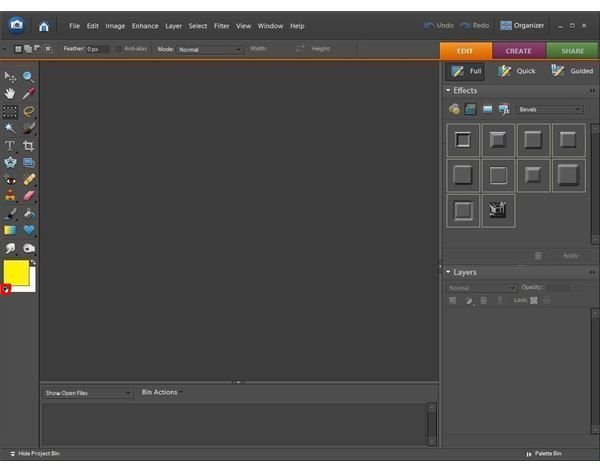
Default Foreground and Background Colors: This tool is used to set the foreground and background colors to the normal colors. The default colors are white background and black foreground.
Switch and Default Color Icons
This post is part of the series: Tools in Adobe Photoshop Elements 6.0
If you’re just getting started with editing photographs using Adobe Photoshop Elements, you may be overwhelmed with all of the different buttons and options you have. This article series will explain the different menus, buttons, and other options that will help you to use Photoshop Elements.
- Tools and Icons in Adobe Photoshop Elements - Including Zoom, Marquee, Lasso and Magic Wand
- Tools and Icons in Adobe Photoshop Elements - Including Selection, Mask, Red Eye Removal, Healing and Stamp
- Tools and Icons in Adobe Photoshop Elements - Including Erasers, Brushes, Gradient and Shapes
- Tools and Icons in Adobe Photoshop Elements - Including Smudge, Blur, Sharpen, Dodge and Burn


