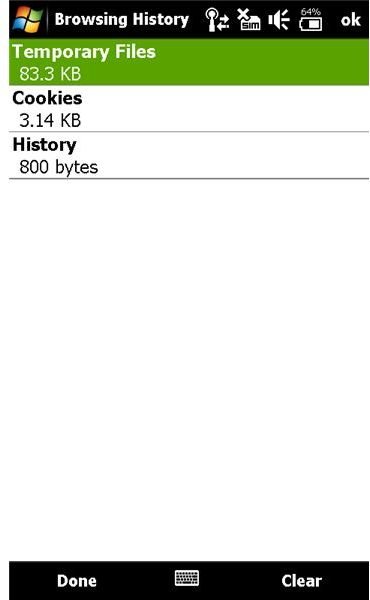
By deleting your temporary internet files, your Windows Mobile will be more secure and will perform more efficiently.
Clearing Browser History on Windows Mobile
Security and privacy are vital to any platform, whether it be a desktop computer, laptop or tablet, or mobile device. The convenience that mobile devices offer in browsing the web and performing many of the same tasks we can do on a desktop means that every web-based action performed on a mobile phone is logged in the browser’s internet history.
Similarly, again just like a desktop computer, the temporary internet files are stored on a mobile device; this is so that the page will load more quickly next time you visit.
However, both the browser history and the temporary Internet files can cause your Windows Mobile device to run out of memory – not a good situation to be in.
This article explains how to delete temporary internet files from Windows Mobile devices.
How to Delete Temporary Internet Files from Windows Mobile
If you’re using the Internet Explorer Mobile browser on your Windows Mobile phone, it should be pretty easy to delete the browser history. With the application running, go to Menu > Tools > Options > Browsing History. Here you will see three sets of data listed:
- Temporary Files
- Cookies
- History
Each will have a number associated, denoting how much memory is being used by each. Simply select Temporary Files and tap Clear in order to delete temporary internet files from Windows Mobile. You can use the same procedure to clear the Cookies and History.
Privacy and Security Settings
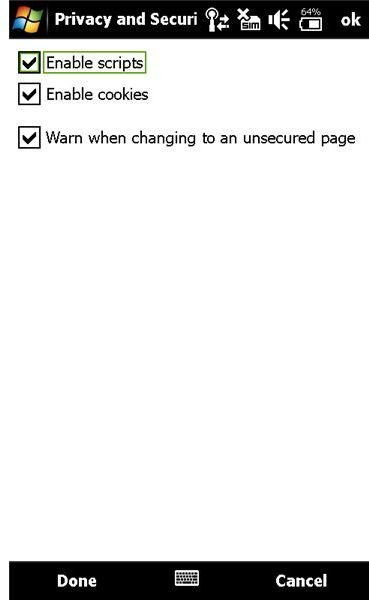
Internet Explorer Mobile also affords some settings that allow you to stay in control of your Windows Mobile’s browsing, and prevent cookies and scripts as well as displaying a warning when you visit an unsecured page.
To access these settings, in Internet Explorer Mobile go to Menu > Tools > Options > Privacy and Security; here you will find three tick boxes:
- Enable scripts
- Enable cookies
- Warn when changing to an unsecured page
Clearing the Enable cookies and Enable scripts boxes will speed up browsing, make extra space available on your Windows Mobile phone and also make your mobile browsing that much safer!
Other Windows Mobile Browsers
There are several browsers available for Windows Mobile – you might be using Opera Mobile or Iris Browser, for instance. Each of these also has the facility to clear temporary internet files:
- In Opera Mobile, go to Menu > Settings > Privacy. Here you can Delete Cache as well as cookies and history.
- In Iris Browser go to Page > Options > Preferences… and use the Clear web cache option. Here you can also Clear history and Clear cookies.
There are many browsers available for Windows Mobile, and almost all of these offer some form of security in the form of deleting temporary internet files.
(Images by author)


