Got a new Windows Phone 7 but not sure how to add and remove apps? It’s a very simple process that you’ll pickup in no time!
Get New Apps on Windows Phone 7
A new phone means one thing – new apps! Windows Phone 7 has a variety available already, with new ones added every day. These range from productivity tools, social networking apps, even games, and with integration with Xbox Live, this is a particularly exciting development.
With the Windows Phone 7 predecessor, Windows Mobile , installing and removing apps was a very simple matter of copying a CAB file to your phone and running it. In some cases you might also have installed the app via ActiveSync, with your phone connected to your PC and laptop. In some cases, it was pretty hit and miss whether or not you would be able to run the app as Windows Mobile devices were all very different.
Things have moved on considerably now, however, with apps available exclusively via the Windows Marketplace for all Windows Phone 7 devices.
Ease of Use, Single Point of Contact
This procedure for adding a new mobile app is remarkably easy – you just cannot go wrong.
Part of this ease is due to Microsoft restricted software for Windows Phone 7 to what is available on the Marketplace. This is in sharp contrast to the free-for-all enjoyed by Windows Mobile, and to some extent, Android. With this in mind, mobile apps that are plentiful on other platforms may not be available for Windows Phone 7 for a while.
Let’s take a look at how we can install and remove apps on Windows Phone 7.
Installing an App on Windows Phone 7
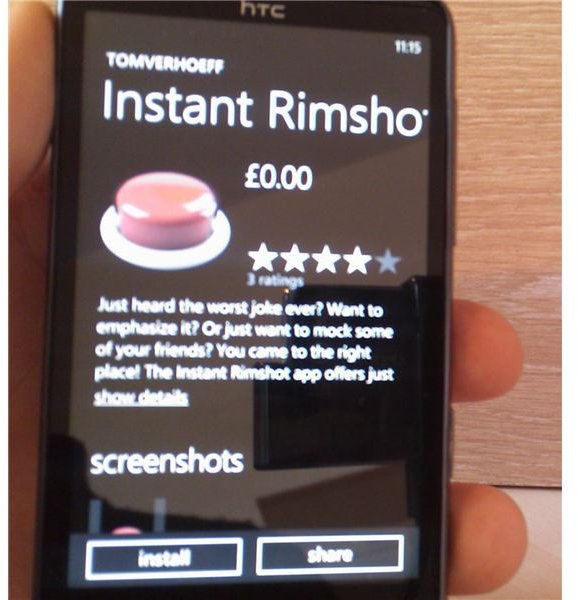
To add a new app, visit the Marketplace hub on your phone. You can choose between the lists of Featured apps or just go straight into the Applications menu. If you can’t find what you want, while in the Marketplace tap your Search softkey - then type in the search term and hope for the best. Several hundred apps are already available , with many more to come over the following months!
Scroll to find the list of app categories, and browse this until you find an app that seems useful. Check its rating and review before downloading, then click on the Install button.
If you have chosen a premium app, you will need to enter payment details and agree to the app using your location information in some cases. Once this is all sorted out, the application will download. It is difficult to judge the size of apps until they start downloading, but as a general rule it is probably worth sticking to Wi-Fi zones for installing apps unless you have a good data plan with your mobile network
Removing an App with Windows Phone 7
This is where it gets really good! If you thought that installing apps on Windows Phone 7 was fast, removing is even quicker!
From the home screen, simply tap the right arrow and scroll through the programs list to find the app. Long-tap the app icon and from the context menu, select Uninstall. You will then be asked to confirm your actions.
It is a quick and easy set of steps to both install and remove apps on Windows Phone 7, and this is a key element of the design of Microsoft’s new user interface. 95% of tasks on this platform can be achieved with just a couple of finger taps, making this a powerful and efficient new mobile OS.


