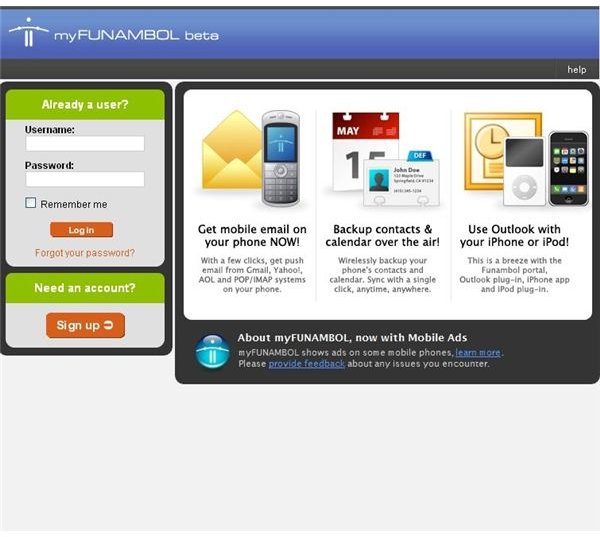
Microsoft Exchange does a great job of providing push email and constant calendar and task updates - but away from the corporate workplace it can be a costly solution to instant “as it arrives” email. Funambol is an open source alternative that is easy to setup and free to use!
Free Personal Push Email
Funambol is a great open source push email solution that links to your Windows Mobile device over the internet and synchronizes emails, calendar items, tasks, contacts to your phone from a remote server.
Using the same principles as Microsoft Exchange, Funambol is free to use so all of the expense of purchasing and setting up an Exchange account for personal push email can be forgotten.
It’s so simple to use Funambol - simply sign up for an account, select which of your existing email accounts you with to use with it and download the client application to your Windows Mobile phone.
Funambol Browser Setup
Signup To Use Funambol
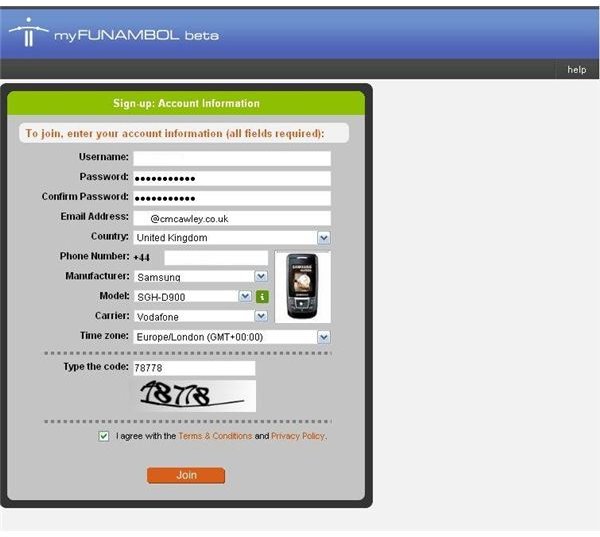
To setup an account with Funambol, visit my.funambol.com and click the Sign up link.
From here, you need to choose the usual username, password etc as well as tell the software what mobile device you’re using, your telephone number as well as your email account username and password.
Funambol uses secure data transfer methods so there shouldn’t be too much concern about giving this information out - however if you do have these worries, use a secondary email account for testing the service.
Once this is setup, it’s down to configure your device
Setup The Sync
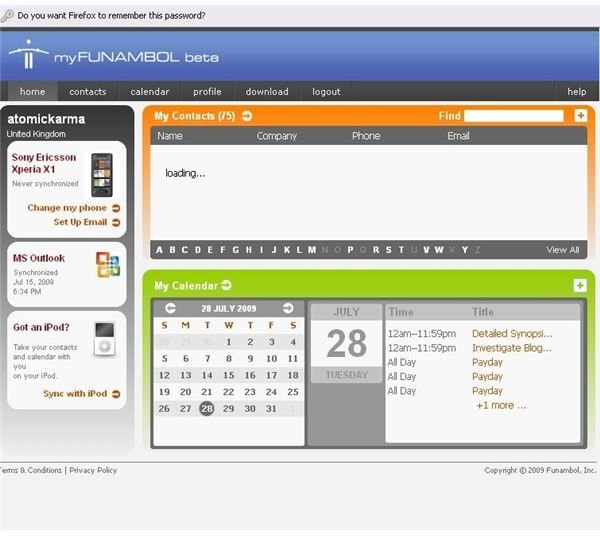
Once the device configuration is complete, you can then start synching information from your phone to your Funambol account. It’s a great way to retain a remote list of contacts, not to mention keeping your Outlook calendar entries safely stored.
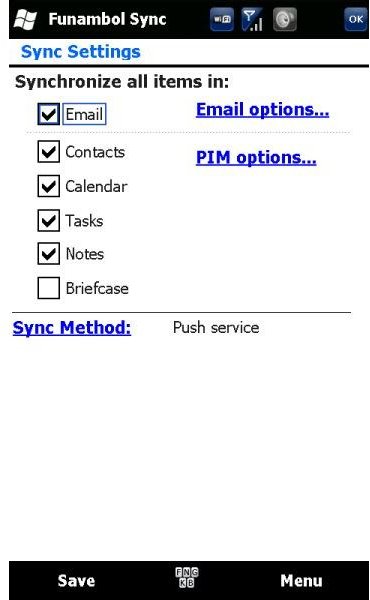
Funambol uses the Exchange processes of data storage and transfer, and does so seamlessly. It’s such an easy to use system that previous free push email solutions for Windows Mobile seem quite archaic. Receiving push email is a case of opening the Funambol client on your device, entering your newly created account details in Menu > Account and then going to Menu > Settings to choose the items to sync.
Note that a generous dataplan or regular access to WiFi is needed to get the most out of Funambol’s Exchange push email service.
Funambol On Windows Mobile
Using Funambol
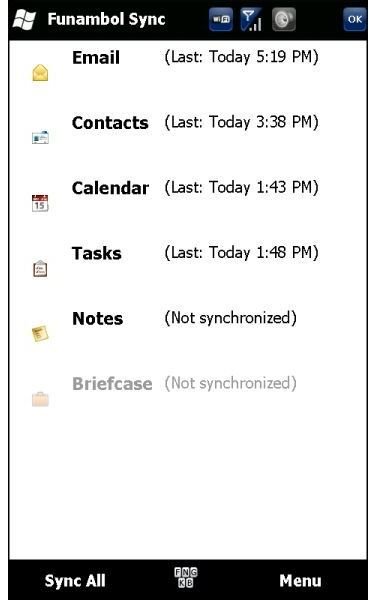
On it’s first run, Funambol will attempt to synchronise as per the options set earlier. Depending on the options you’ve chosen, recent emails in your inbox and a vast quantity of appointments and contacts might result in this process taking some time, so patience is required here.
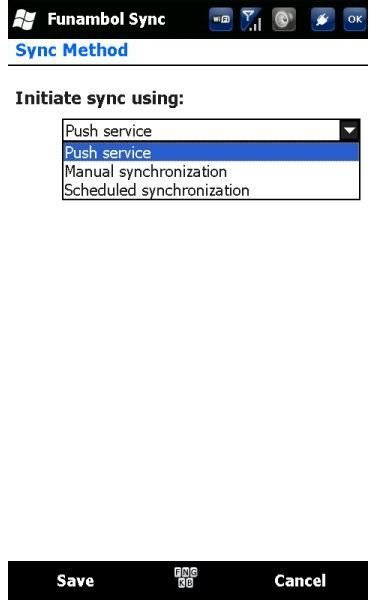
Once the sync is complete however, Funambol is ready to use. Synchroisation schedule can be set in Menu > Settings - choose from the popular “Push method” or specify a schedule.
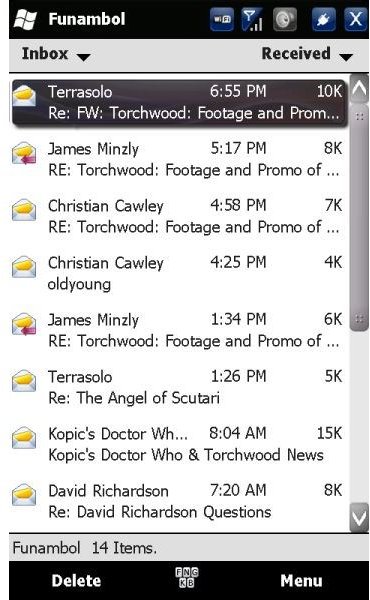
The best results are when push email is active however, and emails appear in your inbox without a need to press “send and receive”!