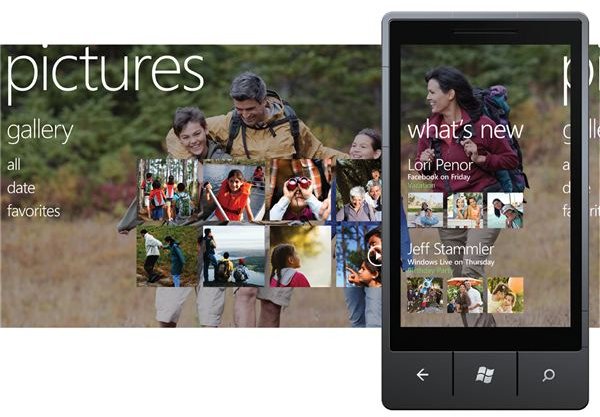
Looking to liven up your Windows Phone lock screen? There are many ways in which you can add images to your phone and set these as a wallpaper, using your device camera, images from web pages or even those supplied in apps!
Customize Your Lock Screen
To stamp your personality on a new phone, you will need to customize it. Windows Phone 7 doesn’t offer a massive selection of options in this area, limiting your choice to altering the colours of tiles and the background, although it is possible to assign a lock screen to your phone that is derived from a photograph or image that you might have saved to your device.
There are various ways to add new wallpaper to a WP7 device, from grabbing an image from a web page to snapping a photo, or just relying on dedicated wallpaper apps that are brimming with images for you to use on your phone!
Find Wallpapers Online!
The biggest selection of wallpapers for Windows Phone 7 can be found online – on any webpage you care to mention!
Images are a vital element of any webpage, whether these are logos or adverts, and if you know what you are looking for it shouldn’t be difficult to find one that you can use.
When you find a suitable snap, zoom in and tap and hold the image, and in the context menu select Save picture. With the image automatically saved to your phone, tap Start and then open the Pictures Hub.
Go to All > Saved Pictures and view the image you saved; in the ellipses […] menu select Use as wallpaper to set the image as your lock screen background!
Try a Wallpaper App
A multitude of wallpaper apps are available to Windows Phone 7 users, offering a range of beautiful (if enhanced) images that can be quickly saved and set up as lock screen backgrounds.
One popular choice is Bing2Wall, a free app that displays the current Bing “picture of the day” in the correct resolution on your Windows Phone lock screen. Another is Backdrops, also free, although any app that delivers images to your phone (such as Facebook, Twitter or Photobucket) can enhance your lock screen background options.
These apps can be found exclusively in the Windows Phone Marketplace .
Create Your Own Windows Phone 7 Wallpaper
Rather than bothering with browsing the web and grabbing an image or downloading a wallpaper app full of pre-selected images that you have no control over, you might prefer to create your own Windows Phone 7 background.
There are various ways in which you can do this, all based on images stored on your phone in the Pictures Hub.
For instance, you can select a photo, view it and via the ellipses […] drag up the menu and select Use as wallpaper to set a new lock screen background. This is just the tip of the iceberg; as we’ve already seen, any image that can be saved to your phone can be used, so you might think about getting creative and using your Windows Phone camera as the source for your new backgrounds.
Physical wallpapers, different wood or stone textures and even stunning landscapes can all be snapped with your camera and added as background wallpaper to your Windows Phone!
References
- Author’s own experience.
- Image credit: Windows Phone Newsroom, https://www.microsoft.com/presspass/presskits/windowsphone/imageGallery.aspx