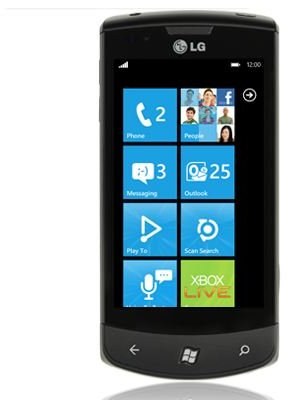
Did you know that you can easily turn your LG Windows Phone 7 into a modem, which when tethered with a USB cable to a Windows computer, allows you to connect to the Internet?
Connecting to the web on a Windows Phone 7 handset is simple. You just scroll through the Start screen, find the Internet Explorer icon, tap it and begin browsing .
This is great in many cases – but what if you have a laptop with you, and no nearby wireless Internet? It would be far better to be able to connect to the web via your phone, acting as some kind of modem for your notebook computer rather than be limited to the comparatively small display.
Such an arrangement is known as tethering, a connectivity option that was introduced by Microsoft to the old Windows Mobile 5 platform years before the method was promoted by other platforms as a “feature”, but one which strangely hasn’t been enabled in Windows Phone 7.
Well, not by default, anyway…
What You Will Need to Tether an LG Windows Phone 7
Begin by ensuring you have the Zune software installed on your PC – you can get this from zune.net . If you don’t want to use this, try the LG USB modem driver PilotesLGe900.exe .
You should also have a generous data usage plan from your carrier, as tethering your Windows Phone can prove very expensive if you don’t. While it might be convenient to have your mobile phone set up as a modem, if your data use is restricted it will quickly lead to inconvenient bills!
You will also need a pre-NoDo update device. NoDo will prevent tethering, so if you have been waiting for this update, avoid it to enjoy trouble free mobile modem use with your LG phone.
Access the Secret Menu!
In order to configure your LG Windows Phone 7 handset for tethering you will have to access a series of hidden menus that can only be accessed via the phone dialler.
On your LG phone, dial ##634# then Call to display a list of applications. Select MFG and enter the password 277634#*#.
Next go to Settings > Mobile Network and disable the Data connection. Start MFG and then go to Menu Engineer > Port Settings > USB Switching. Select QC Composite and then Validate.
At this stage your LG phone will restart.
Configure Your Tethered LG Windows Phone 7
As the phone restarts, connect it to your PC with the USB cable. Your Windows computer should automatically detect that a Windows Phone 7 device is connected, and download a driver from the web so that you can use it. Your phone will be installed as a modem named LGE CDMA USB Modem.
Open Start > right-click Computer > Properties > Device Manager to find the LGE CDMA USB Modem, and right-click to open Properties. Here, add the following:
+cgdcont=1,”ip”,”APN”
(Note that APN = your carrier’s APN – find a list of them at modmyi.com )
In Windows, create a new Dial-up connection using the LG USB modem, with *99# as the phone number. You can then use your tethered LG Windows Phone to connect to the web!
References
- Author’s own experience.
- XDA-Developers.com, https://xda-developers.com
- Modmyi.com, https://modmyi.com/wiki/index.php/Carrier _APN_Settings
This post is part of the series: Guide to Tethering Windows Phone 7
Find out how to tether your WP7 device so you can enjoy the Internet wherever you may be. This guide to tethering Windows Phone 7 explains the process for each of the different manufacturers of WP7 handsets.


