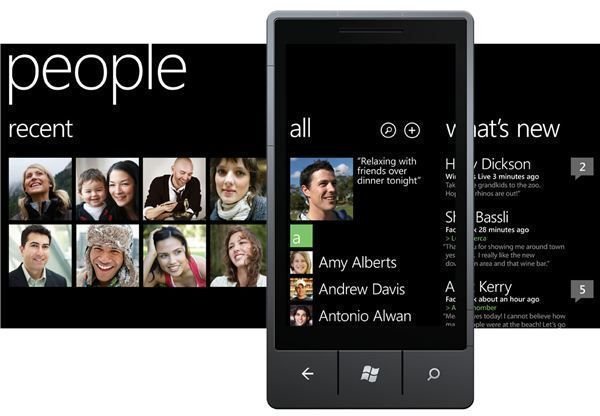
Windows Phone 7 comes with integrated social networking tools - but what do you do if you don’t want to integrate Facebook updates with your contacts list?
Windows Phone 7: The Ultimate Social Phone
One of the great things about Windows Phone 7 is how it treats social media. While other phones offer apps for Facebook and other services, Windows Phone 7 offers full integration with social services to deliver a truly social experience – after all, isn’t that what phones are all about?
However, this might not be your cup of tea. The Mango update in late 2011 will deliver Twitter integration to the Windows Phone People Hub enabling you to keep track of contacts with Twitter feeds. Potentially you could have Windows Live, Facebook and Twitter all running in your People Hub (the Windows Phone 7 contacts list) – things can get a bit busy!
If you like the design and functionality of the Windows Phone 7 platform but have no interest in engaging with social networking activities, you can easily declutter your device in a matter of seconds using these steps.
Delete Social Networking Apps
To get started with de-socializing your Windows Phone 7 handset, you might consider removing any social networking apps that you already have installed.
In addition to Facebook and Twitter apps (which can be installed in addition to integration with the People Hub ), you might be using a messaging app or something like Seesmic to manage Facebook and Twitter in one place.
Apps can easily be deleted on Windows Phone – delete Facebook by going to Start > Apps and finding the icon. Just tap and hold the icon to display the context menu and tap Uninstall to remove the app from your phone.
If you have any other social networking tools you wish to remove, repeat these steps for each of them!
Delete Facebook from Windows Phone
Untangling Facebook from the People Hub itself is another matter entirely, however. Via Start > Settings > Email & accounts you will see where Facebook can be added, and via Start > Settings > Applications > People you can manage just what information is displayed.
For instance if you just want to display Facebook information for contacts you already have on your phone, select Only add Facebook information to existing contacts. This will reduce the amount of Facebook data that is displayed, which might be a preferable option for you.
However, if you’re looking to totally declutter your Windows Phone of social networking tools scroll down to the foot of Start > Settings > Applications > People and look for Facebook. Tap and hold this item and select Delete to remove integration with the social networking service from your People Hub (Note: that you can reinstall the main Facebook app if you prefer to keep the two separate, and this will not affect your People Hub).
The same can be done to remove a Gmail account, but you cannot remove your Windows Live account as this is required for using various Windows Phone related services, such as the Marketplace .
References
Sources: author’s own experience
Images:
- Zune Marketplace
- Windows Phone Newsroom, https://www.microsoft.com/presspass/presskits/windowsphone/imageGallery.aspx


