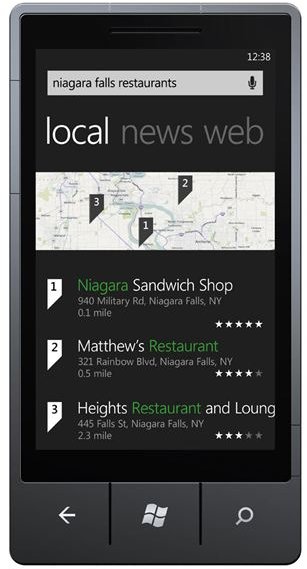
Great for hands-free use, Windows Phone 7 features advanced speech recognition for search, making calls and launching apps!
Windows Phone 7 Speech Recognition Tools
Picture this: you’re driving around a city looking for a restaurant where you’ll be meeting friends. You know the city well but haven’t been there for a few years, so don’t know where to find the venue. Stopping your car in traffic to browse the mobile web is impractical – wouldn’t it be great to perform a voice search to display the establishment’s address on your Windows Phone?
Windows Phone 7 comes with various speech recognition tools, allowing you to instruct the device to launch specific apps and call specific contacts as well as perform a search on the web. Additionally this functionality can be activated when the phone is locked, making it ideal for use while driving.
Windows Phone 7 Voice Search
The most powerful speech recognition tool is the vocal command to search Bing. You might be looking for a restaurant or just a website, but by uttering the magic phrase this can be done without typing a word.
Windows Phone 7 voice search is accessed by holding the Windows button and saying Find…. So for instance if you wanted to find a restaurant, you would say “Find restaurant” and using the Windows Phone 7 localization tools a list of restaurants near your current location would be displayed.
Unfortunately at the time of writing (January 2011), this feature is yet to be made available outside of the USA.
Open Apps with Voice
The voice recognition tools on Windows Phone 7 are also capable of controlling the phone, enabling you to open email accounts, applications and even games.
Access to this feature is again controlled by holding the Windows button, with Open… the active word. In order to open an email account you would specify the account name, and to open the Facebook app you would say “Open Facebook ”.
You can also use Windows Phone 7 voice to open Windows Phone 7’s native apps, although note that the Settings menu can be opened by simply saying “Settings”.
Call Contacts with Voice
With the speech recognition tools in Windows Phone 7 you can also make calls to your contacts and even numbers that aren’t on your phone.
To get in touch with a contact on your phone, hold the Windows button and say Call…. So for instance to call your friend John you would say “Call John”.
In order to call a number that you don’t have saved on your phone, say “call” and then the number, such as “Call 07700 900461”.
Clearly speech recognition is a particularly useful tool when driving. If your phone is mounted with a hands free kit you can safely make calls while the phone is locked by enabling the option Use Speech when the phone is locked option in Settings > Speech.


