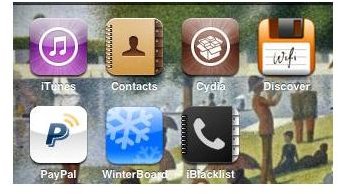
With DEV Team releasing the new unlocking mechanism known as ultra-recycle, you can now jailbreak and unlock a 4.2.1 firmware based iPhone 3G, 3GS and 4. This tutorial will allow you to jailbreak and unlock your 4.2.1 firmware based iPhone 3G, 3GS and iPhone 4 with 06.15 baseband. Read more…
Unlock your iPhone
With DEV Team releasing the new unlocking mechanism known as ultra-recycle, you can now jailbreak and unlock a 4.2.1 firmware based iPhone 3G, 3GS and 4. This tutorial will allow you to jailbreak and unlock your 4.2.1 firmware based iPhone with 06.15 baseband. After you complete the steps below, you will be able to use your iPhone with any service provider.
Note: Before you follow this tutorial, make sure that your iPhone is jailbroken and is on one of the following basebands: 06.15, 05.11.07, 04.26.08, 05.13.04 or 05.12.01. Why is a jailbroken iPhone required? Because, only jailbroken iPhone can have the Cydia application installed. Jailbreaking and unlocking are two different process and there exists a wide difference between the two. For more facts on how unlocking works and what is the difference between unlocking and jailbreaking an iPhone, read the tutorial below.
The Unexplained Truth - How Does iPhone Unlocking Work?
If you have not jailbroken your iPhone yet, then follow the tutorial here.
How to Jailbreak iPhone 3G, 3GS and iPhone 4
To locate the baseband version of your iPhone, follow this tutorial:
Find iPhone baseband version
Step by Step Instructions
Step 1: T-Mobile users should turn off the 3G feature, before unlocking their iPhone. Tap the Cydia icon present on your iPhone SpringBoard to launch the Cydia application.
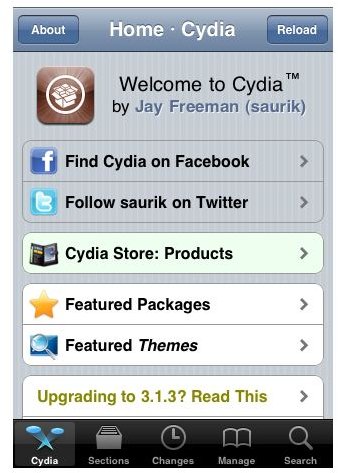
Step 2: A Cydia application screen will appear. On the bottom of the application area, you will find a Manage icon. Tap on the Manage icon to proceed further.
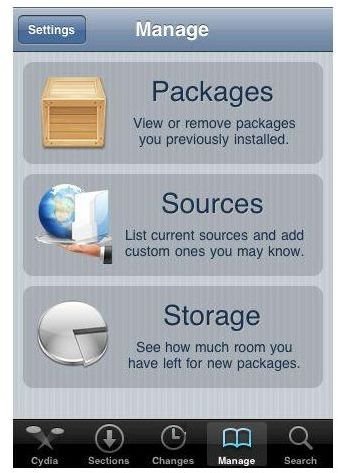
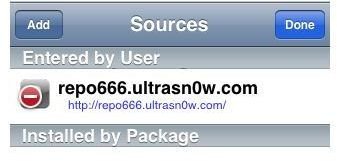
Step 3: On the Manage screen, tap on Sources and then tap the ‘Edit’ button located on the top right corner. Now, tap on the ‘Add’ button located on the top left corner to add a new source. Enter this as the url https://repo666.ultrasnOw.com and tap ‘Add Source’ button to continue.
Once the source has been verified and added tap the ‘Return to Cydia’ button.
Step 4: Now, tap ‘Done’ button located on the top right corner and select the url that you just added.
Step 5: You will now be navigated to the ultrasnOw repository, where you can find the ultrasnOw application. Select the application and tap ‘Install’ button located on the top right corner. Tap ‘Confirm’ button to confirm the installation of the application.
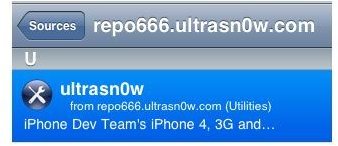
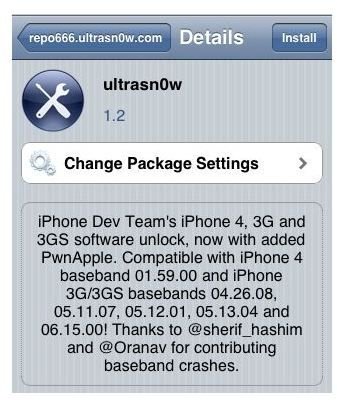
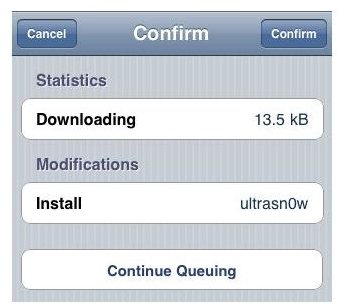
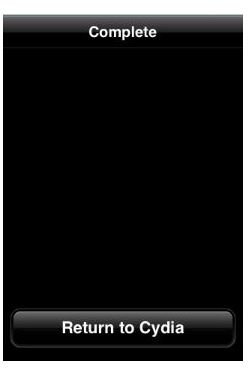
Your iPhone will restart, once the installation is complete.
Step 6: Your iPhone is now unlocked. You can now use any SIM card with your iPhone.
Thanks to DEV Team for their efforts and dedication in helping us to provide the jailbreak and unlock mechanism.
Unlocking iPhone Unsupported Basebands
In order to unlock iPhone 4 with unsupported basebands like 01.59.00, 02.10.04, 03.10.01, 4.10 or 4.10.1, you need to use Gevey Turbo Sim. To purchase one, visit this link: Gevey SIM PRO .
Images Credit
- Apple iPhone screenshots by Apple Inc.
- Cydia application screenshots by Cydia


