For printing photos taken from my iPhone, I tried using my HP Printer. But, my printer couldn’t even print 4 x 6 size. I then asked myself, Can I print from my iPhone? Thanks to Air Photo. Now, I can print all iPhone photos in a fast and wireless mode using my existing printer. Read more…
How can I print from my iPhone?
Air Photo allows you to print all your iPhone photos in a fast, easy and wireless manner without worrying about setting up your printer or the photo size. You just need to run Air Photo application on your mobile phone, select the photo you want to print and press the Print button. That’s it. The only other requirement is that you must have free Air Photo Server installed on your computer. People often ask me “Can I print from my iPhone?” I say to them “Yes, you really can”. For a detailed step by step guide on how to print photos from your iPhone, continue reading below.
How to print photos from iPhone?
Step 1: Download and install Air Photo on your iPhone. You can download Air Photo via iTunes from this link, Air Photo 1.2.4
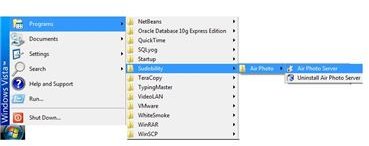
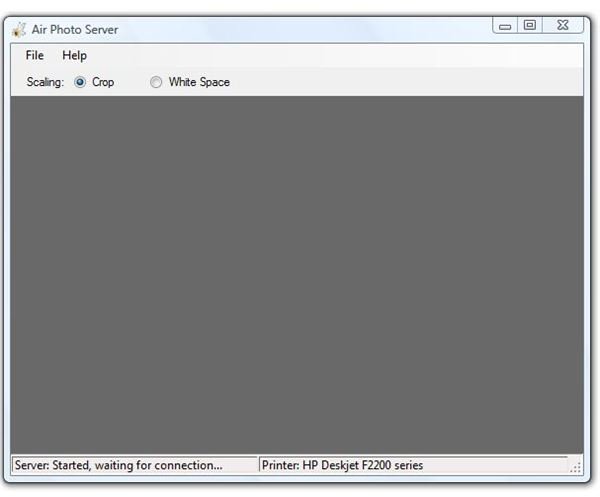
Once, you download and install the Air Photo application on your iPhone you need to download and install free Air Photo Server on your computer. After Air Photo Server is installed, run it from Start Menu -> Programs -> Sudobility -> Air Photo -> Air Photo Server.
Step 2: On your iPhone Springboard, locate and tap the Air Photo icon to launch the application. On the next screen, select the photo from Camera Roll. If you don’t have any photos in your camera roll, then you need to take one.

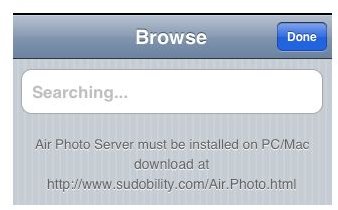
Step 3: After you have selected the photo, you will notice a Connect button below. Tap the Connect button to connect Air Photo app on your iPhone to the Air Photo Server. Air Photo will now search for the server and once found it will appear on the screen. Choose the server and press Done.
Step 4: Once the Air Photo shows Connected to computer name, you are ready to print the photo. Tap the Print button next to the Connect button and the photo will be sent to your printer via Air Photo Server for printing.
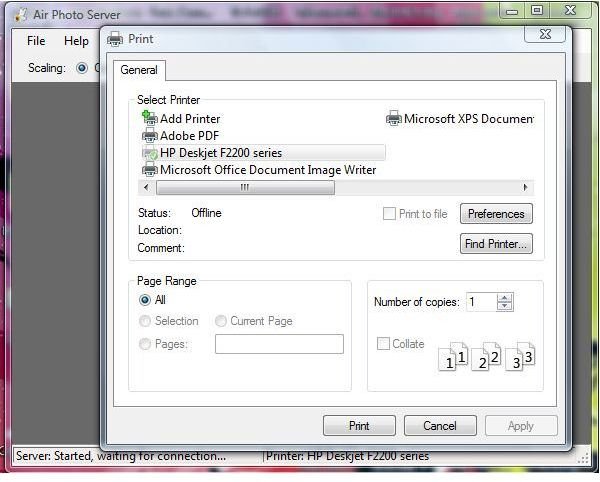
You can also change the printer settings on Air Photo Server by clicking File -> Printer Setup, Make sure you select the right printer and choose the desired paper size for your print.
Troubleshooting Air Photo Printing
Can I print from my iPhone directly without using Air Photo?
No, you can’t. If that was possible, there would be no need to write this guide.
Air Photo Server not showing in iPhone
If you can’t connect Air Photo app on your iPhone with Air Photo Server on your computer, the firewall might be blocking it. In such a case, you need to add Air Photo Server to the exception list.
Air Photo Print option not available
The print button is available only when you connect Air Photo app on your iPhone to the Air Photo Server on your computer. In this case, you first need to connect the app with the server. If you are using a Wi-Fi router, then both iPhone and computer must be connected to the same router in order for the app to work properly.
Images Credit
- Air Photo screenshots by Sudobility.com
- iPhone screenshots by Apple
- Windows screenshots by Microsoft


