
According to the new amendments in DMCA, jailbreaking your phone is now LEGAL in the United States. In this tutorial, I will guide you, how to use BlackRain to jailbreak your iPhone on 3.1.2 firmware. You can jailbreak iPhone 3G as well as iPhone 3GS. Read more to jailbreak your iPhone in minutes…
Jailbreaking iPhone
According to the new amendments in DMCA, jailbreaking an iPhone is now legal in the United States. You can now officially jailbreak any mobile phone to use all of its features. However, the policy also states that it is legal only if you jailbreak the security by yourself. For a step by step guide on how to jailbreak iPhone using Blackra1n on your own, continue reading below.
This tutorial will help you jailbreak 3.1.2 firmware only. If you are a new iPhone 3GS user, Blackra1n only supports tethered jailbreak that means once your iPhone is a Blackrain iPhone its battery must not die, otherwise, you will have to boot your iPhone using Blackra1n. This tutorial is only for Windows users, MAC users can follow this tutorial, How to Jailbreak iPhone with Blackra1n on MAC .
How to Jailbreak iPhone with Blackra1n on Windows?
Step 1: As a first step, you need to download the Blackra1n software. Open a web browser on your computer and type the following URL in the address bar. https://www.blackra1n.com You can also open this link directly from this guide.
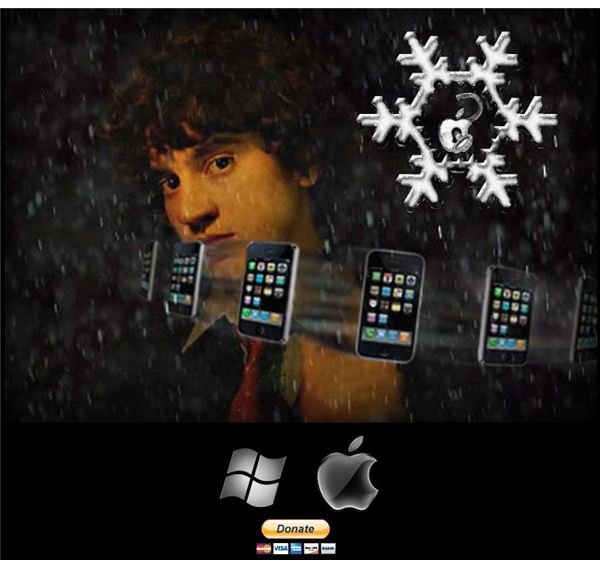
Click on the Windows logo in gray to download Blackra1n for Windows.
Step 2: After the blackra1n software has been downloaded, execute the blackra1n.exe file to run the software. Connect your iPhone to the computer and you will notice a button labeled “make it rain”. Click that button.
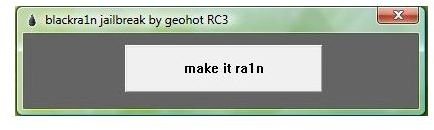
Step 3: As soon as you press the make it rain button, your iPhone will enter into recovery mode and you will notice the Blackra1n homepage image on your iPhone screen.
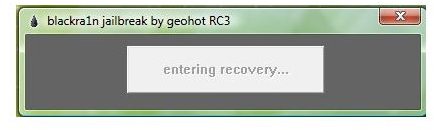
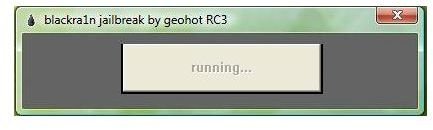
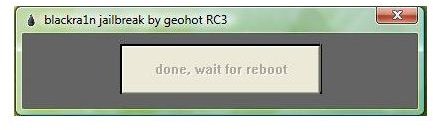
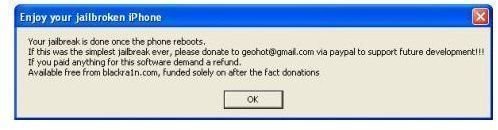
Step 4: You will then see a running message on the blackra1n software and after a while your iPhone will reboot. An alert will also appear asking you for a donation, if you really appreciate the free software.
Step 5: After the reboot, your iPhone is jailbroken. You can now find a Blackra1n icon on your iPhone springboard. This is an optional but recommended step, since the whole purpose of jailbreaking an iPhone was to use applications not allowed by Apple.

Tap on the Blackra1n icon on your iPhone. On the next screen, you will be asked to choose an installer of your choice that will allow you to install and use any application you want. Choose Cydia and then press the Install button.
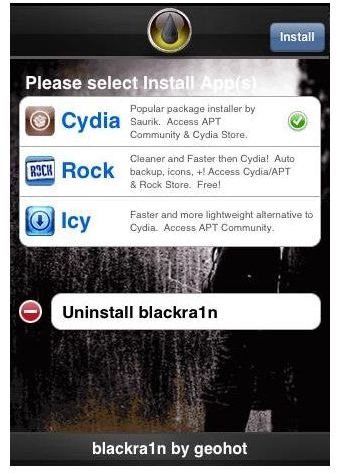
Step 6: Once installation is complete, your iPhone will re-spring and you will find the Cydia icon on the iPhone screen (to get started check out our Cydia Guide ). Tap on the Blackra1n icon again and on the next screen choose Uninstall Blackra1n. This will remove the Blackra1n icon from the iPhone.
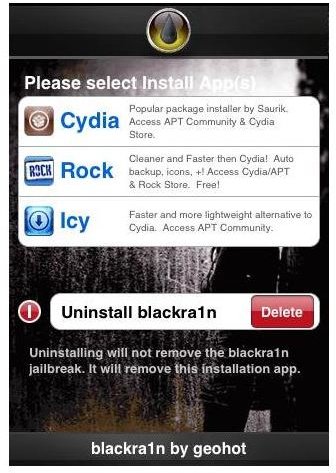
Tapping on the Uninstall Blackra1n will only remove the icon and not the application.
Congratulations! You are now in the list of successful and legal users of unlocked iPhones. For any help or queries while jailbreaking or unlocking your iPhone, feel free to ask me.
Thanks to GEOHOT for their brilliant work.
Images Credit
- iPhone screenshots by Apple
- Blackra1n screenshots by Geohot
- Windows Application Screenshots by Microsoft


