
Never worry about Wi-Fi turnining off on your iPhone nor applications going to sleep when the iPhone does. Use Insomnia to keep your applications running and keep Wi-Fi alive even long after your iPhone has fallen asleep. This simple and maintenance free solution is easy to use and free.
All About Insomnia
Insomnia is a very simple to use and appropriately named tool for your iPhone which will allow you to keep Wi-Fi alive and keep applications running when the screen turns off. Essentially Insomnia will keep your applications and Wi-Fi awake when your screen goes to sleep.
Insomnia is an application which is downloaded from Cydia. You should find Cydia available on the home screen of your iPhone if you have a jailbroken iPhone. Should you have problems with Cydia, read this article about What Cydia is and How to Use it . Also be sure to check out this great resource on Jailbreaking your iPhone .
Once Insomnia is downloaded, it will run as a daemon in the background. When Insomnia is running as a daemon it will constantly keep your Wi-Fi alive and keep your applications running. No further maintenance is require from Insomnia and it will save you battery life in the long run since you can keep Wi-Fi alive and keep applications running without having to leave the screen turned on. Insomnia is particularly useful to keep Wi-Fi alive and keep applications running when you are loading large files through iPhone applications or using an instant messaging application.
Find out how to download and use Insomnia below.
Downloading & Using Insomnia
It is very easy to keep Wi-Fi alive and keep applications running once you have Insomnia installed and running on your iPhone. It is also very easy to download and install Insomnia on your iPhone.
-
**
Advertisement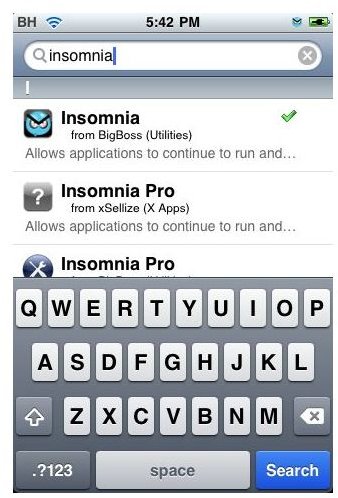
Launch Cydia.** Tap the Cydia icon which is located on the home screen of your iPhone. The Cydia icon is a brown icon with a box located in the center.
Advertisement -
Search Cydia. Tap the “Search” option on the navigation bar of Cydia. Search is located at the bottom of the screen, all the way to the right.
-
Search for Insomnia. Tap the search bar to open the virtual keyboard. Type “Insomnia” using the virtual keyboard and tap “Search”.
Advertisement -
Install Insomnia. Tap “Insomnia” in the results. Choose “Install” in the upper right hand corner of the screen. Choose “Confirm” which is now in the place where “Install” was in the upper right hand corner of the screen.
-
Exit Cydia. Exit Cydia by pressing the home button on the iPhone once Insomnia has finished downloading and installing.
Advertisement
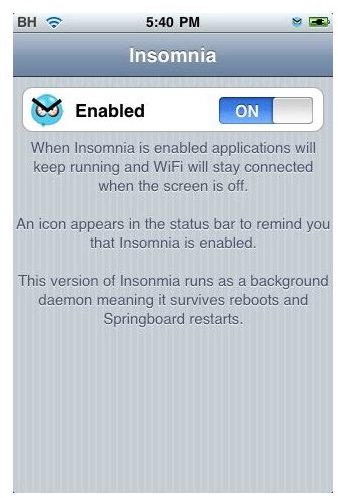
Using Insomnia to keep Wi-Fi on or to keep programs running is almost involuntary. Once the program is installed all you will need to do is ensure that it’s enabled.
- Open Insomnia. Locate the Insomnia icon on your iPhone home screen. The Insomnia icon should appear as a blue character with his eyes wide open (because of Insomnia). Tap the Insomnia icon to open Insomnia.
- Ensure Insomnia is enabled. Ensure that the slider that says “On” and “Off” is set to “On” signifying that Insomnia is enabled. Information in the Insomnia screen advises you essentially that an Insomnia icon will appear in the status bar at the top of your iPhone and that Insomnia will keep Wi-Fi alive and applications running.
Insomnia runs as a daemon which means that it will continue to function even after an iPhone restart. There is no need to come back and launch Insomnia or enable it after a restart, it will automatically run in the background and ensure your Wi-Fi and applications are running.
(Screenshots taken using Insomnia for the iPhone)


