Sending iPhone MMS messages is simple once you know how to do it. Learn how to send and receive photos, videos, contacts and voice memos using MMS messages on your iPhone. Photos will help guide you through each step.
Different Types of iPhone MMS Messages
MMS (multimedia messaging service) are multimedia messages sent through text messages. MMS messages can be sent from any iPhone using the operating system 3.0 or newer. MMS messages are not possible for earlier versions of the iPhone OS.
Types of iPhone MMS Messages That Can Be Sent
- Photos
- Videos
- Contacts
- Voice Memos
- Google Maps locations
So if you’ve been asking “How do I send and receive MMS messages on my iPhone?” read on for step by step instructions.
Sending Picture Texts from iPhone Messages App
There are two different ways to send pictures via MMS message on the iPhone. You can start an MMS message from the Messages app or the Photos app.
Composing MMS Picture Texts from Messages App
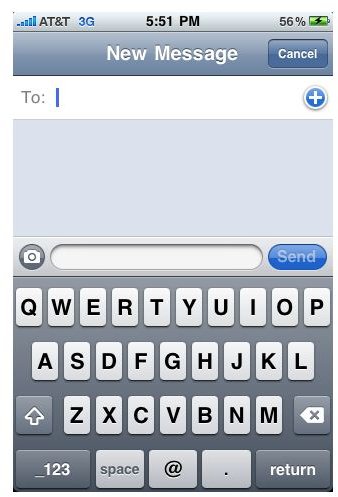
Start by pressing the Messages icon on the home screen. Once Messages is open, press the icon at the top right corner of the screen to compose a new message. Once the New Message screen is open, follow the 4 steps below:
- Press the camera icon (above the keyboard, to the left).
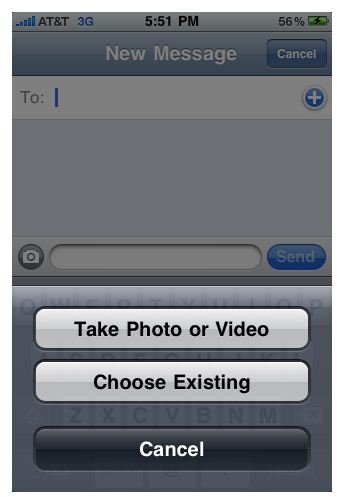
- Select “Take Photo or Video” or “Choose Existing” from the menu that pops up. “Take Photo or Video” takes you to your camera and allows you to take a picture (or video) immediately. “Choose Existing” takes you to the photos stored in your Photos app.
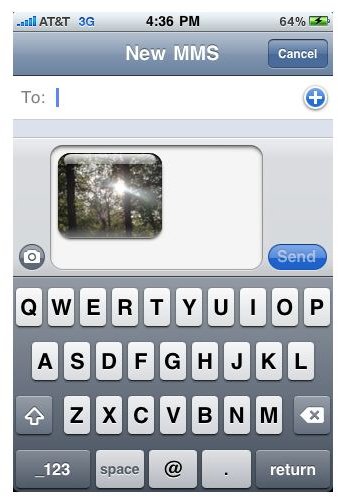
- Take a photo with your camera or select the picture from your Photos app. Once the picture is taken or selected, a new screen opens with the photo embedded in the body of your MMS message.
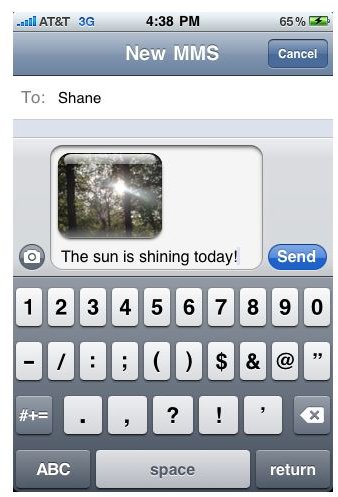
- Enter the contact you wish to send your picture to and any accompanying text. Enter text by touching below the photo (the cursor will blink below the photo). Typing on the keyboard will now enter text below the message.
Sending Picture Texts from iPhone Photos App
If you don’t compose a new message directly from the Messages app, you can start an MMS message from the Photos app. This can be done directly from the photo you wish to send.
Composing MMS Picture Message from Photos App
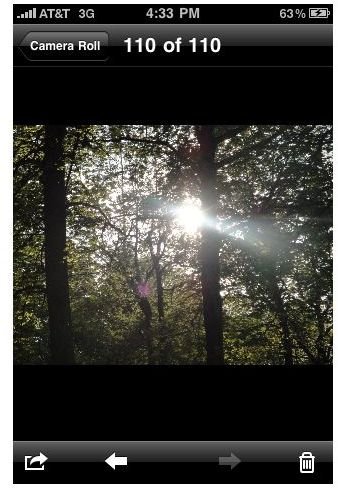
To start an MMS message from the Photos app, start by pressing the Photos icon on the home screen. Once Photos is open, select the photo album and photo you wish to send via MMS. Once you have selected the photo you want to send, follow the 4 steps below:
- While the photo is opened to the full screen view, press the actions icon (box with an arrow pointing outward).
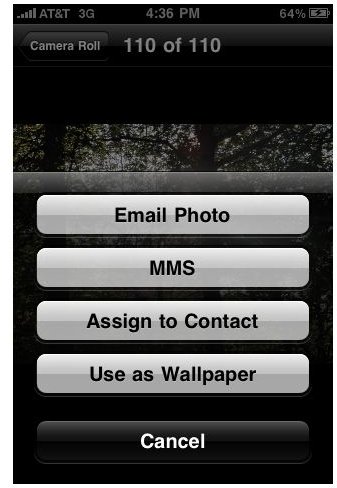
- Select “MMS” from the list of action options that pops up.
- A new screen will open with the photo embedded in the body of your MMS message.
- Enter the contact you wish to send your picture to and any accompanying text. Enter text by touching below the photo (the cursor will blink below the photo). Typing on the keyboard will now enter text below the message.
Receiving Picture Texts on iPhone
Wondering how to open a picture MMS message that someone sent to your iPhone? Follow the 4 simple steps below to open a text message with an MMS attachment.
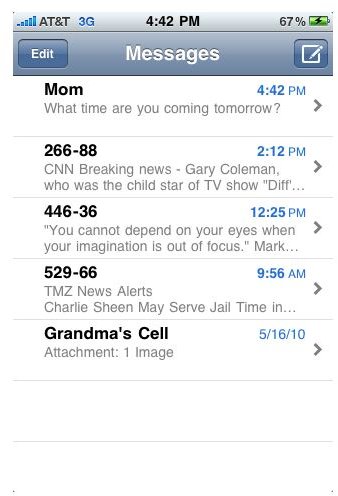
- Find text messages with attachments in your Messages app. Notice in the example below Grandma’s Cell on the bottom says “Attachment: 1 image”. This indicates that a photo was sent via MMS message. Open the conversation thread with the attachment.
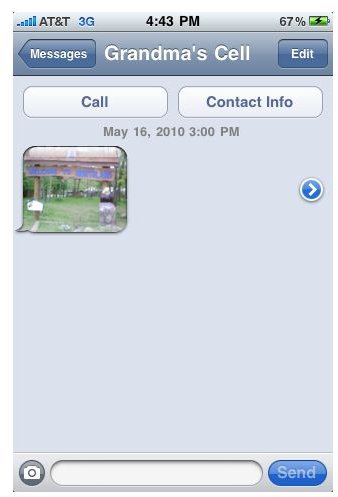
- A small thumbnail view of the photo is shown in the thread. An arrow pointing right is displayed next to the thumbnail. Press the thumbnail to open it to a full screen view.
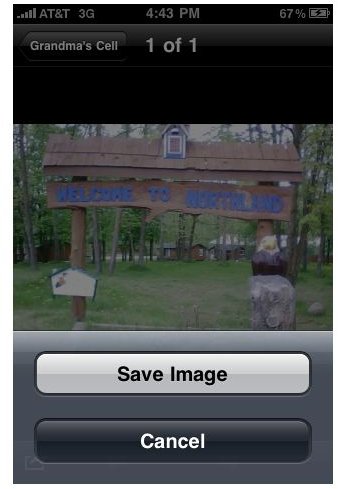
- To save the photo to your phone, tap the screen (anywhere) while it is opened to the full screen view. Options appear above and below the photo. Press the box icon with the arrow pointing outward (bottom left side).
- Press “Save Image”. The photo is saved to your Photos app on your Camera Roll.

Sending Video MMS on iPhone
Videos can be sent via MMS message on iPhone as well. They are sent the exact same way as photos: either from the Messages app or the Photos app. Follow the instructions for sending picture MMS messages (detailed on page 1), but instead of selecting a photo, select the video you wish to send. You may not be able to send videos that are long using an MMS message.
Sending a Contact as an MMS Message
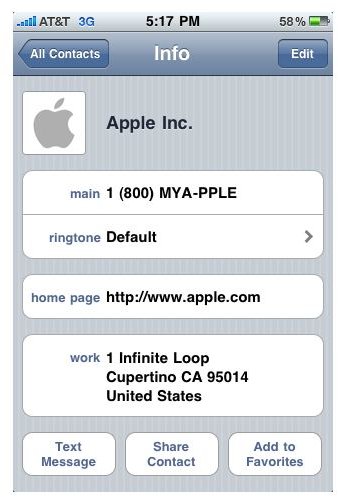
Sharing contacts with other iPhone users is simple and can be done using MMS messages. Open the Contacts app from your home screen and use the following steps:
- Open the specific contact you would like to send using MMS.
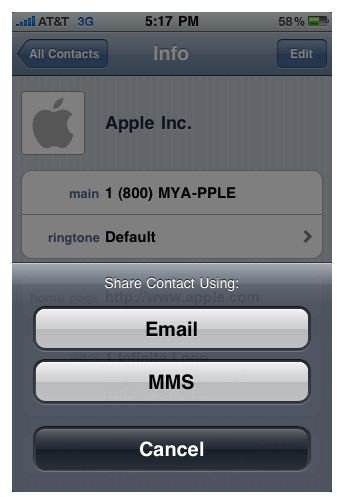
- Press “Share Contact” located at the bottom of the contact page.
- Press “MMS”.
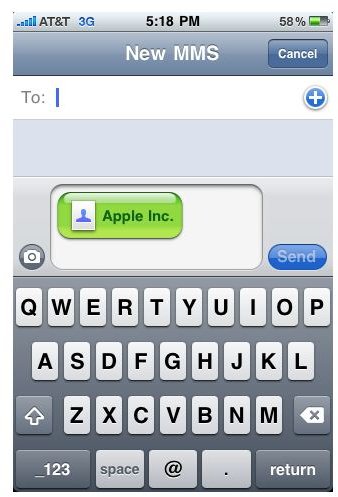
- A new screen will open with the contact embedded into the body of the message. Enter the contact you wish to send the MMS message to and press “Send”.
Sending Voice Memos as an MMS Message
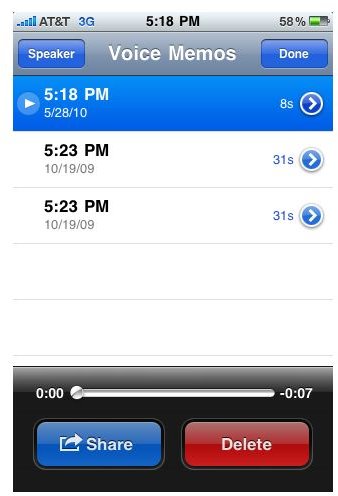
Voice Memos can easily be sent using MMS messaging. Access your recorded Voice Memos or record a new one to send using the Voice Memos app from your home screen. Once you have opened the Voice Memos app, follow the steps below:
- Highlight the Voice Memo you wish to send.
- While the Voice Memo is highlighted, press the blue “Share” button at the bottom of the screen.
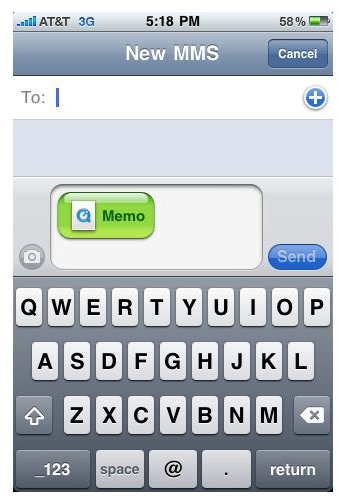
- Select “MMS”.
- A new screen will open with the Voice Memo embedded into the body of the message. Enter the contact you wish to send the MMS message to and press “Send”.