Is your iPhone frozen? Unresponsive? Learn how to hard reset and soft reset your iPhone in a few easy steps. Not sure what a hard reset and soft reset are? Learn the difference between the two and the best to use for rebooting an iPhone.
When To Reboot an iPhone
Rebooting an iPhone is an inevitable task for any iPhone owner. Even a phone as superior as the iPhone needs to be restarted to kick it back into gear sometimes. But when should you power down your iPhone? Any time that your phone freezes or becomes unresponsive, rebooting should free it back up again. It is also recommended that you reboot your iPhone regularly for maintenance. Using a hard reset once every few days will help prevent frequent freezing.
How to Reboot an iPhone
There are a few different ways to reboot your iPhone: soft reset and hard reset. A soft reset doesn’t power your phone down completely, whereas a hard reset shuts the phone completely off. Both can be used when your iPhone is frozen or unresponsive. A soft reset will usually clear up the problem, but often a hard reset is needed to prevent the phone from freezing again. So why not just perform a hard reset every time? It may take a while for your phone to turn back on from a hard reset, so a soft reset may be preferred when faster access to the phone is needed. Sometimes a soft reset won’t work when an iPhone is unresponsive, in these cases a hard reset for iPhone will usually get the job done. Let’s take a closer look at how to reboot your iPhone.
Soft Reset iPhone
This section is a tutorial that will show you how to soft reset iPhone.
-
Locate the Sleep/Wake button on the top of the phone.
Advertisement -
Press and hold the Sleep/Wake button for approximately 5 seconds until a slider with a red button appears at the top of the screen. It will say “slide to power off”.
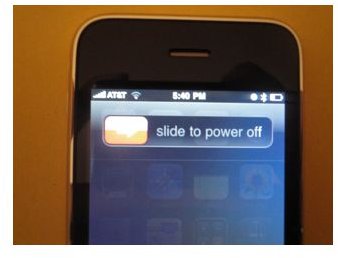
- Slide the button to the right to power the phone down.
-
Wait for a few seconds until the screen goes completely dark. Wait a few moments after the screen goes dark before proceeding to the next step.
-
Press and hold the Sleep/Wake button for approximately 5 seconds until the Apple logo appears on the screen.
Advertisement
Hard Reset iPhone
This section is a tutorial that will show you how to hard reset iPhone.
- Locate the Sleep/Wake button on the top of the phone and the Home button on the front of the phone. See pictures below to locate buttons.
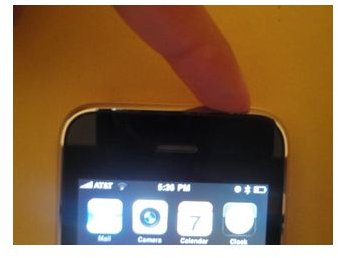
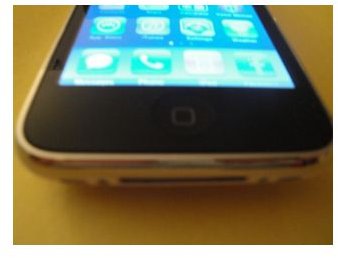
-
Press and hold the Sleep/Wake button and the Home button simultaneously for about 10-15 seconds. Ignore the red slider that says “slide to power off”, do not let go. Continue to hold two buttons down together until the screen goes completely dark. Wait a few moments after the screen goes dark before proceeding to the next step.
Advertisement -
Hold down the Sleep/Wake button for approximately 5 seconds until the Apple logo appears on the screen.
When Resetting an iPhone Doesn’t Work
Hard reset didn’t work? If the phone did not respond, you should try syncing iPhone to the computer . This should clear up any issues that you were experiencing. If you find that your iPhone is becoming unresponsive frequently, it may be a good idea to restore your phone to factory settings . You will still be able to keep all the data on your phone after restoring, but it could clean up any glitch that was causing your problems.
If your iPhone is still having problems, visit the nearest Apple Store, contact Apple customer service or your wireless carrier. They will be able to troubleshoot and figure out why there is a problem with your phone.
References and Images
“iPhone User Guide.” Apple, www.apple.com
Author’s personal experience.
Image Credit: Photos provided by author.


