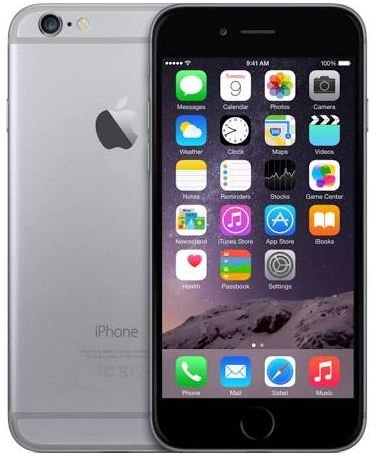
In this easy to follow tutorial you will learn how to delete your unwanted iPhone apps, update apps that have updates available and manage settings options for specific apps.
Manage iPhone Apps
If you are new to managing iPhone apps, you have come to the right place. In these iPhone apps tutorials you will learn how to delete iPhone apps, update iPhone apps and change iPhone apps settings. A guided tour with screen shots is provided to make iPhone apps management easier for you.
Delete iPhone Apps
In this section of the iPhone apps tutorial, you will learn to delete iPhone apps. It’s easier and less complicated than you may think. You can delete apps in 3 easy steps.
-
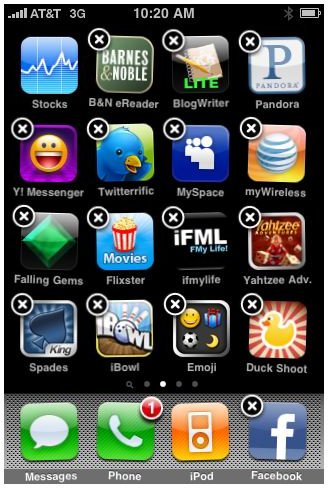
Find the iPhone home screen with the app you want to delete. Press and hold your finger to the app until a small black circle with an ‘x’ appears in the corner of the app. The small black circle will appear on every deletable app on the screen and all the iPhone apps icons will appear to squiggle. Your screen should look like this:
-
Press the small black circle with the “x” to delete iPhone apps of your choice. Once the “x” is pressed, a notification will appear on the screen asking you to confirm. The screen should look like this:
Advertisement
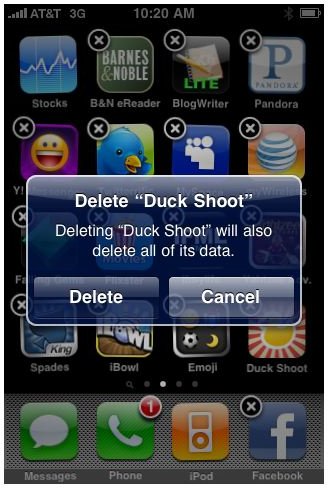
- Confirm, by pressing “Delete”. Once “Delete” is pressed, the app will be removed. Press “Cancel” if you do not wish to delete the iPhone app.
Update iPhone Apps
In this section of the iPhone apps tutorial, you will learn how to update iPhone apps that are already on your phone. You can update iPhone apps in 4 simple steps.
When it is time to update iPhone apps , a notification will appear on the App Store icon. A small red circle with a number in it will appear in the upper right hand corner. The number indicates the number of apps that need to be updated. See example below:
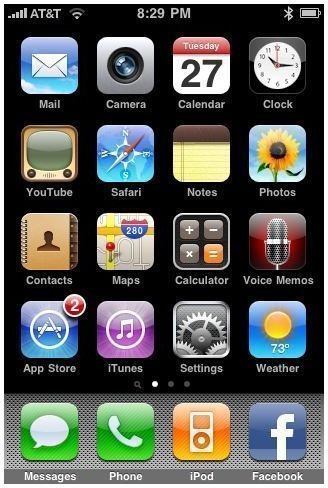
To Update Apps:
-
Enter the App Store
Advertisement -
Press the ‘Updates’ tab across the bottom of the screen.
-
Once in the ‘Updates’ tab, press “Update All” in the top right-hand corner. See below for screen shot:
Advertisement
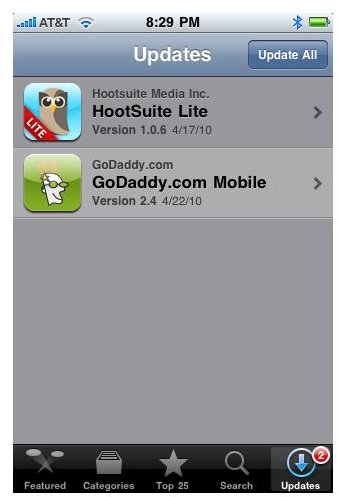
- You will be prompted to enter your iTunes password. After your password is entered, your phone will update all iPhone apps that have updates available.
Change iPhone Apps Settings
Some iPhone apps have adjustable settings. In this section of the iPhone apps tutorial you will learn how to manage settings for specific iPhone apps.
Start by pressing the ‘Settings’ icon from the home screen. Scroll to the bottom of the Settings screen. In the bottom section, you will see iPhone apps that have settings options. In the example below, eCards, Facebook and Nike + iPod are all applications that have adjustable settings.
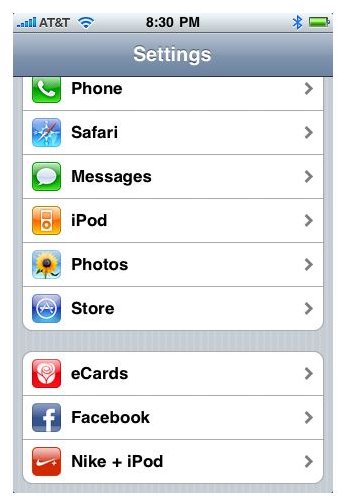
Each app has different settings options. Select the app you’d like to edit settings for. For this example, Facebook is used. When you touch Facebook on the menu the Facebook Settings will open. The following screen will display:
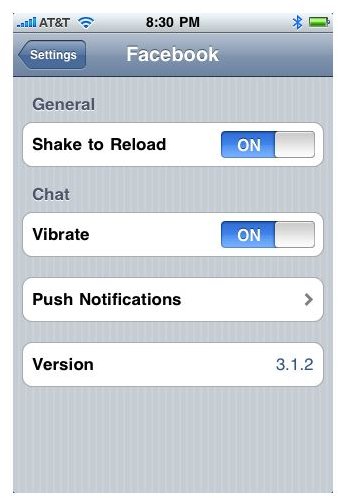
All options listed in the Facebook settings menu are settings that you have the ability to manage. Most options have on/off settings. To change the setting, simply select on or off. Notice that push notifications has more options (as indicated by the arrow). When you press push notifications, another settings menu opens up, as shown below:
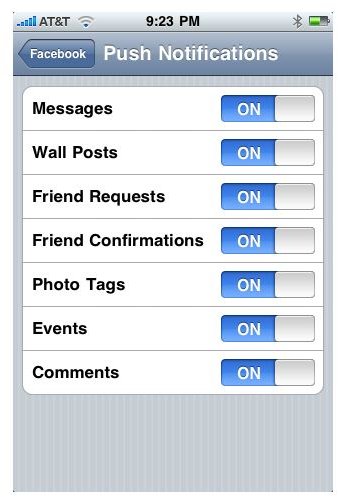
To get back to Facebook’s main menu page, press Facebook (on the upper left hand corner of the screen). Changing settings for other apps will be similar, but some options may be different.