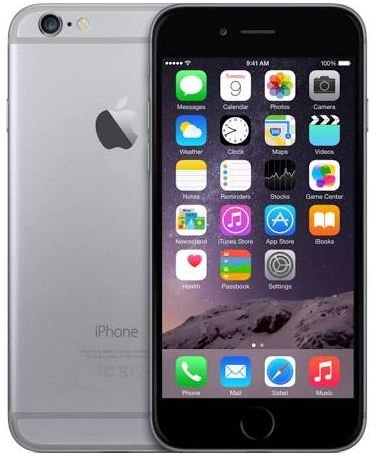
If you type on your iPhone as much as I do, you’ll appreciate my top ten list of iPhone keyboard shortcuts.
iPhone Top Ten Keyboard Tips and Tricks
Here are the top ten tips and tricks for your iPhone keyboard.
10. When typing on your iPhone’s keypad, if you make a mistake, and your iPhone offers up the correct word underneath your misspelling, click the SPACE bar to accept the suggestion. To ignore the suggestion, just keep typing.
9. If you want to add a word to the iPhone’s custom dictionary, type it. You should consider adding your name, your friends’ names, your company name, street name, and similar words.
8. If you realize you’ve made a typing error a few sentences back, tap your finger where the mistake was made to position the cursor there. You can then correct the error, and use the same technique to return to your previous position in the text.
7. Double-tab the SPACE bar to add a period followed by a space.
6. Double-tap a picture, map, or web page to zoom in on it.
5. In Safari , after scrolling to the bottom of the page, tap the top of the screen to immediately return to the top of the page.
4. Visit https://tv.yahoo.com/listings , click the + button, and click Add to Home Screen. You now have one-click access to your local TV listing. Okay, so I’m a TV junkie.
3. Bookmark https://www.google.com/gwt/n . The next time you want to visit a web page and you want to see it FAST, click the bookmark and type in the URL. Select No Images and the web page will load at lightning speed. For best results, add it to your Home Screen.
2. If you’ve ever flicked so hard that the web page you’re navigating scrolls way past where you want to be, you can stop scrolling by tapping the page during the scroll.
1. Jailbreak your iPhone with ZiPhone GUI v3.0 . Once you’ve installed the software, let iTunes restore it (it’ll insist), and then, try out the new applications available to you. More on that later.
Check out our Top iPhone Apps round up.