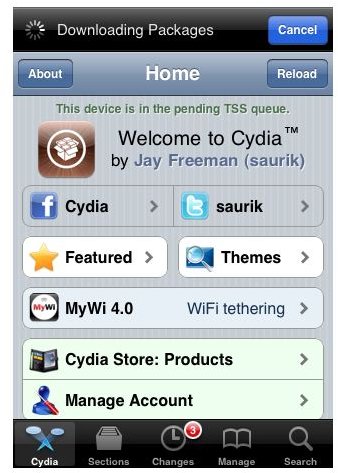
In this tutorial, I will guide you in downgrading your iPhone 3G baseband from 05.15.04 to 5.13.04, which can then be unlocked using UltraSnow. Unlocking steps are provided at the end of article. Downgrading an iPhone’s baseband involves critical steps, which should be performed very carefully…
For iPhone 3G users who are stuck on 05.15.04 baseband, downgrading is the only option, if they want to unlock their iPhone. This article is all about downgrading your iPhone baseband to a supported version and then unlocking it using UltraSnow.
Note: This tutorial is only applicable for iPhone 3G users with baseband 05.15.04. Also, this tutorial works only if your iPhone boot loader is at version 5.08.
Step by Step Instructions
Step 1: Make sure your iPhone is jailbroken on whatever firmware version you are. If your iPhone is not jailbroken, check the “References” section below for jailbreaking iPhone 3G links. Make sure you use TinyUmbrella software that updates the firmware without updating the baseband.
If your iPhone is jailbroken, continue reading below…
Tap on the Cydia icon to launch Cydia application.
Step 2: Once the Cydia application is ready for use, tap the Sections button in the bottom. Search through the available categories and select Systems.
Under the Systems tab, search through to find Fuzzyband 4.1.
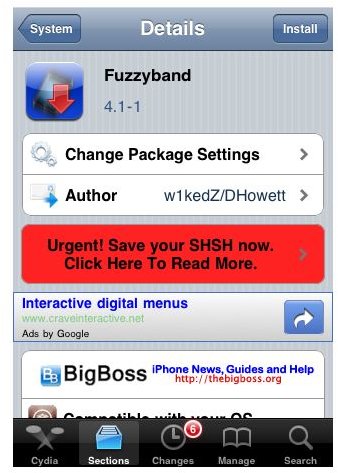
Step 3: Tap on Fuzzyband and press the Install button located on the top right corner. Now, press the Confirm button to continue with the installation.
Once the application is installed, you will see a Return to Cydia button. Tap on the button to return to Cydia and then press the Home button to return to Springboard.
If you don’t see the Return to Cydia icon, you may notice that your iPhone restarted automatically.
Step 4: On your iPhone SpringBoard, tap the Fuzzyband icon to launch the application.
If your iPhone has a supported version of boot loader, you should see a message that you are able to downgrade your iPhone baseband.
If your bootloader is not supported, you will see a message that says, “Fuzzyband cannot be used on this device”.
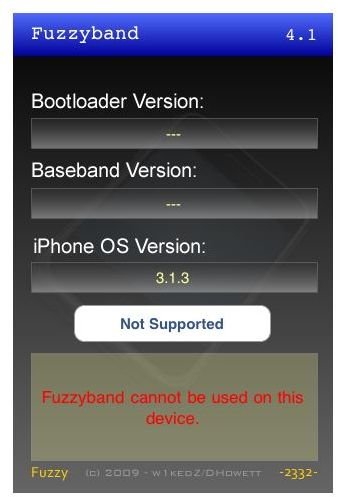
Step 5: If your bootloader is supported, press the Downgrade button to downgrade your iPhone baseband. Once the baseband is downgraded you should see a Done button and a message that says, “I HAZ DOWNGRADE”.
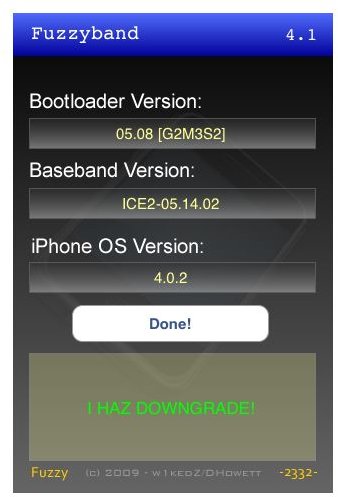
After the baseband has been downgraded you may install UltraSnow from the Cydia app to unlock your iPhone.
UltraSnow Unlocking Steps
Step 1: Launch Cydia and click the Manage tab at the bottom.
Step 2: Click on Source and press the Edit button on the top right corner. Add the following source, https://repo.666.ultrasn0w.com and finally click done.
Step 3: After the source has been verified and added. Search the UltraSnow application and install it in the same manner you installed Fuzzyband.
References
- Jailbreak iPhone 3G, https://www.brighthub.com/mobile/iphone/articles/106009.aspx
- Jailbreak and Unlock iPhone 3G, https://www.brighthub.com/mobile/iphone/articles/97746.aspx
- Image Credit: Images provided by Cydia.


