In an effort to stop jailbreaking on the iPhone and add a few updates, Apple recently launched the 4.3.3 firmware. However, an open loop hole allowed developers to jailbreak the iPhone 4. This tutorial provides instructions on how to do it using RedSnow. Read more…
In this article, I will guide you on how to jailbreak iPhone firmware 4.3.3 using RedSnow on Windows. Please make sure that you read all the steps carefully before jailbreaking your iPhone 4 (GSM).
Note: This tutorial has been updated for 4.3.3 firmware and is meant for Windows users only. For Mac based tutorial, please refer to my profile .
Important: This is only a jailbreak tutorial and will not allow you to unlock your iPhone. You should not update to 4.3.3 firmware, as it is not yet unlock-able. To unlock your iPhone 4 with basebands 03.10.01, 04.10.01, 05.10.15 you need to use Gevey Turbo Sim. For more information on how to use Gevey SIM or where to buy it, please contact me.
iPhone users who have earlier unlocked using UltraSnow, should use a custom IPSW file only.
Make sure your iPhone is fully charged before following the jailbreaking process.
Step by Step Instructions
Step 1: As a first step, you need to download the following:
RedSnow RC16 for Windows *
iPhone 4 (GSM) 4.3.3 Firmware *
Step 2: Now, extract the RedSnow zip file on your desktop. Connect your iPhone to the computer and launch iTunes. When iTunes detects your iPhone, it will prompt you with a message that says, “A newer version of iPhone Firmware 4.3.3 is available.”
Ignore the message. Press the Shift key and click on the Restore button to restore your iPhone to 4.3.3 firmware.
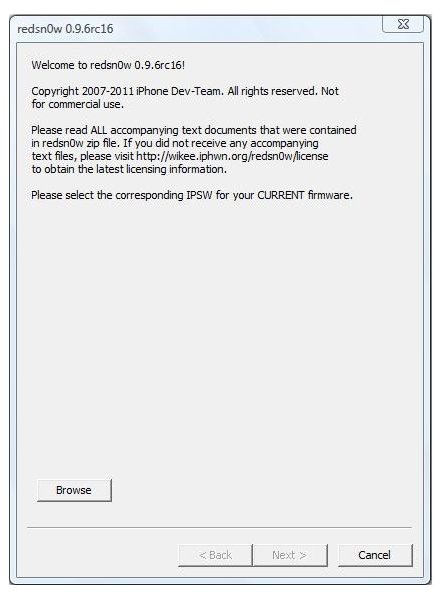
Step 3: On your desktop, go to the RedSnow folder and double click the RedSnow.exe file to launch the RedSnow application.
Now, click the Browse button and select the firmware file you downloaded.
Step 4: Once RedSnow verifies the firmware file, you should see a message, “IPSW successfully identified.” and the “Next” button will be available.
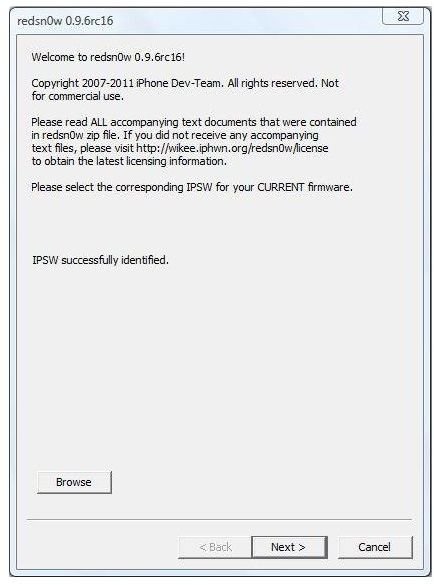
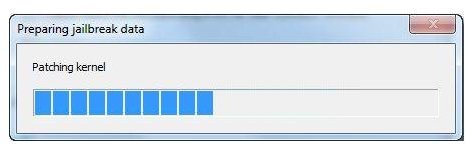
Click the Next button to continue, after which you should see RedSnow preparing jailbreak data.
Step 5: Once the process is complete, you should notice the jailbreak options. Make sure to select “Cydia”. Click the “Next” button when done. You may select other options at your own risk.
Step 6: Now, you will be asked to put your iPhone in DFU mode. Follow the tutorial below.
Step 7: Once you are done with the above step, you should see a message that says, “Waiting for reboot.” After your iPhone restarts, the RedSnow application should show a message, “Uploading ramdisk”. This process should take a couple of minutes, so be patient.
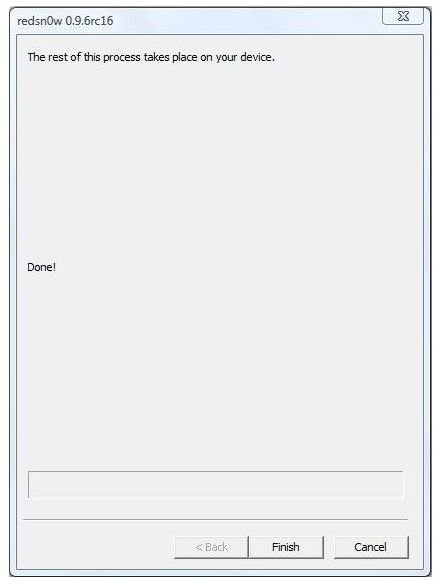
Step 8: Once you see the “Done” message, click the Finish button to close the RedSnow application. Finally, your iPhone will reboot one more time.
When you connect your iPhone to iTunes, make sure you create a new profile.
References
* RedSnow RC16 for Windows - https://sites.google.com/a/iphone-dev.com/files/home/redsn0w _win_0.9.6rc16.zip?attredirects=0
* iPhone 4 (GSM) 4.3.3 Firmware - https://appldnld.apple.com/iPhone4/041-1011.20110503.q7fGc/iPhone3,1 _4.3.3_8J2_Restore.ipsw
Image Credit:
- iPhone screenshots provided by author
- RedSnow application screenshots provided by RedSnow


