
Are you someone who is new to the iPhone and not too handy technically? Learn how easy it is to email your iPhone voicemails to yourself or others.
Introduction to Emailing Voicemail on the iPhone
One of the greatest features of the iPhone is all of its apps and Internet-connected capabilities. One of the pre-installed apps from Apple
is the Visual Voicemail app which allows you to browse and search voicemails left on your phone. It’s an ingenious way to keep track of all your messages and to play and delete only the ones you want to hear or keep, without having to listen to an entire string of messages to find the one you want. It’s like an inbox for your messages.
What You Will Need
You will need a jailbroken iPhone . Any version will do since they all use the same Visual Voicemail app to manage your voice messages.
Apps
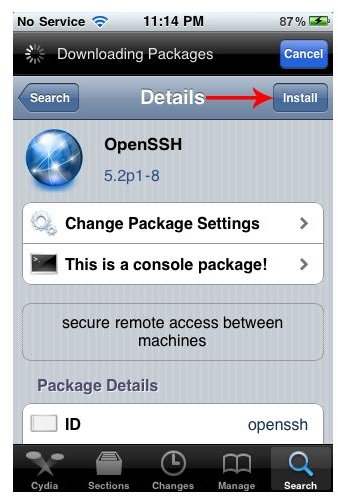
You will also need to grab the OpenSSH app from Cydia .
To download OpenSSH, open up Cydia, and tap Search on the bottom. Search for “OpenSSH” (without the quotes) and install it. Once installed, tap the big Return to Cydia button and press the Home button to return to the home screen.
Finding the Hidden Voicemails
Once installed, connect your iPhone to your wireless network and find its IP address. You can find your iPhone’s IP by going to:
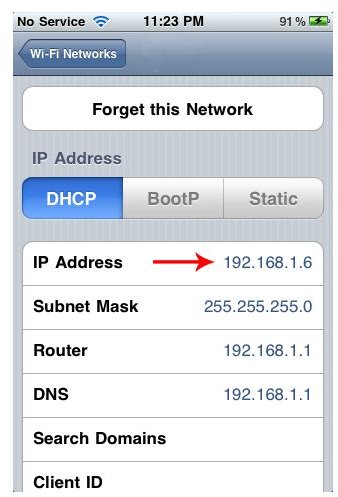
Tap Settings > Wi-Fi > and selecting the network you are currently on. It should be something like 192.168.x.xyz.
- Using your favorite FTP client on your Mac or PC, connect to your device’s IP address via a Secure FTP (SFTP) connection (see image below). I personally use FileZilla on PCs and Cyberduck on Macs (both are free and open source). The username is root and the default password is alpine if you have not changed it.
- Navigate to /private/var/mobile/Library/Voicemail/ to view all of the saved voice messages on your iPhone. These voicemails are in an .AMR file format which QuickTime can natively play.
- Simply transfer them to your computer and email or save them as you please!
In the /Library/ folder of your iPhone. Other nifty folders exist where you can backup your data with such content as your Notes, SMS text messages, pictures and video recordings, call history, and a few others.
Alternative Methods of Emailing Voice Messages without Jailbreaking
If you don’t have a jailbroken iPhone, you could still email your voicemails or retrieve them from your phone. The quality would not be

nearly as good and the trouble is probably not worth it.
One way is to connect another device’s (like your computer) line in jack to your iPhone’s headphone jack and record it in an audio capturing program like Audacity while it plays on your iPhone.
The alternative method involves no cables and is to simply use something to capture the audio playing out of your iPhone’s speakers. Depending on how much trouble you want to go through or the quality you are willing to live with, it could be a simple solution. It is a shame that Apple has created such a wonderful voicemail managing app but has left users no way of saving or sending messages without jumping through a bunch of hoops. It’s so easy to email photos, voice recordings, notes, and other items, why can’t it be this easy for simple voice messages?
References
Hasan, Rubayat. iPhone – Manually Backup SMS, Notes, Pictures, Video, MxTube Folder .
Image Credit: Screenshots taken by Ryan C. exclusively for this article.


