
Learn how to create an Apple ID from your iPhone as well as how to sign in and out of your iTunes account. This step-by-step guide walks you through the process with screenshots.
If you are new to iPhone,you’lll need to set up an iTunes account if you don’t already have one. Your iTunes account, also known as your Apple ID, will give you access to the App Store and allow you to sync your iPhone to your computer . An iPhone iTunes account is needed to download new iPhone apps, buy music on iTunes from your phone, to sync your iPhone to the computer and to update your software.
You can sign up for an Apple ID from your computer , or you can create an account from your iPhone. After an Apple ID is created, your phone will remember your iTunes account log in information and only confirm your password for downloads. Getting the pesky task of creating an iPhone iTunes account out of the way is the hardest part; after that it will be smooth sailing for all your iTunes and App Store downloads.
How to Set Up iTunes Account on iPhone
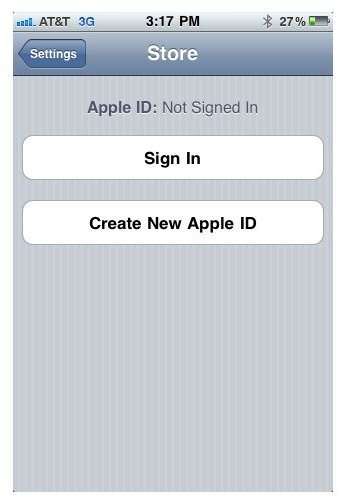
If you don’t already have an Apple ID, you can create your iPhone iTunes account directly from your phone. Creating an iTunes account is done from the Settings menu. Locate the App Store icon and open the “Store” options.
- Select “Create New Apple ID” (as shown below).
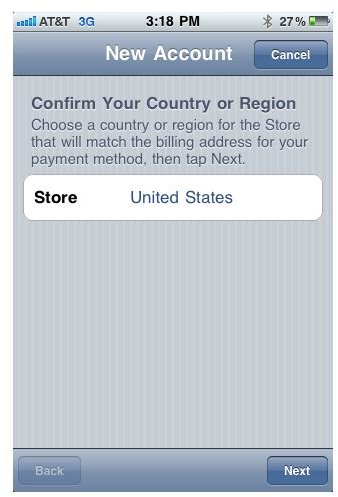
- Set your country or region. Press “Next” at the bottom right hand corner of your screen (as shown below).
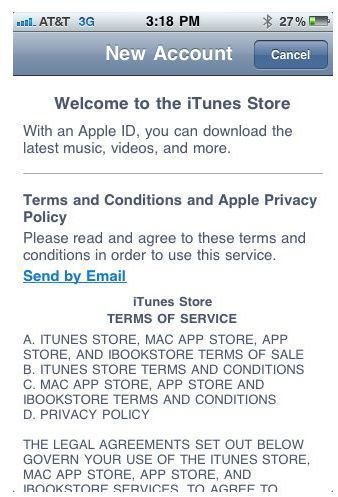
- Review Terms of Service and press “Agree” on the bottom right hand corner of the screen.
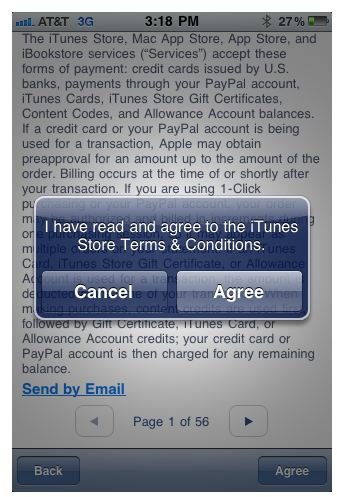
- Press “Agree” on the popup iTunes Store Terms & Conditions confirmation box (as shown below).
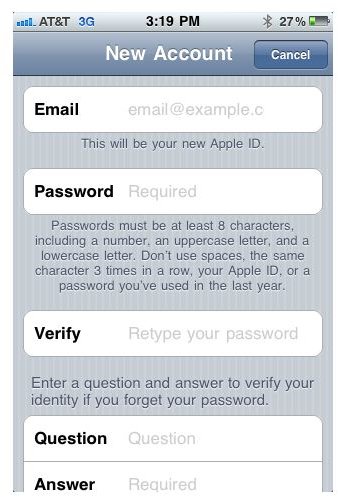
- Fill out all information in the “New Account” section, select notification options and press “Next” on the bottom right hand corner of the screen to complete creating your new Apple ID.
Signing In To iTunes on iPhone
If you already have an Apple ID, you just need to sign in to your iPhone iTunes account to enable downloads on the App Store and iTunes. To sign in to your iTunes account on iPhone, open your phone’s Settings menu. Locate the App Store icon and open the “Store” options.
- Select “Sign In” (as shown below).
- Enter your Apple ID email address and password. Press “OK” (as shown below).
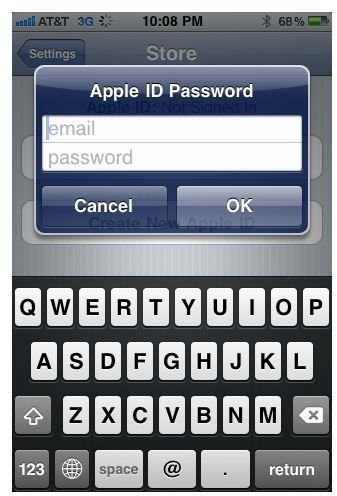
Wait for a few moments to allow the device to sign in to your iTunes account. When the iPhone iTunes account is entered the App Store main menu will show your Apple ID as the email address that it is currently signed in to.
Sign Out of iTunes Account on iPhone
If you have multiple Apple ID’s, you may be looking for how to sign out of iPhone iTunes account. To sign out of your iTunes account on iPhone, open your phone’s Settings menu. Locate the App Store icon and open the “Store” options. As long as you are already signed in to an iTunes account there will be an option to sign out. Press “Sign Out”. Follow the options above to sign in to another iTunes account.


