Google’s default Android lock screen, which prevents users from accidentally hitting the wrong command when the phone is in your pocket, can be altered. WidgetLocker replaces the Android lock system. This way it keeps your phone active and it allows you to interact with widgets and other programs.
What does it do?
There are some basic things that change on the screen. You can swap out the default Android lock screen’s ‘slider’ for a variant, which asks you to slide vertically instead of horizontally.
It’s possible to open up the phone’s camera app from the lock screen; in this way you won’t never miss out on that shot again. You can also assign sliders to apps like music, SMS messaging, email, and other items.
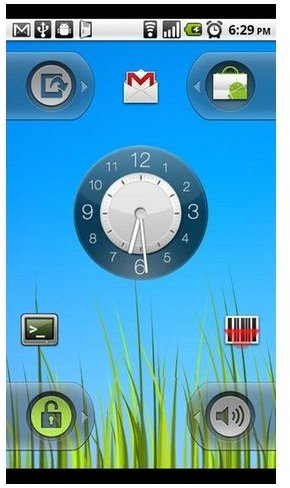
You can also drop any widget you want onto your lock screen. It is possible to disable all interaction with on-screen elements. So for example, you may have an e-mail widget active, which is frequently updating, but you can’t actually tap the widget to open up the app. Instead, you would need to unlock the phone and access the e-mail app the usual way.
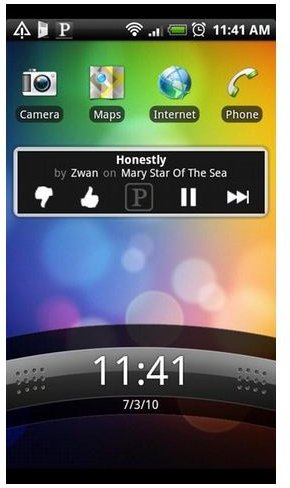
Moving apps around is simple. Press, hold down, and drag an app or shortcut to the new location. This functionality lets you to stay interactive with certain apps, such as your music players and podcasts, and staying up to date with them while at the same time not accidentally unlocking the phone and touching unwanted applications.
See Also: Ultimate Android Apps
Features
You can add Gmail or SMS shortcuts, camera shortcuts or quick shortcuts to audio profiles, and speed dials for your favorite contacts. You can decide to enable or leave disabled the shortcuts so they could be just for display purposes, i.e. a clock or battery widget.
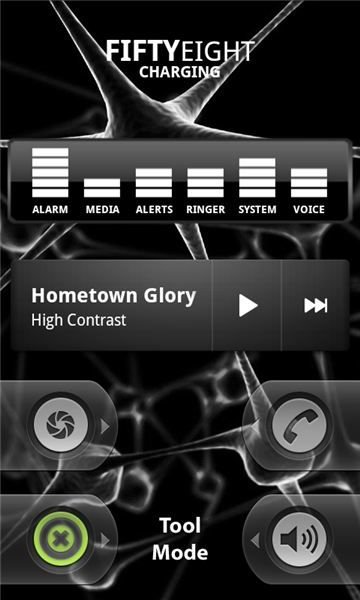
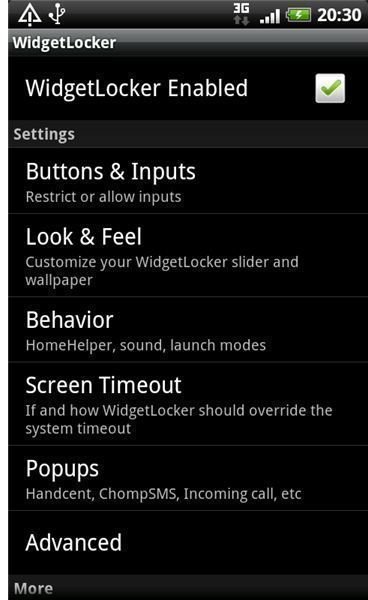
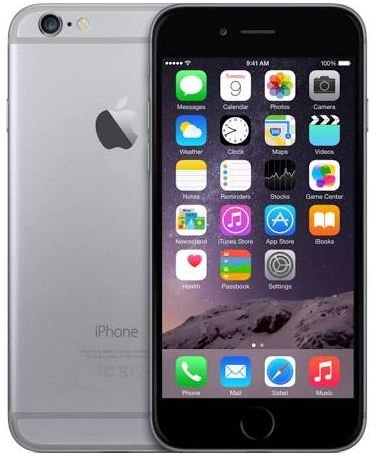
You can add several custom sliders, widgets, or rows of shortcuts. But there is more, it is also possible to have a different style of unlock slider. If you want an iPhone style unlock, or a HTC sense unlock, or a vanilla Android unlock these are all available to you.
There’s also functionality that will allow you to perform an unlock operation using the trackball for trackball enabled devices. In addition, the app also provides a tutorial for you to check out all of the features and gives an explanation of each one. There is an optional “Easy Wake” feature using any button such as the camera, volume, or trackball to wake the device.
You can add a slider that opens a new application or function. To work this, simply hold down on any spot of your new lock screen while in “Tool Mode” and select “Widget,” then select “Custom Slider” from the list. You can change the right, left, and middle actions to access different functions, actions, or applications. You can also set a swipe to change brightness, or open an LED flashlight app, or fire up your barcode scanner,
See Also: 20 Best Free Android Apps
Source
- App developer: https://teslacoilsw.com/
- Download: https://www.androidzoom.com/android _applications/entertainment/widgetlocker-lockscreen_hxov_download.html cost 1.99.
- What does WidgetLocker do? Image: https://teslacoilsw.com/widgetlocker
- Features: Image: https://www.coolsmartphone.com/2010/12/17/android-app-review-widgetlocker/