Included in Android as part of Google Maps, Latitude can let you see where your friends are, and what they’re doing!
What is Google Latitude?
Google Latitude is the ingenious service that mixes social networking with GPS, allowing you to use your phone to relay your location to friends.
Obviously there are certain security and privacy concerns with this, which means that Google have built in various settings to prevent you from giving away too much information. You can control the focus of the app, changing between an exact location and a city, or the service can be disabled completely.
Despite the security concerns, if used among friends Latitude can be a useful means of meeting up and arranging get-togethers.
Get Started with Android Latitude
There are two things to do to get started using Android Latitude.
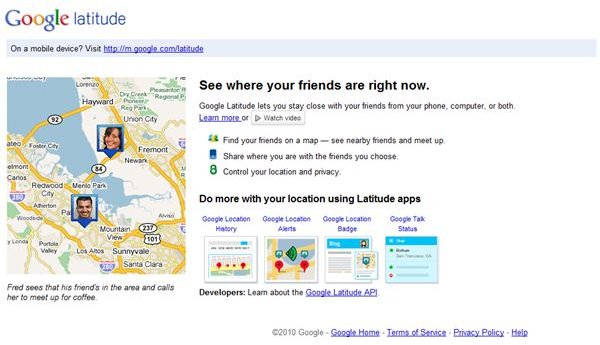
The first is to browse to www.google.com/latitude ; here you will see a representation of a map with some faces pointing to locations on the map. If your internet provider permits IP geolocation, the map should be approximate for your current location - a small flavour of how powerful Latitude is.
(Non-Android users would type their number in here, select a country and click the Send a link to my phone button.)
As you’re using Android you should already have Latitude installed on your phone as part of the Maps app. Find this and run the app; your GPS should start, as indicated by a small satellite dish icon in the status bar.
(Image by author)
How to Use Android Latitude
With the Maps app open, you’re ready to use Google Latitude. Click the menu button to open the options, and choose Join Latitude. A privacy warning will appear asking you to allow sharing – you have the option to Allow & Share or Don’t accept.
You will then see the display update to show two tabs; Friends and Updates. The first tab will list you and your friends, as defined on your Google account, while the Updates will list any status updates they have made and any changes in location that their profile allows.
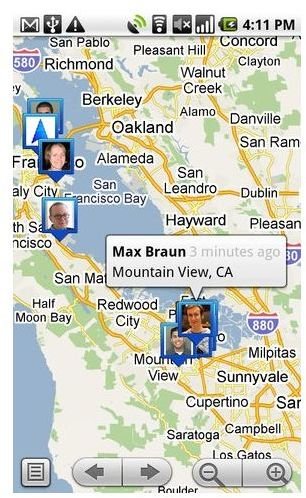
Friends can be added via Menu > Add friends, and these can be selected from contacts or by entering an email address. Also via the Menu you can flip back to the map to display your location, which will include any friends you have set up; you’ll notice how the view is similar to that shown on the Latitude webpage.
Adjusting Security Settings in Latitude
Knowing how to use the security settings in Latitude is one of the most important aspects of this app.
Via Menu > Privacy you can choose between allowing GPS to Detect your location or Set your location manually. Alternatively, you can Hide your location, and for ultimate privacy, Turn off Latitude disables the service on your phone completely.
Making full use of this service means being aware of how privacy settings are currently configured; note that you can re-join Latitude at any time via the Join Latitude option.
(Image credit: www.google.com )