Got an Android device or phone and not sure what OS version you’re running? We’ll help you find out in here and run down all of the current and future versions of Android!
Introduction
Since 2009, there have been 4 major releases of the Android OS. It can be confusing to keep up with all of them and keep your phone up to date, especially if you have no idea what version you are running. So let’s give a brief overview of all of the Android OSes released to date.
2009
Cupcake released (version 1.5)
Donut released (1.6)
Eclair released (2.0)
2010
Eclair released (2.1)
Froyo released (2.2)
And there you have it, the four major releases with two “Eclair” revisions 2.0/2.1 to make things more confusing. The next scheduled update of Gingerbread (3.0) is expected before the end of 2010, with the release to phones probably around the beginning of 2011.
Finding Your OS Version
Now that you have a brief introduction to the handful of versions, let’s figure out what you have running.
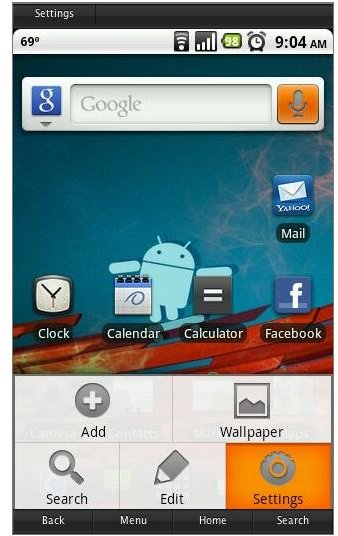
Starting from your home screen, press Menu > Settings (or find settings in your app drawer/dock) > About Phone (scroll all the way down, it’s the last option).
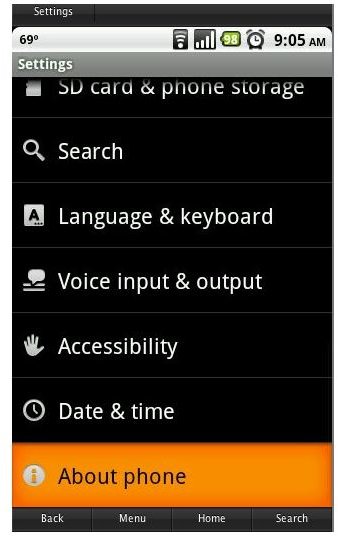
Once you have reached the About Phone page you will be greeted with several menu items including the status of your phone and likely the battery use. This “about” page breaks down the model number, Android version, mod version, and build of your phone. It provides some very handy information when it comes to knowing about your phone. It should look something like this:
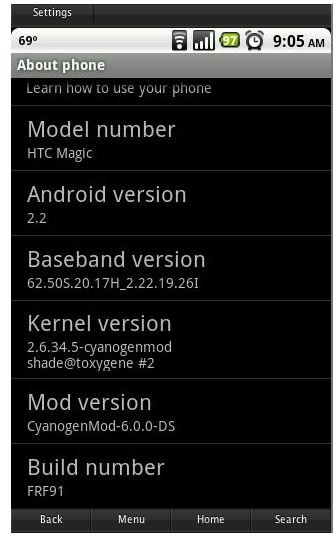
As you can see this phone is the HTC Magic (better known as the T-Mobile MyTouch 3g in the US) and it is running Android 2.2 (Froyo) on a custom modded ROM CyanogenMod because I rooted my phone.
Getting Updated!
If you have a newer Android phone, you are likely running Eclair or Froyo. If your phone is a year or older, it is likely still running Donut, either because your carrier has not released an over-the-air (OTA) update or the latest version Froyo is not supported on your device.
From Your Carrier OTA
Carriers push the latest version of Android to your phone remotely (unless you are rooted) as they see fit. They could be working out some phone-specific bugs or want to include some of their own apps. Waiting on an OTA update from your carrier can be a hit or miss situation because you never know when a phone will be updated. Many carriers make promises for updates and some deliver quickly, others, not so much. The process of updating OTA is simple. When an update message pops up one day, simply follow the instructions to update your phone! It’s that easy.
Third Party Updates
With my phone as the example from above, it is running the latest, Froyo, even though T-Mobile USA has not yet currently released this OS. Without having rooted my phone, I would still be running the antiquated Donut release. With root access , you are free to install whichever version of Android is available from a custom ROM. The entire process of rooting and installing a ROM is not as simple as an OTA update, but the benefits make it well worth doing.


