In this Google Android programming guide we take a look at how to work with Android internal databases. Android supports an SQLite database system, keep reading to learn more.
Internal Databases
For this Google Android instructional guide we will work with Android internal DataBases. Android supports a SQLite database system.
In Android, data from applications is stored in a database system. Every application has its own database. The point of this Article is to get to the database file, in other articles we will see how to work with them inside the Apps.
Hint! → As far as I could research, we can only have database files from the Emulator. In real devices they may be locked. So this would be useful to know more about the Android internal system.
Lets have a look at one of this databases.
To access the database we have to go to the DDMS perspective in Eclipse once an emulator is running. As I explained in one of my past articles on the left side panel we can find the “File Explorer”, here we can surf around the Android file system. We can see 3 folders:
-Data -> Application data
-SDCard -> File system inside the SD card (if any).
-System-> Core file system.
In the “data/data” path, we will find a list of packages, most of these packages store data in the internal database. Lets have a look towards the “com.android.alarmclock” package. Inside of it, we can find the folder “databases” and inside of this folder, the “alarms.db” file.
We pull the file from the device, click on the “disk-and-arrow” icon. Now, we have the database file out of the emulator. Its time to see whats inside on it.
For this purpose we will need an external tool to open the .db file.
Looking at https://www.sqlite.org/cvstrac/wiki?p=ManagementTools we can find lot of tools to work with SQLlite. I prefer GPL-licensed ones, like:
or
https://sqlitestudio.one.pl/index.rvt
I will use QSLitestudio for the purpose of this article.
Now we can find the alarm.db file via our computer from the QSLitestudio and then open it.
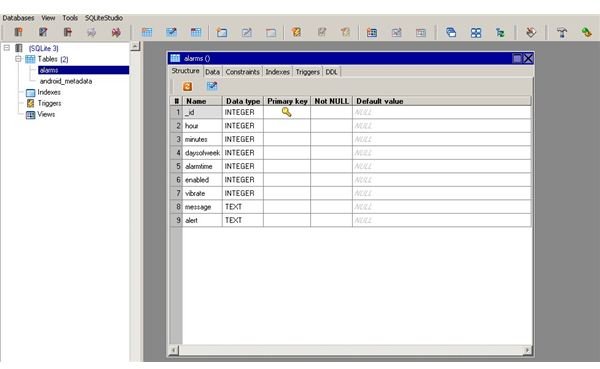
It should look something like this.
Here we can see the tables, fields and values of the “alarm.db”. In this case, we can see the hours that the alarm is set to in the Emulator.
Want to know more?
This is the simplest way to achieve the views we need within our databases, and this simple tutorial end this series of articles related to “Android external tools”. Soon, we will start developing working applications. Stay Tuned.
This post is part of the series: How to- Develop Applications on Android: One more step
In this second Serie of articles we will continue working on Android and Eclipse.This time, we will see different resources to make Android apps development more easy.