Listed here are all the tips and tricks that you can try on your BlackBerry Pearl smartphone.
General Tips and Tricks
Here are some of the cool BlackBerry Pearl tips and tricks that you can try.
-
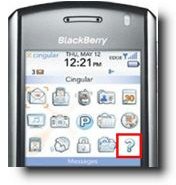
To view the user guide for the BlackBerry Pearl, click on the Help icon on the home screen.
Advertisement -
Rotate the trackball to control the cursor.
-
Red colored LED light on the top right corner of the handset indicates that you have received a new message.
Advertisement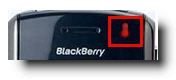
-
Blue colored LED light on the top right corner of the handset indicates that your handset is paired with a Bluetooth-enabled device.
Advertisement -
Green colored LED light on the top right corner of the handset indicates that you are in a wireless coverage area.
-
Amber colored LED light on the top right corner of the handset indicates that your handset’s battery is low.
Advertisement -
You can lock your keyboard by pressing the * (star) key when you are on the home screen.
-
You can unlock your keyboard by pressing the * (star) key and then the ‘Send’ key.
Advertisement -
To switch applications, simultaneously press the Alt and back key. A screen will pop up from where you can choose the desired application.
-
To exit the screen while browsing, press the back key.
Advertisement -
Press the space key twice to insert a period while typing.
-
Press and hold the * (star) key to change typing input methods.
Advertisement -
Press space key to insert @ sign in an email address.
-
Press and hold a letter key for some time to capitalize it.
Advertisement -
During a call, press OP to switch on or off the speakerphone.
-
To move between vibrate and default profiles, hold the # (hash) key.
Advertisement -
For inserting a letter in the number field, hold Alt key and press the desired letter key.
-
If you are getting another call while already in the middle of a call, press Send key to answer the incoming call and to place the current call on hold.
Advertisement -
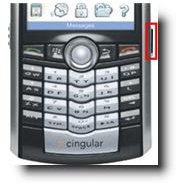
To take a picture, press the Convenience key.
 Advertisement
 -
Press 0 to set auto flash on and space to set auto flash off.
-
Use the +/- buttons on the right hand side of the handset, to zoom on a specific object.
Advertisement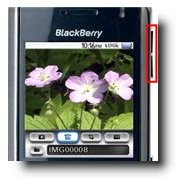
Browsing Tips and Tricks
- To view the thumbnail version of the webpage, press X and press any key to return to normal page view.
- Press the exclamation (!) key to hide banners from web pages.
- To scroll up the screen, press 3.
- To scroll down the screen, press 9.
- To close the browser, press the back key.
- To insert a period (.) in the Go To field, press Space.
- To insert a slash mark (/) in the Go To field, press Shift key and Space.
- To open the bookmarks saved on the webpage, press 5.
- To add a bookmark, press question mark (?).
- To go to a specific webpage, press period (.).
- Press 7 to go to the bottom of the screen.
BlackBerry Pearl Calendar Tips
Set the Enable Quick Entry field to No in calendar options for the following tips to work in Day view.
- To create an appointment press period (.).
- To move to next day press 6.
- To move to previous day press 4.
- You can change the end time by rolling the track ball.
- To move down an hour in the calendar, press 8.
Email and Text message Tips
- Press 2 to scroll up a message and press 8 to scroll down a message.
- Pressing the question mark (?) will reply to all.
- To forward a message, press period (.).
- To reply to a message, press the exclamation mark (!) key.
- Press the comma (,) to create a message.
Increasing Number of Rings on BlackBerry Pearl
Usually the BlackBerry Pearl rings only twice before going to the voicemail, which is not enough time to answer a call. However, you can increase the amount of time (in secs) that a number will ring provided you dial the following code from your BlackBerry Pearl – **61*901*11*25#. Remember to press the green button before dialing this code. The last digits are the seconds that a number rings before going to voicemail (25 seconds in this case). The default time is 15 seconds.


