For many users their mobile memory cards hold their most important information, however, every now and then you may want to format your card before using it for different purposes. You should also format your cards before using them the first time around. This article examines the format process.
Understanding MicroSD vs. MicroSDHC Cards
Before we examine how to format our memory cards I want to explain the types of cards we’ll be working with. MicroSD cards are the older version of memory cards that hold up to 2GB of available memory and tend to be supported by older devices (Over 1 year old). While MicroSDHC cards are the newer version which support on average from 4GB up to 16GB and are predominately offered on newer device, although some older devices have upgraded their software to support the new cards.
Whichever type of card you choose the format process will remain unsaved, so let’s take a look at that process.
Formatting MicroSD and MicroSDHC Cards Via Blackberry
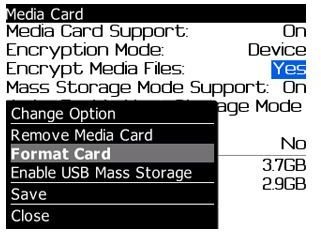
To begin simply insert your MicroSD or MicroSDHC card into your device and click on the Options button via your Blackberry icons screen. If you are not sure which icon the Options menu is you can simply click on the wrench looking icon. Next you’ll want to use your trackball to navigate to your Media Card. Once you enter the media card screen simply press your Blackberry Menu button. Next choose Format and select YES you’ll then be asked if you’re sure you want to format the card, press yes and wait until the card is formatted (this usually occurs within 15-20 seconds).
Screenshot Of Memory Format Process
Encrypting Your Card During Format Process
As you will notice via the screenshot above users have several other options other than simply formatting the screen, one of those options is the ability to encrypt and therefore protect your personal files. If you choose this option you will be able to choose a media card specific password or use your Blackberryd devices password, this ensures all of your files are protects in case you ever lose your memory card.
To set a randomly encrypted password simply choose Encryption Mode: Device and to set the password to be the same as your Blackberry choose Encryption Mode to Security Password. Conversely if you want to choose both options to add even more security you can choose the encryption mode: Security Password & Device.
Whichever option you choose as you can see it’s an easy process.
Conclusion
Many memory cards may already arrive formatted, however reformatting those cards is still a good idea as it assures proper formatting has been completed, while adding encryption at that time ensures that your personal card saved information is always protected. As you can see its an easy process to format your cards, it takes less than a minute and it can assure your card is ready for all of your memory storage needs.


