Whether you want to synchronize your address book, connect your MS Outlook account, or transfer files such as multimedia and Word files to your PC you need to know how to attach your BlackBerry device to your desktop PC. This is a step-by-step BlackBerry to PC Synchronization Guide.
Hardware / Software Used
For the purpose of this article I used specific hardware and software to complete the synchronization setup. Its important to note however that while setup choices on other devices may vary to some degree they should follow fairly closely to the steps listed below.
Blackberry Software / Hardware Used:
- BlackBerry Pearl (BlackBerry OS 4.2 from HKCSL)
- BlackBerry Desktop Manager 4.2.0.14
Microsoft Hardware / Software Used:
- Microsoft Windows XP Professional Desktop Computer
- Microsoft Office Outlook 2007 Enterprise Edition
Blackberry To PC Sync Process
e first step you’ll need to complete is the download and installation of the Blackberry Desktop Manager. Once you click on the install file simply follow the installation directions like you would with any Windows based Application. Then once it is installed click on the ICON on your desktop our via your Start Button to launch the app.
Next you’ll need to sync your Blackberry device by attaching your USB cable to your phone and then into your computer.
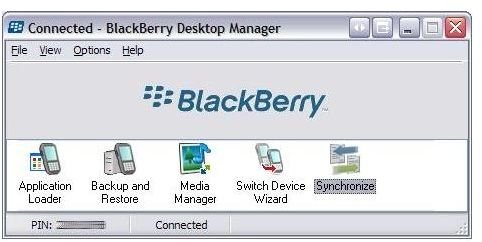
After you device is hooked up click the “Synchoronize” button as see on the screenshot below: (Click To Enlarge)
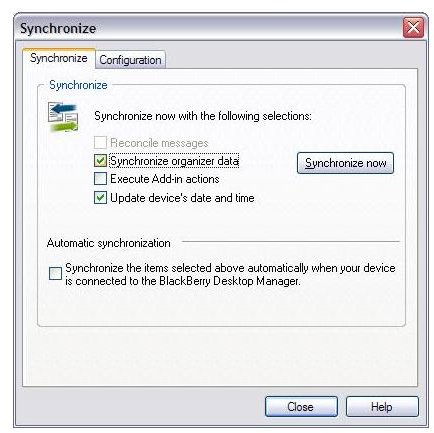
After you click on the Synchorize icon you’ll find a set of checkboxes, make sure you check the Synchronize organizer data link. Here’s a shot of that checkbox: (Click To Enlarge)
Next you’ll notice the “Configuration” tab located at the top of the screen you’ve just been using. Click the Configuration tab at which point you’ll see several new buttons, at this point you’ll want to click on “Configure Sync”
After you click Configure Sync you’ll notice several check boxes, specifically “Address Book, Calendar, MemoPad, Tasks” simply choose which options you’d like to sync to your device/Blackberry.
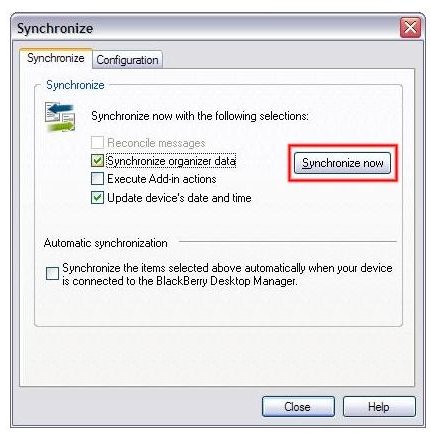
After you’ve chosen which items to Synchronize simple click back on the Synchronize Tab and then click on the “Synchronize Now” button which is located as the large button on the right side of the Synchronization tab. Here’s a screenshot: (Click To Enlarge)
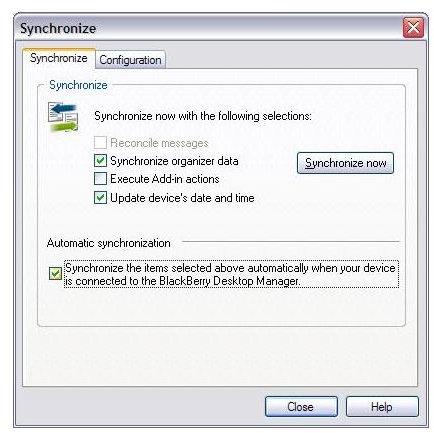
After your Blackberry Smartphone sync’s with your computer oyu can simple hit close and exit the program. If you want your Blackberry to Auto synchronize each time you connect the Blackberry Desktop Software you can also click the bottom button on your synchronize screen which reads “Synchronize the items selected above automatically when your device is connected to the Blackberry Desktop Manager. Here’s a screenshot: (Click To Enlarge)
Conclusion
As you can see from the steps listed above its very easy to sync your Blackberry device to a Microsoft Windows based PC. The Blackberry Desktop Manager is a great option for any Blackberry user that operates much in the same way as Microsoft ActiveSync for Windows Mobile devices. Its easy to install and easy to use, what more could you ask for.


