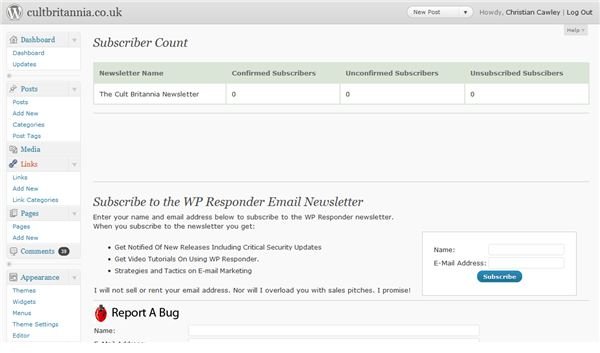
Address your readers directly and make sure they don’t miss out on updates with this great WordPress newsletter plugin.
Newsletter - Direct Communication
Having a blog and writing posts is one great way of communicating – but what about being more direct? Why not try connecting with your audience more directly, by means of a periodic newsletter?
This publication might feature the best posts from your blog over the previous week, fortnight or month, and you might even include additional material exclusive to the newsletter. It’s a great way to reach your readers in a new manner, especially those that don’t use RSS.
You can add newsletter writing capabilities to your WordPress blog with a simple plugin – read on to find out how!
Benefits of the WordPress Newsletter Plugin
WP Responder Email Newsletter (WP Responder for short) is a WordPress newsletter plugin that allows you to collect email addresses from your website’s visitors and issue a newsletter to them over whatever period you wish.
This is a massive advantage over previous solutions – time was when a WordPress blog use would be forced to combine the collection of email addresses with the Cforms plugin with the issuing of an email via the open source solution available at www.phplist.com .
With WP Responder you will need to import any already collected email addresses in CSV format, while creation of the newsletters is via a new set of screens that WP Responder Email Newsletter creates in your WordPress dashboard.
Installing the WP Responder WordPress Newsletter Plugin
You can install this plugin in two ways. The first is to either visit www.wpresponder.com where you can download the files to upload to your Plugin directory via FTP.
The second way to download this WordPress newsletter plugin is to go to your WordPress Dashboard and find the Plugins section. Click Add New and then search for “WP Responder” – from the search results, click Install, and follow the on-screen instructions.
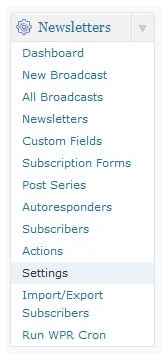
Once complete, you will need to go straight to the Newsletters > Settings screen (WP Responder creates a new section in your dashboard) and add an email address that you use for return emails and unsubscribe notices to be sent.
Creating a Newsletter Campaign
WP Newsletter has a lot of options for configuring and developing your newsletter campaigns, but to get started you will need to create an initial newsletter via Newsletters > Newsletters.
Click on Create Newsletter to get started; you will need so supply basic information such as the name of the WordPress newsletter and then have a read through the automatically created mail templates that will be sent to your subscribers upon their initial signup. This is a great feature that takes away the chance of your email spamming the recipient.
With another click of the Create Newsletter button, the initial campaign is created – now all you need to do is find subscribers!
Get Subscribers for WP Responder Newsletters
In Newsletters > Subscription Forms you can create a form to be placed on your main website. You will need to give the form a name, set a return URL to send the subscriber back to where they were before they signed up (the blog homepage, for instance, or perhaps a special page for subscribers to thank them) as well as decide upon the subscription type (all posts or just those of a certain category).
Once these changes have been made, cast your eye over the pre-prepared confirmation emails once again, and then click Create form and get code.
You can then paste this code into your WordPress sidebar and begin collecting email addresses!
Sending Your WordPress Newsletter with WP Responder
With emails collected and displayed in the Subscription page, you’re ready to send your first newsletter!
(TIP: before sending any newsletter, send it to a single recipient first - you! This way you can check and resolve any problems before you send it out publicly.)
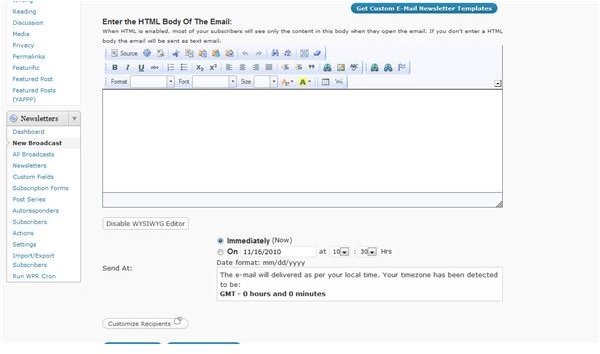
To create and send your WordPress newsletter, go to Newsletters > New Broadcast.
Here you will see two fields - one a plain text entry field for recipients without HTML email, and the second a full HTML text entry box that will allow you to add links, images, highlighting and even to view the source HTML. Both options should be used as WP Responder will send the email in both formats, with the recipients email client deciding which to read depending upon whether they have HTML emails selected or not.
All you have to do to send your message is click Send Message, although you might wish to Preview this Email first…


