Problems styling your website for Internet Explorer 6, Safari and Firefox? This selection of browser compatibility tools should allow you to forget the problems and get to work on fixing them!
Never-ending Browser Compatibility Problems?
For any web developer, the issue of browser compatibility is one that refuses to go away. Traditionally Internet Explorer has ignored the pure standards put in place by the W3C, with Microsoft claiming that they are doing so in order to push the multi-media capabilities of the web; similarly, Mozilla uses the fact that their Firefox browser sticks to the standards as a key selling point. Apple’s Safari and Google’s Chrome browsers make similar claims.
The difference in browsers across operating systems, however, has resulted in developers having a bit of a rough time. While conditional comments and browser-specific CSS files are certainly an answer, the job of actually establishing which element is out of alignment on which browser is much trickier.
In answer to this cry for help, there are now several tools that can be used to display or emulate the compatibility issues across the different browsers.
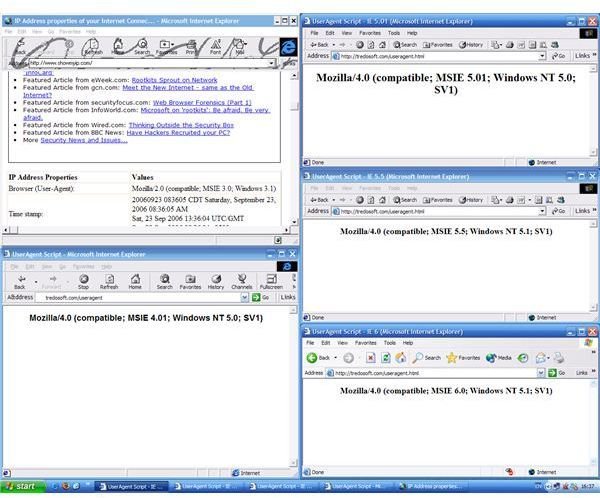
(Image credit: tredosoft.com )
Use Local Virtual Desktops to Check Browser Compatibility
Using a virtual machine app such as VMWare, VirtualBox or Virtual PC , you can setup different installations of an operating system, and install different browsers in each one. This way you can get genuine information direct from a browser rather than emulation. For instance, you might have an installation of Windows XP running IE 6 and Mozilla Firefox 1, and a second install of Windows Vista running IE 7 and Mozilla Firefox 2, etc. This allows you to check on all browsers as you develop the website, effectively keeping it in the sandbox.
This is a good option for anyone with plenty of HDD space to save virtual machines to, although it doesn’t prevent problems that arise on live websites.
Multiple IE
This extremely useful app is no longer supported, but a back in the days of IE 6 was a vital tool for ensuring backwards compatibility from Internet Explorer 3 onwards. It’s still useful if you’re running IE 7 or 8 and want to have IE 6 installed as well, although lookout for any add-ins you have running as they can cause problems on the older browsers.
You can download MultipleIE free from tredosoft.com/Multiple_IE .
Screenshot Services for Browser Compatibility
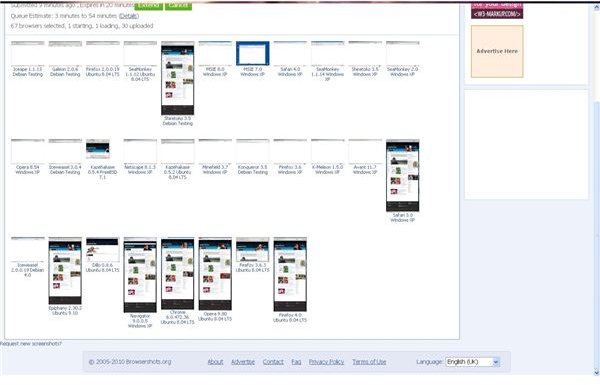
If you just want a quick screenshot of a particular page from the website you’re developing, there are several “screenshot services” that perform this task. In some cases this is done manually by someone on the other side of the world, but NetRenderer is an automated solution and works pretty quickly. Once the required page is submitted, a screenshot is returned in the browser. An alternative with more browser and OS choices is BrowserShots.org .
Adobe BrowserLab
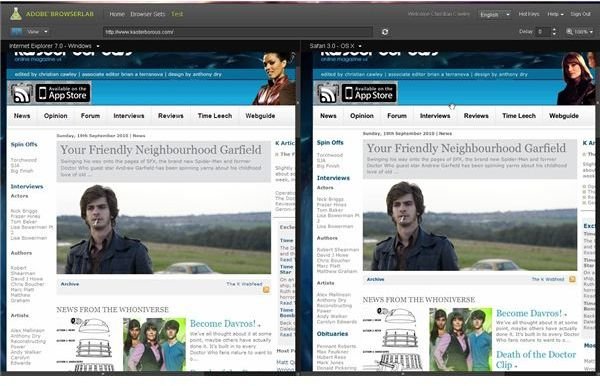
This is a service I’ve used extensively over the past few weeks while redesigning my own website. Requiring a free Adobe account, you can login to browserlab.adobe.com and get to work on setting up a selection of browsers, with a choice of the 4 main browsers (IE, Firefox, Chrome and Safari) on the 2 main operating systems (Windows and Mac). This is a great system with plenty of choices, and is enhanced by a typically useful browser-based user interface.
On a downside, BrowserLab can be quite slow to refresh your page, so you might wish to use it in conjunction with one of the screenshot services listed above.
CrossBrowserTesting.com
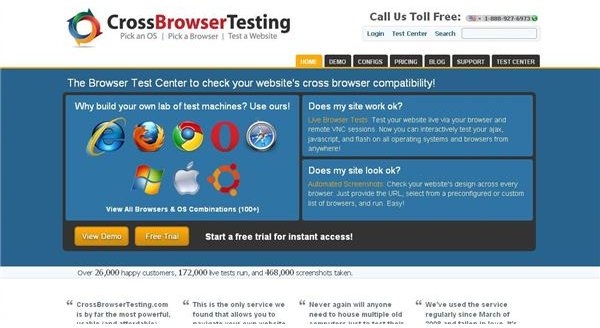
Combining the virtualization of Adobe BrowserLab with the screenshot services idea, CrossBrowserTesting.com is possibly the supreme choice — and comes at a price, although there is the option of a free trial.
This system lets you take screenshots in a variety of OSs, screen resolutions and browser types, allowing you to check a problem before then using the browser virtualization to launch a version of the page that needs adjusting, enabling you to check in real time.
Spoon Browser Sandbox
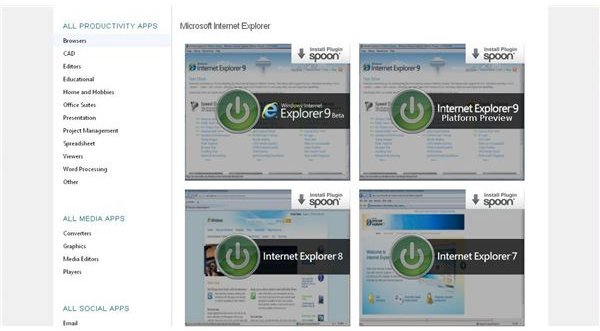
This interesting tool is basically a series of add-ons for Firefox that allow you to test your browser compatibility in a number of different emulated browsers.
Spoon in fact supplies a range of productivity apps, of which the Spoon Browser Sandbox is only one. Once the Spoon plugin is installed you can then start switching between different browsers, including Internet Explorer 9, Firefox 4 beta, Chrome 6 beta and Safari and Opera.
With the plugin installed, you simply click on one of the options on the spoon.net/browsers page, and it will open in a new window!
Whatever your requirements for browser compatibility, there should be at least one tool or method featured here to help you complete your project.
(All images by author except where stated)


