
Seeking information on how do insert a PDF into Joomla? Doing so is a simple procedure. Any one with basic Joomla knowledge can insert a PDF file in Joomla article. Read on to find out how…
Inserting a PDF File Into Joomla
How do I insert a PDF into Joomla ? Has this question been troubling you for some time because Joomla doesn’t give you an explicit
option to add a PDF into your Joomla content? Have you been searching internet for a solution or a workaround but couldn’t find any thing useful on this matter? Despair not, if you are having a problem inserting Portable Document Format files into your Joomla content (article), you will find below some steps that may help you add a PDF easily and quickly
Sometimes the way to do something looks very difficult but it turns out to be very simple as soon as we have understood how to do it. Some people will avoid inserting a PDF into Joomla, and instead convert it to an image file. However, a PDF file has many advantages over an image file: it is much smaller than an image file; it perfectly preserves all visual elements that you’ve created in MS Word or other word processing software; PDF supports encryption; interactive features like markup, hyperlinks, text notes, music, video and interactive forms that can perform exporting and importing of data, as required.
Image Credits: www.1websitedesign.net & www.mri.radiology.uiowa.edu
How To Insert a PDF In Joomla
Now that you know the benefits of PDF, I guess you wouldn’t go for workarounds for inserting a PDF file into your Joomla content. So, without waiting any longer let’s see how to insert a PDF file into Joomla.
1. Using a FTP program, create a folder inside public_html and name it anything, say “myPDFDocs”
You can also create the
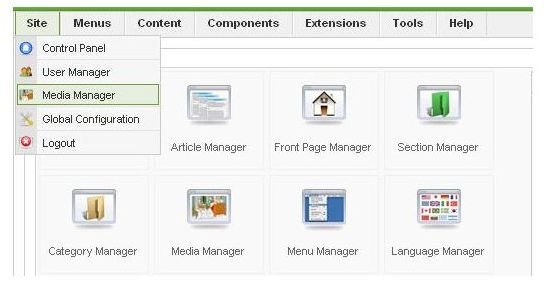
folder from Joomla’s Media Manager. To do it from there, login to your joomla administrative account, go to the “Site” menu and select “Media Manager”. When the Media Manager opens up, type in the folder name in the text field under “Files” and click the “Create folder” button.
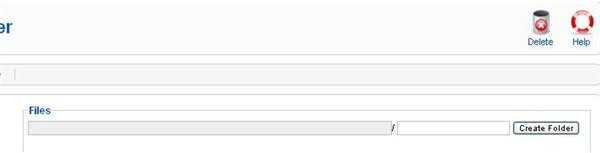
2. Upload your PDF file with FTP or Media Manager to the “myPDFDocs” folder.
To upload your PDF with Media Manager, scroll down to the bottom of the page and click “Choose file” to select your PDF file. Once

done, click the “Start Upload” button.
3. Now open your content page where you want to insert your PDF with the WYSIWYG editor.
4. Highlight the text that you want to link with your PDF file then click the cable/link icon on the toolbar.
5. In the new window that opens, enter the link to your PDF file. The link will look like this:
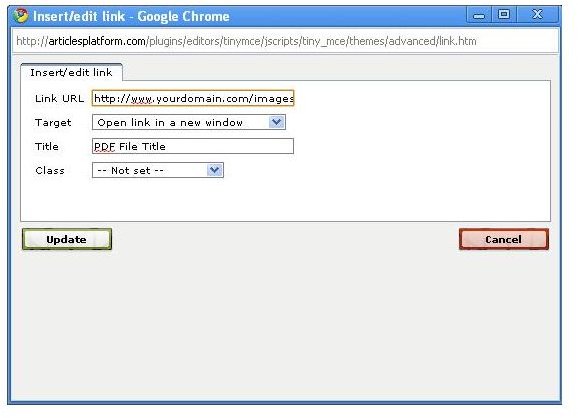
https://www.yourDomain.com/images/ myPDFDocs/yourPDFfile.pdf
Note: Make sure that the link is correct by opening it directly in your browser.
6. Select whether you want to open the file in the same window or a new window from the “Target” drop-down menu. Next, Click “Insert”.
6. Save your Joomla article.
You’re done. Now when you will click on the linked text, the PDF file will nicely open up in your browser.


