
So you run Joomla as your CMS, and you’d like to show some of your Facebook feeds directly on your website? No problem! This quick tutorial will show you exactly how you can easily add a Facebook feed on a Joomla website.
Integrating Facebook Feeds with Joomla
Whether you’re a blogger, a business, or just someone with a website to show off, you might want to add your Facebook feed to your site. This is a great way to let people know at a glance what you’re doing without making them sign into - or sign up for - Facebook. There are ways to do this in a standard HTML website, but what if you use a CMS like Joomla ? Sometimes it doesn’t work so simple! This quick tutorial will walk you through the process of putting a Facebook feed on a Joomla website.
Using Badges
Facebook gives you the ability to create your own badges directly on their website using badges. Badges can display any number of Facebook related features, such as your Likes, your Activity Feed, your Friendpile, and even things like comment boards. While these lack in visual customization, they are incredibly easy to insert into any website and are very reliable. You do, however, need to know a handy trick to make this foolproof. In this example, we’ll show you how to insert a profile badge into your Joomla Website.
Steps of the Process
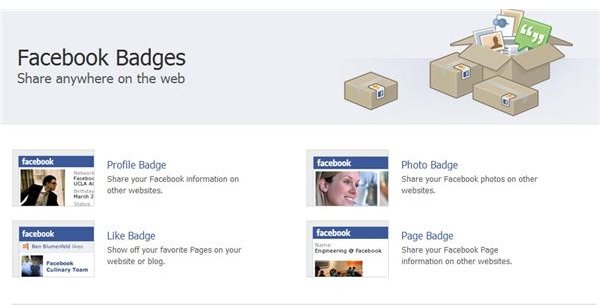
Go to the Facebook Badge website. When there, select the type of badge you would like. If you are looking to display contact information and status updates, you will select the “Profile Badge.” Alternatively there are also photos, likes, and pages badges as well. I’m going to select the Profile Badge. (Click any image for a larger view.)
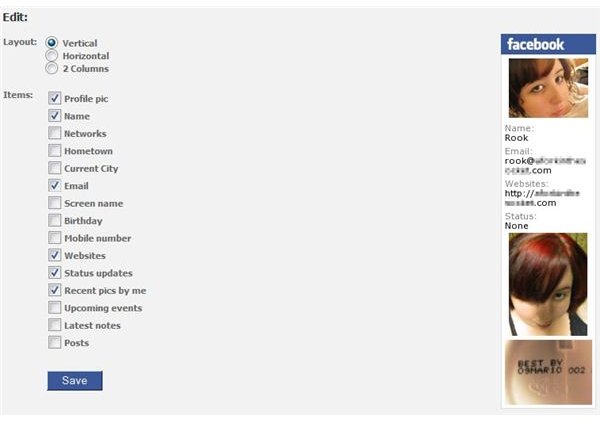
Here on this page, you can pick the different types of information you want to display. I’m using my profile picture, name, websites, status updates, and recent pictures. You can also change the different styles of layouts. Since I’m going to use this in the left column of my website, I’ll just leave it at vertical. When you are finished, click “Save.”
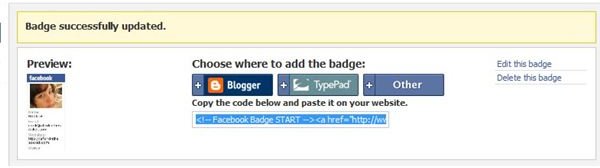
In the next screen, select “Other.” This will bring up a small box that contains an HTML code that looks like this:
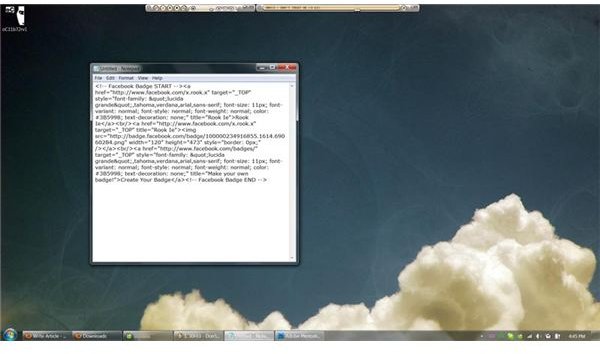
Open Notepad or any other basic text editor (nothing that will add in additional formatting, so avoid Microsoft Word!) and paste in your code. This will just make sure you don’t lose it in browser windows.
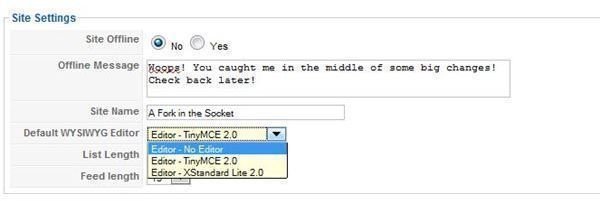
Access the backend of your Joomla site. Now, occasionally when you paste code into modules in Joomla, you’ll find that they don’t work the way that they should. This is due to an error with the Joomla WYSIWYG editor formatting your code incorrectly, even if you select the included HTML editor. The workaround is to temporarily disable the WYSIWYG editor so you can paste it in to a module with no restrictions. To do this, simply go into your global configuration and where it says “Default WYSIWYG editor” select “Editor - No Editor.” Save your settings for now.
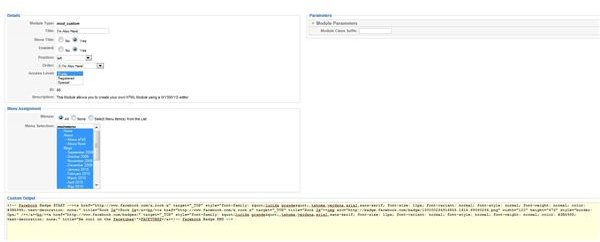
Create a “Custom HTML” module in the position you would like. Here, I’m using the left column. In the custom output box, paste in your badge code! Click “Save” when finished.
And you’re finished! Preview your site to see your new badge. Don’t forget to change your WYSIWYG editor back to your preferred editor before publishing new content.
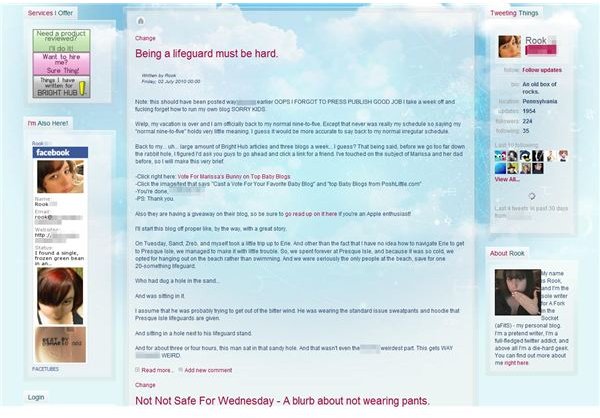
Image Credits
All screenshots in this article were taken by the author and are intended for educational purposes only.