
This article is part two in the WordPress flash games site tutorial. This entire two part series will cover design tips as well as how to use WordPress posts to contain flash games.
Getting The Games Uploaded
By default, WordPress does not offer a convenient solution for directly uploading flash games within posts. However, there is a great plugin that will do just what we want for this tutorial. The name of the plugin is Kimili Flash Embed, created by Kimili Micahel Bester . You can download Kimili Flash Embed here .
After you have downloaded the Kimili Flash Embed plugin, you will need to upload it to the plugins folder in your WordPress directory. The best way to do this is to use an FTP client such as FileZilla. You can download FileZilla for free here .
After you have that all taken care of, login to your WordPress site. Navigate over to the plugins settings and activate the Kimili Flash Embed plugin.
Testing Your Site
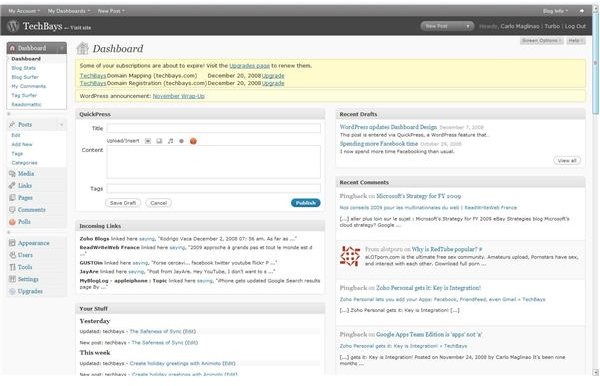
Almost done, now it’s time to test your site. Create a new WordPress post and name it something like “My First Test Game”. Within the post editor, you will see button that says “show kitchen sink”. Make sure that this button is activated and the kitchen sink is showing. Directly next to the button that you use to upload a picture to a post, there will be new button. This new button is the flash game uploader. Click once on the button, and a new window will open. From within this window, navigate to the flash game that you saved (from part 1 of this series) and upload it. There is an option to insert into post, click it. The flash game should now be inserted into your “My First Test Game” post. Don’t worry if you don’t see the game in the post editor / preview screen. It will show up as soon as you visit the site.
Click the update post button. In the highlighted yellow strip that says “Post updated, view post”, click view post. You should see your flash game within the post.
Finishing up
Now that you know how to upload the flash games, you can make the final touches to your posts. For example, directly below your flash game, you could add details such as instructions on how to play the game, a description of the game, what type of game it is: action, sports, etc…
Add some more posts, insert the game into the posts, and get your WordPress games site up and running!
This post is part of the series: How To Make A WordPress Flash Games Website
Flash Games websites are one of the funnest types of websites to own. They are very entertaining and usually draw quite a bit of visitors. This two part series teaches you how to create a very basic flash website using the popular blogging platform WordPress.


