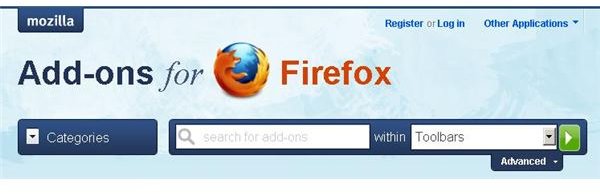
Firefox has extensions that customize it according to the tastes of the user. Toolbars are convenient extensions that make accessing services easy, but they can become a bad thing when too many toolbars are in use. Read this step by step guide to learn how to remove Firefox tool bar extensions.
Getting Started with Removing Toolbars in Firefox
Firefox tool bar extensions are nice in that they can make Web action easier and faster, especially when accessing specific services. Some of the most popular tool bars include Google , Yahoo, Ask, and Bing, but the number of tool bar extensions available is seemingly unlimited. Sometimes you find that you stop using a toolbar or just don’t want it anymore. Firefox makes it easy to remove Firefox tool bars.
To remove Firefox tool bar extensions, you must first have one installed. Here we use the Delicious tool bar to demonstrate how to remove Firefox tool bar extensions. To get started with this Firefox tutorial, you will need to install the Delicious tool bar first so we can remove it together.
Installing the Delicious Tool bar
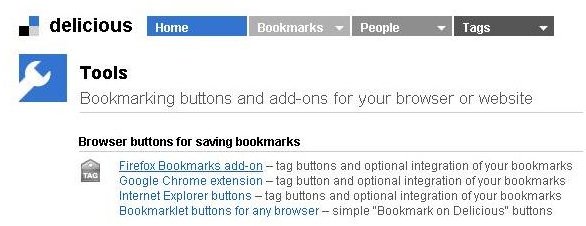
Browse to the Delicious Web site to download the Delicious bookmark tool bar.
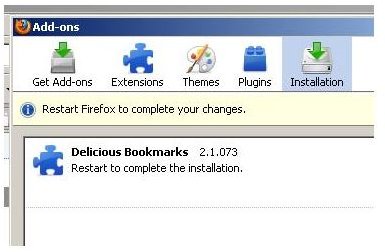
When the tool bar installs, you will see the Add-ons window open confirming the installation and asking you to restart Firefox.
Restart Firefox and then click the “View” option on the main menu and then select the “Toolbars” option to verify that your tool bar is there. Whenever you want to enable or disable a tool bar , this is where you should go. All you would have to do is check (view) or uncheck (don’t view) the tool bars you want to use. To remove Firefox tool bar add-ons, you will have to follow the rest of this tutorial.
How to Remove a Firefox Tool Bar Extension
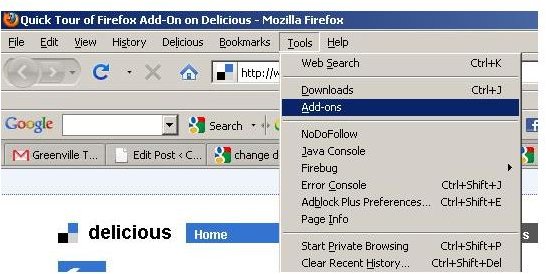
Now that you have a tool bar installed, let’s go ahead and remove it. First, click the “Tools” option on the main menu and then click the “Add-ons” option.
Next, in the “Add-ons” window, scroll down until you find the “Delicious Bookmarks” entry. To remove Firefox tool bar add-ons, click the tool bar here and you will see three buttons appear: “Options,” “Disable,” and “Install.” Some tool bars may not have any configurable options. In this case, you could choose to customize your Delicious settings (if you weren’t going to remove it).
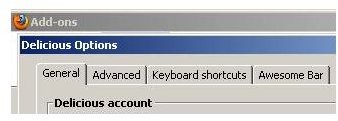
Click the “Disable” button to keep the toolbar installed while preventing it from becoming active, and then click “Uninstall” to remove the Firefox tool bar. When the “Uninstall Delicious Bookmarks” dialog opens, click “Uninstall.” Some tool bars may ask you why you are uninstalling or preform other actions after clicking the “Uninstall” button. This particular tool bar returns to the “Add-ons” window and displays an updated message.
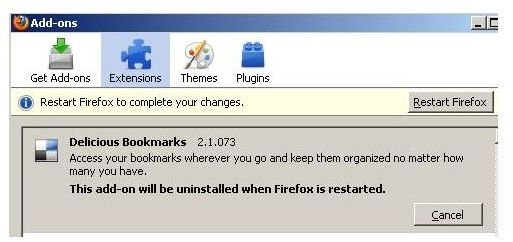
Firefox displays a message confirming that you have asked to remove the Firefox tool bar while an alert at the top of the window asks you to restart Firefox. Click the “Restart Firefox” button and you are done.
Wrapping Up
When Firefox restarts, it will try to save your open tabs and then automatically restore them when the program opens again. When Firefox finishes opening, click on “Tools” and then “Toolbars” and you can confirm that the tool bar you just removed is gone.
This Firefox tutorial showed you the step by step process to remove Firefox tool bar extensions. Now, when you want to remove a toolbar from your Firefox, you will know what to do.
Image Credits: Screen shots taken by Bruce Tyson


