
Removing Google Calendar sync from Microsoft Outlook can result in problems with your email client. These problems can be resolved through thorough troubleshooting. Learn how to fix the cannot send mail after removing Google Calendar error, by using some simple yet effective steps.
Maximize Your Use of Google Services
Using your desktop Outlook client to view your Google client is a great option. It gives you full access to the most flexible calendar format available today, without having to login each time with a web browser. You can also synchronize with a mobile, share the calendar with a colleague (perhaps for booking purposes), or both.
Syncing Google Calendar with Outlook can be performed with one of several Microsoft Outlook add-ins, depending on your version of Outlook (see Syncing Outlook 2002 with Google Calendar and Syncing Outlook with Google Calendar ). Add-ins are easy to use, and can be helpful tools for managing the data and information that is synchronized between the Google web calendar application and Microsoft Outlook.
However, there may come a time when you wish to remove a Google Calendar from your Microsoft Outlook installation. In this situation, it isn’t unusual to find that you cannot send mail after removing Google Calendar.
I Cannot Send Mail After Removing Google Calendar
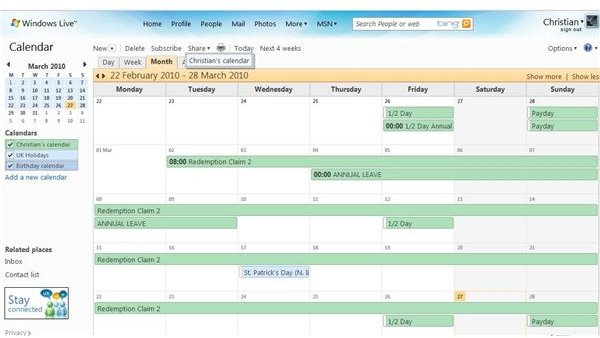
By removing a Google Calendar from Microsoft Outlook, you can cause some elements of the synchronization add-in to fail, or conflicts to arise. This can be resolved in any of the following ways:
- Removal of the add-in.
- Reconfiguring your email account settings.
- Deleting and recreating your email account.
The following steps will guide you through the three methods listed above. Depending on which version of Outlook you are using, you may experience varied success with these methods; don’t rule out having to uninstall and reinstall Outlook.
Fixing Outlook after Removing Google Outlook
Before proceeding, you should check that there isn’t an ongoing Google Mail issue that could be causing this problem. Log in to your Gmail account via your browser and check that the account is still sending and receiving emails. You may have to initiate some test emails to do so.
The following three methods can be used to fix your emails in Outlook:
Removal of the add-in
You can remove the Google Calendar add-in via the Control Panel.
- Exit Outlook.
- Go to Start > Control Panel > Add or Remove Programs.
- Google Calendar Sync should be listed. Click the Remove button to uninstall, and follow the on-screen instructions.
Reconfiguring your email account settings
In Outlook, go to Tools > Accounts (File > Info > Account Settings in Outlook 2010).
Any reference to your Google account should be checked. Also, log in to your Google account, go to Settings, and confirm your email account is setup to accept POP or IMAP requests. Removing the Google Calendar may have reset this option.
Deleting and recreating your email account
From Outlook, go to Tools > Accounts (File > Info > Account Settings in Outlook 2010) and select your Gmail account.
Delete the account, close and restart Outlook, then setup the account again.
As explained previously, failure to successfully resolve the issue upon performing these steps wil necessitate a reinstall of Outlook.


