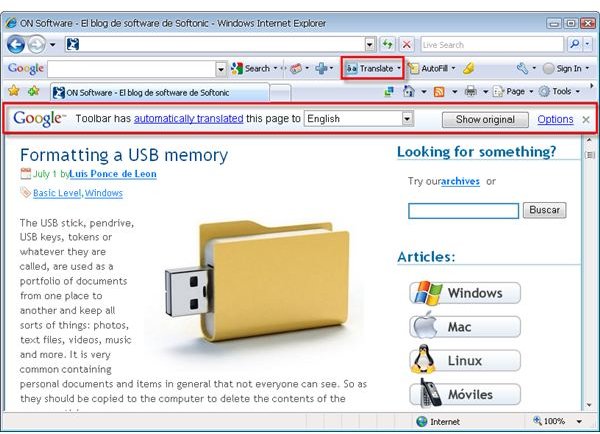
Ever need to translate non-English websites into English? With the Google Translator toolbar, you never even have to go back to the Google translate website to translate website content. The toolbar can translate a webpage into a different language with a click of a mouse.
Intro to Google Translation Toolbar
Google Translator is an instant text and website translation tool from Google. This great tool can translate a word, sentence, or an entire website to 51 different languages. If there is a website you want to read, but it is not in your language, you can translate it with Google’s online translation service here .
Google also has a toolbar for Firefox and Internet Explorer called the Google Translator Toolbar. It is a very nice thing as it can simplify your internet activities.
The toolbar is very easy to use as once installed, you can just roll your mouse cursor over a particular word on a web page and you will see the meaning of that word displayed in your own language. If you want to translate an entire web page, click on Translate button on the toolbar and in a few seconds you will see the translated page.
See, how easy it is to use Google Translation Toolbar on a website and to translate other language websites into your own language.
Available Languages
The toolbar can translate from English to Korean, Spanish, German, Italian, Japanese, Chinese, French, Dutch, Latvian, Persian, and many more languages. To see a list of languages available for translation, visit this website . You can also have webpages in non-English languages translated into English.
You can change the default language for translation. To do so, click on the drop-down menu on the toolbar and choose the language in which you want to translate. Want to revert to the original language? No problem! You can always change to the original language by clicking the Show Original button.
Installing Google Languages Translation Toolbar
Here are the instructions for installing Google Translator toolbar in your browser:
1. Download the toolbar from Google’s website .
Note: Google toolbar requires Firefox 2.0 or later or Internet Explorer 5 or later.
2. Double-click the file your just downloaded (or click Install in the Firefox dialog) to Install the toolbar.
3. Once the installation completes, open (restart if already open) the browser and you will see the toolbar in the top area (if you have not changed the toolbars location manually).
Those are all the steps for installing the toolbar. Now you can use the translation feature whenever you need to translate a text or entire webpage into a different language.
How to Disable Translate Feature in Google Toolbar
A few users may find this translate feature annoying or they might not need it anymore. In that case the feature can be disabled from the toolbar options dialog. Here are the steps to do this:
Firefox & Internet Explorer
1. Click on the small spanner icon on the toolbar.
2. On the Tools tab, uncheck the “Translate” tick box.
3. Click Save
Google Chrome
1. In your Chrome browser, go to Tools → Options.
2. Go to the “Under the Hood” tab.
3. Uncheck the **“**Offer to translate pages that aren’t in a language I read_”_ option.
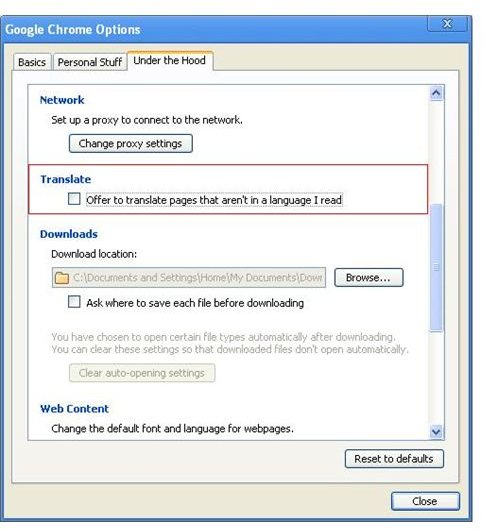
4. Click Close.
This is it! The Google Translation feature has been disabled.
References
Doe, John. “Getting Started with Google Mail Guide”. PreciousJohnDoe, Feb 11, 2011
Images Credit: screenshots provided by author


