When you have Outlook and Google Calendar synced, you can set up reminder alerts to appear on your desktop, whether you have Google Calendar open or not. Read on to find out how.
Google Calendar with Reminder Alerts from Outlook!
With a sync relationship between Outlook and Google Calendar, you can set up your online calendar to correctly match your desktop calendar, effectively unifying both systems.
To do this, you need the Google Calendar Sync tool which is designed to facilitate the transfer of data between these two calendar systems.
Unfortunately however, it isn’t possible to use Google to display desktop reminders – which isn’t perfect. If you have unified an Outlook calendar with Google Calendar, are working on a PC that doesn’t have your Outlook calendar on it, the chances are you’ll have Google Calendar open in a separate browser Window or tab so that you can check it every so often.
Evidently, the ideal solution would be an Outlook sync with Google Calendar, with reminder alerts somehow displayed on your desktop.
Use Google Talk Labs Edition
It just so happens that there is a way to do this – using Google Talk Labs Edition, you can get desktop popup reminders.
Google Talk is of course the Google free messaging service that offers text chat and VOIP (voice over internet protocol) communication, similar to Skype. The latest version, Google Talk Labs Edition, has several new features such as:
• Features of the Google Talk Gadget on your desktop
• Desktop notifications from Gmail, Calendar and Orkut
Obviously, the desktop notifications option is the interesting part – a successful sync between Outlook and Google Calendar can now be enhanced with desktop popup reminders!
Setting Up an Outlook Sync with Google Calendar with Reminder Alerts
To setup Google Talk Labs Edition to allow reminder alerts, you will need to first confirm that your sync relationship between Google Calendar and Outlook is working and set up correctly.
(If you don’t already have Google Calendar Sync installed, you can download this from www.google.com/support/calendar .)
To proceed, download Google Talk Labs Edition from www.google.com/talk . Download and installation should be pretty quick, leaving you ready and set to make the most of this cool enhancement in a matter of minutes.
Once installed, go to your system tray on the Windows taskbar (the area around the clock) and right-click the Google Talk Labs Edition icon (a small speech bubble) and select Launch Google Calendar. This will then open the calendar view in a new tab of your preferred browser.
You need only follow a few easy steps to setup an Outlook sync with Google Calendar with reminder alerts.
First of all, setup a new event on Outlook. Give it a name, data and time and setup the reminder options. The Google Calendar Sync tool with synchronize this with your Google Calendar in a matter of minutes.
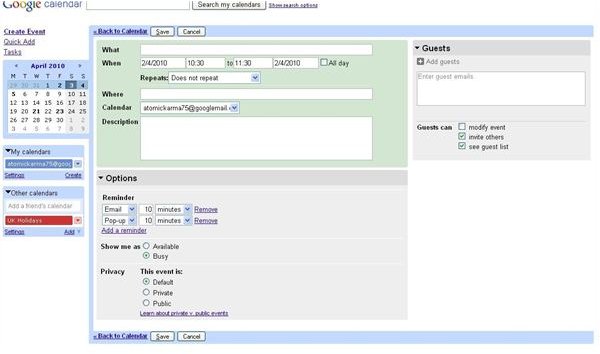
(You can also setup reminders in Google Calendar - select a slot on your calendar where you would like to add an event. Once done, give this a name and click on edit event details. From here, you can set the exact time as well as reminder options – don’t forget to click on Save.
With the Google Talk Labs Edition running, you will now receive reminder alerts as specified in Google Calendar, previously synced with Outlook!


