Google Safe Browsing will alert us if a website we’re about to visit is known to its database as phishing or misleading pages. The phishing notification from Google also determines if the web page may have malicious contents as well.
Google is helping Internet users avoid visiting phishing websites by displaying a warning using its proprietary Google Safe Browsing diagnostic tool. This service is offered free, and Google’s Safe Browsing technology is also used in the Firefox, Safari, and Google Chrome browsers, if the Phishing and Malware Protection feature in the browser is enabled.
Google is also using this technology in the Gmail webmail service to block phishing messages.
What does a phishing notification from Google look like?
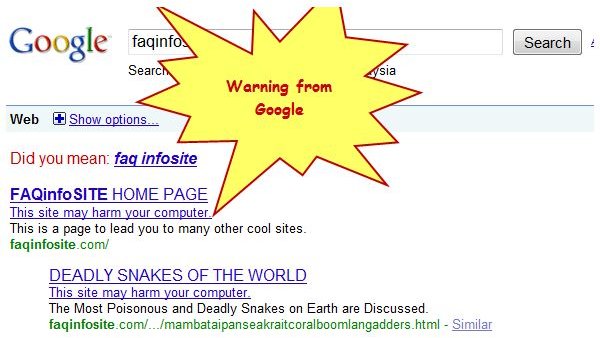
If you search the Internet using Google.com, and if the web page in the search result is known to its database as a phishing website or the pages contains malicious content, you should see a warning message saying, “This site may harm your computer.” Below is a sample screenshot of a phishing notification from Google:
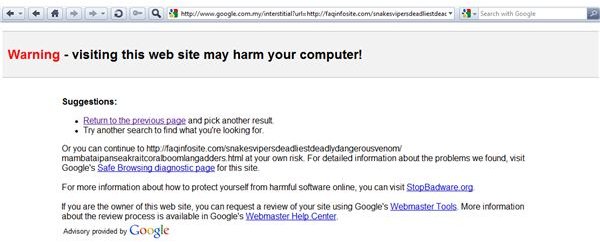
If you continue to visit the flagged website for phishing or malware, you will be redirected to a page like below:
Again, the phishing notification service by Google is free and you don’t have to install anything on your computer.
Is it possible to disable Google’s phishing notification?
It is not possible to disable Google phishing notification or Google Safe Browsing when using Google.com’s search service; you can only disable or adjust the settings for its SafeSearch filtering :
- Moderate filtering excludes most explicit images from Google Images results but doesn’t filter ordinary web search results. This is your default SafeSearch setting; you’ll receive moderate filtering unless you change it.
- Strict filtering applies SafeSearch filtering to all your search results (i.e. both image search and ordinary web search).
- No filtering - turns off SafeSearch filtering completely.
Note that if you have Google Account, you can lock the SafeSearch settings so other people who will use your computer will not be able to modify the SafeSearch filtering feature in Google.com. To the lock SafeSearch, click “Lock SafeSearch” while you are in SafeSearch filtering webpage.
If you are using Firefox, you can disable Google Safe Browsing feature by typing about:config in the address bar, then type safebrowsing in the filterbar. Double-click “browser.safebrowsing.enabled” and “browser.safebrowsing.malware.enabled” to change the settings to false. This setting applies only when you type or visit a URL without using Google Search.
How to report a phishing page to Googe
If Google has failed to detect a phishing website, Internet users can report a phishing page by going to the Google Report a Phishing page while Gmail users have the option to report phishing e-mails by clicking “Report Phishing” to send a copy of the message to the Gmail Team.
Google usually emails the website owners if their website is flagged by Google Safe Browsing so it’s a good idea to set-up a Google Account if you own a website. If you login to Google’s Webmaster Tools , you will find a warning about your site. When your site has been cleaned, the Safe Browsing tool by Google will see it as “clean” on the next scan schedule.
How to check if a website is flagged by Google Safe Browsing without using Google Search?
All you have to do is type or copy this URL in the address bar:
https://google.com/safebrowsing/diagnostic?site =
Next, type the URL address after the equal sign. Example: https://google.com/safebrowsing/diagnostic?site=brighthub.com
There are other services to check whether a website is not safe to visit. Read my “How to Check if a Website is Safe ” article here on Bright Hub to find out more!


