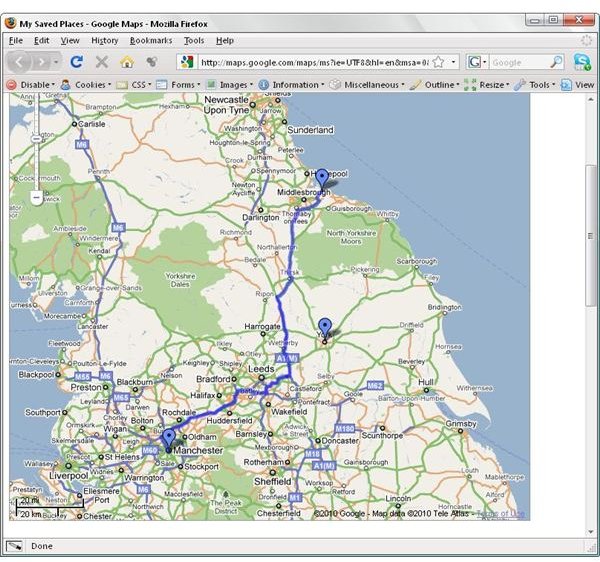
Google Maps can remember and print old maps that you have stored, and you can even update them with new information such as hotels or directions. Printing from Google Maps is a great idea if you need to take some directions with you and don’t have a suitable mobile.
Get a Google Account
A remarkable and free service, Google Maps is also extremely useful. Not only can you find maps and satellite views of locations around the world and get directions to and from properties in different cities, but images provided from Google Maps can also be printed out – basically meaning you can take your map with you!
While a basic search of Google Maps can be done by anyone, to print a map you will need a Google account. These are available for free and one can be setup in a matter of minutes – all that is needed is your usual email address as a username, a password, and the most basic personal details. You’re then set to access a wide range of free services from Google - including their maps!
To get started with printing my maps in Google, get an account here .
Once your account is setup and you are logged in, point your browser at maps.google.com .
How To Print My Maps in Google
If I wanted to print my maps in Google I would begin by going to File > Print and print the existing map view from your browser window, Google Maps can be printed far more effectively using the built-in method, which is optimised to provide a well-presented image on a single page of paper (with other pages used if other options are selected).
To print a map, you need to have one saved. This can be done by doing a search. Once the search has completed and displayed the location, you can select Save to… in the left hand pane of the Google Maps page.
Next, go to the My Maps tab and select the map you want to print. Check to see if you have paper loaded into your printer and that the printer is turned on and ready to go. Navigate to the Print link in the upper right corner of the map window. You can add notes in the field at the top right of the print preview, as well as confirm that any extra information you require (locations, addresses, directions, etc) will be displayed.
Aside your own searches, you can print user-created maps. These might be things such as maps displaying every hotel in a particular city, and can be accessed via the links in the User-Created Maps section in the lower left pane.
Additional Map Information
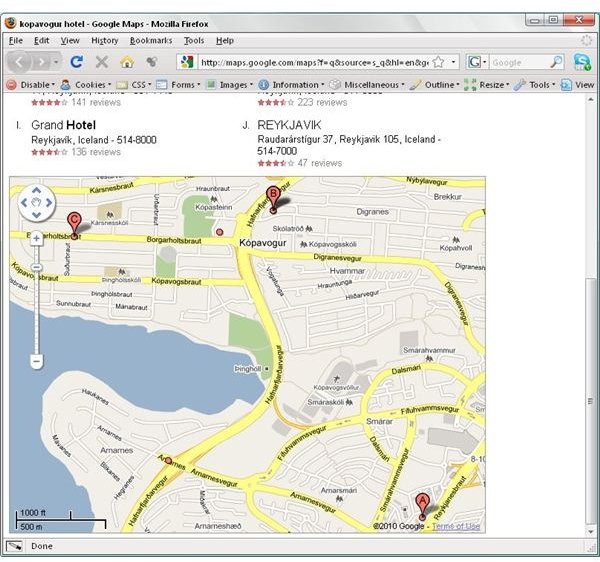
Simply printing the map might not be enough. You might require options such as a list of restaurants in a particular area, or directions from point A to point B .
These can be added to a map by performing a search, selecting the appropriate option in the left pane to display them on the map, and then printing.
Adjustments can also be made in the Print Preview screen. For instance, the map size might be adjusted to fit on a standard page. You will need to use your mouse to scroll and zoom the map around until you get the right result.
Maps and directions with additional information may require you to use multiple sheets of paper. Make sure your printer is stocked up and ready to go!


