Tired of being lost in your own city? Create your own localized maps and directions with Google Maps local features.
How to Use Localized Search Features with Google Maps
Google Maps has been positioning itself for the past few years as the foremost Web authority on localized search features. Two features that have caught on with the public are Google Ride Finder and Google Street View.
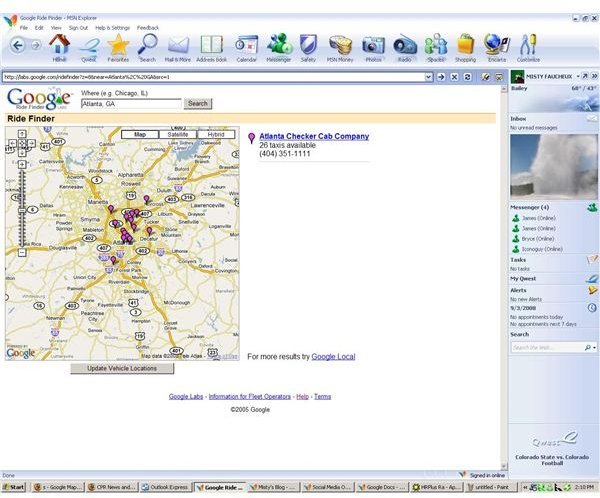
While Google has really just started Ride Finder [See Image 1], it promises to be an extremely helpful tool in the future. Google Ride Finder allows you to search for shuttles, limousine services or taxis by putting in the city name, zip code or address. You can then pull up a map that shows the exact location of the company and their vehicles.
This service tries to revise their information every five minutes, making it extremely up-to-date. Plus, they try to only list the most reputable companies. For the present time, this service is only available in a handful of cities, including Los Angeles, Atlanta and Washington, D.C.
To see if your location is available, or to use the service, go to https://labs.google.com/ridefinde r, and follow the below procedures.
1. Click the city link to the right, or click the location on the map to the left.
2. A list of companies and phone numbers will come up on the right. On the map to the left, there will be the companies’ locations.
3. Pick the desired organization, and call them.
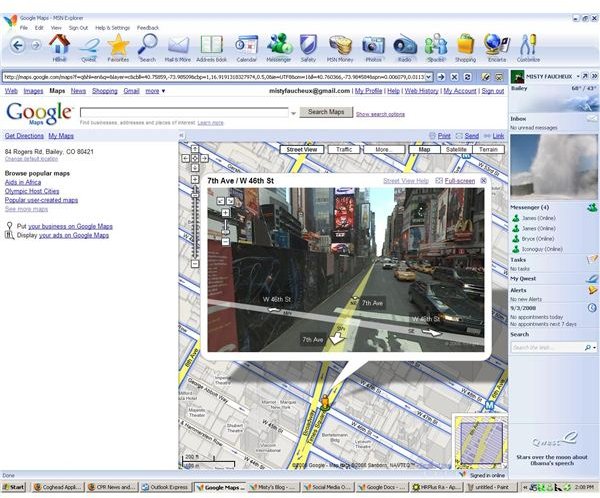
The other major service that Google offers for localized search features is Google Street View [See Image 2]. This feature allows you to see a panoramic view of the street you are traveling on, or wish to go to, from the street level. Photos of the cities can be accessed. You can “travel” up and down these streets using arrows that point in any direction that the street goes.
Find Local Landmarks using Google Map
Besides being able to get views of the roads, you can check out local landmarks, explore the city virtually and find places to go like shops and restaurants. While not all cities are available, Google has been expanding their service for over a year now, and many are being added every day. To access these features, follow the directions below.
1. Go to https://maps.google.com/help/maps/streetview/conversion.html.
2. Click your selected city on the map, or search for your city at the top in the search box.
3. Select the type of map that you would like to see (Street View, Traffic, Map, etc.)
4. To pull up photos or Wikipedia information about the selected city, go to More, and put check the desired box.
5. Click Zoom In until a little person icon appears.
6. When you have zoomed in close enough, real photos will come up with arrows.
7. Point the arrows in the direction you would like to go, and take a virtual tour of the city.
For help with either of these features, Google offers step-by-step tutorials on their Web site.
Google Maps