You already know that Google Docs makes it easy to share documents from the main document page, but did you know Google gives you lots of ways to share a single document from the editing page?
How to share a document
There are several ways to share your document. To access them, click the blue Share button, at the top right of the window.
Select the method in which you’d like to share the document.
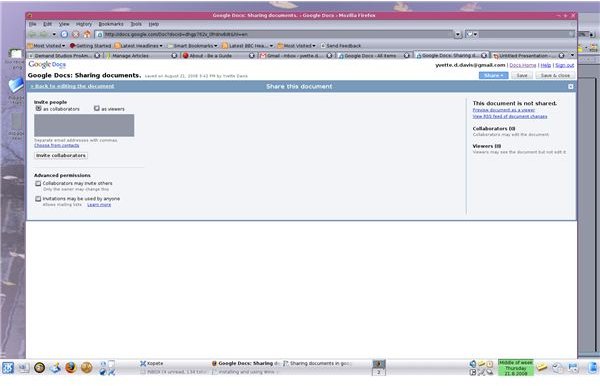
Share with others: This is where you add collaborators and viewers.
Invite people as collaborators or as viewers by selecting the appropriate radio button. Collaborators have permission to change the document, while viewers can only read it.
Enter the email addresses of the people with whom you’re sharing the document. You an also select email addresses from your Gmail address book by clicking Choose from contacts.
Set Advanced permissions. Choose whether to allow collaborators to invite other people to work on the document. If you’re sending the document as a mailing list, select Invitations may be used by anyone.
Click Invite collaborators to share the document.
The pop up window allows you to customize the invitation or skip the invitation and just share the document. To opt out of sending the invitation, click the Skip sending invitation button a the bottom of the box.
To customize the document, type your desired subject in the subject line, and type your message in the message box.
If you’d like the content of the document pasted in the invitation email, select Paste the document itself into the email message.
To have Google Docs send you a copy of the invitation, select CC me.
Double check the email addresses you entered, and click Send.
Google Docs will send the invitations and share the document with your collaborators.
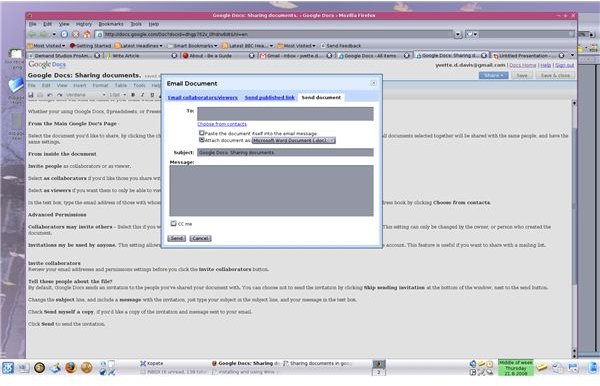
Email as an attachment:
1. Enter the email addresses of the people you’re sending the document to. You can also select email addresses from your Gmail address book by clicking Choose from contacts.
2. By default, Google Docs send your file as an attachment. To send the document in the body of an email, instead of sending an attachment, select Paste the document itself into the email message. Otherwise, select the document format from the drop down menu.
3. Edit the subject line, and type a message in the message box, if desired.
4. If you’d like to receive a copy of the email, select the CC me box.
5. Click Send.
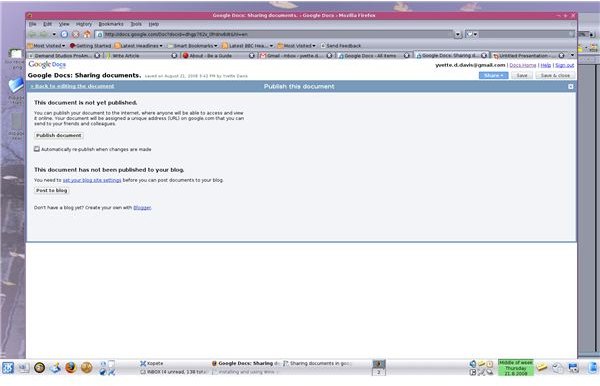
Publish as a web page:
If you want the online version of the document to refresh when you change your Google Docs version, click the box, Automatically re-publish when changes are made.
Click Publish document.
To publish the document to your blog, click set your blog site settings and fill in the requested information regarding your blog. Then click Post to blog.
The last selection in the Share menu is **View as Webpage (Preview)**This allows you to see what the document will look like when it’s shared as a web page.
Whether you add collaborators, email your document, or publish it to your blog or its own web page, Google Docs makes it easy to share your documents.
Images