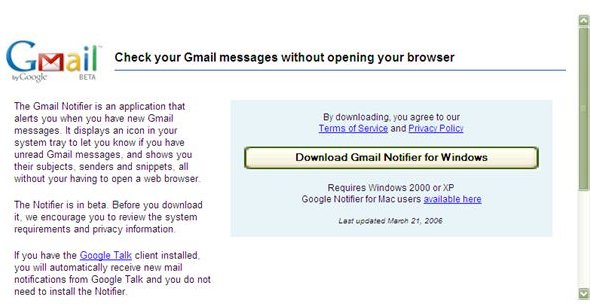
Gmail Notifier is a tool provided by Gmail that allows you to know instantly if you have new messages. The Notifier is an icon placed in your toolbar that will alert you of unread messages and allow you to snippets of the conversation.
Gmail Notifier for Fast Email Updates
If you are someone that depends a great deal on email, Google has a new downloadable tool called the Gmail Notifier. Once downloaded, the Notifier will place an icon in your system tray that will check every two minutes for unread messages and alert when that there is unread mail in your Gmail account .
With Gmail Notifier, you can make Gmail your default email application, automatically check for messages and see snippets of up to thirty unread Gmail messages, allowing you to decide what needs to be addressed immediately and what can wait.
To install Gmail Notifier, you will need Windows 2000, XP or higher. At this time the Notifier is not available for use or compatible with Windows ME. Also, the only language that the Notifier is available in is English.
How to Install Gmail Notifier
-
Go to https://mail.google.com/mail/help/notifier/
Advertisement -
Select Download Gmail Notifier
-
When the File Download box appears, click Save.
Advertisement
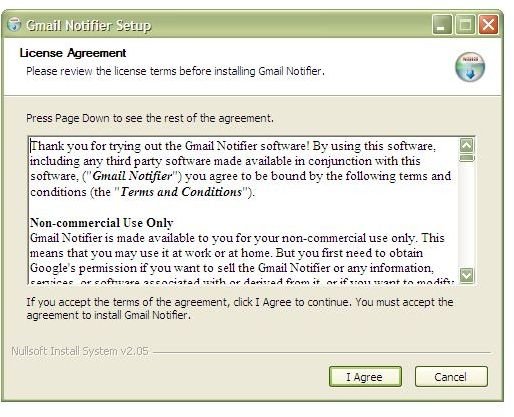
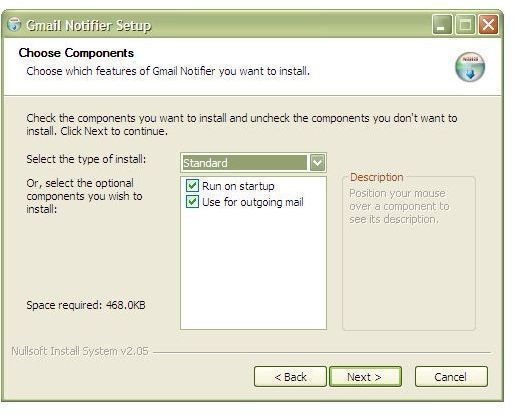
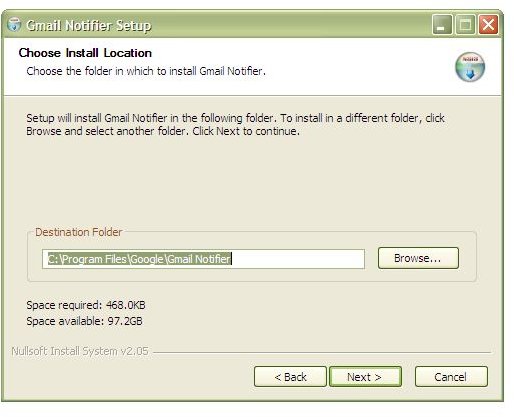
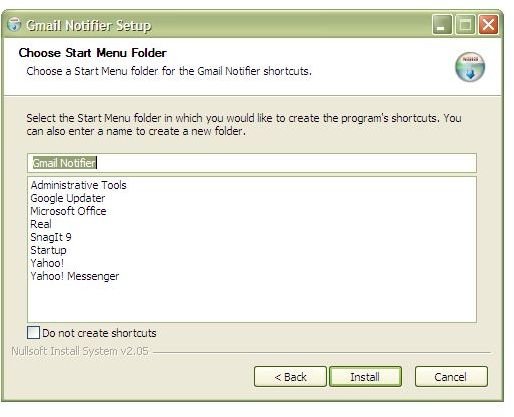
- The application should start to download immediately. If it does not, click the GmailInstaller icon and follow the installation prompts.
Once the Notifier download is completed, you are ready to start using the application. You can make Gmail your default mail application allowing you to use it as your default mailto handler. By choosing to Gmail your default mail application, anytime that you click on a hyperlinked email address, the Gmail compose window will open to send the email using your Gmail address.
Make Gmail Your Default Mail Application
1. Locate the Gmail Notifier icon in your system tray .
2. Right-click the icon and select Options.
3. Check the box located next to Use Gmail for internet mailto: links.
4. Click OK.
If you decide at a later time that you no longer wish to use Gmail as your default mail application, follow the same steps above, unchecking the box next to Use Gmail for internet mailto: links.
Gmail Notifier can also be uninstalled should you decide that you no longer want to use the application.
How to Uninstall Gmail Notifier
1. Go to your computer’s Control Panel .
2. Select Add or Remove Programs.
3. Click on Google’s Gmail Notifier under installed programs to highlight the program.
4. Select Remove to the right of the program name.
5. Verify that is the action you wish to take.
If you decide that you want to use Gmail Notifier at a future date, you will have to reinstall it by using the previous installation instructions.
Gmail Notifier Images