You can use your Gmail account to check your email in up to five other email accounts. With Gmail’s Email Fetcher, your Gmail account will now work for you in a way similiar to Outlook.
Using Gmail to Check Other Web Mail Accounts
A feature in Gmail called Mail Fetcher allows you to access non-Gmail accounts from Gmail by using your POP settings. Mail Fetcher allows Gmail to work like an Outlook client does. The email accounts you want to fetch email messages from must support POP access. You can fetch mail from up to five POP enabled email accounts with Mail Fetcher.
Setting Up the Gmail Mail Fetcher
In eight easy steps, you can configure the Mail Fetcher feature so you can receive other email accounts in your Gmail inbox.
-
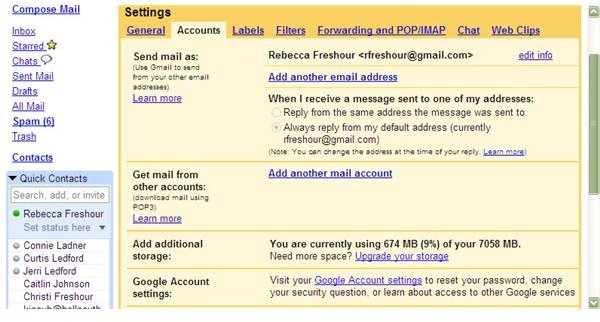
From any open Gmail page, click on the Settings link in the top right corner of the page.
-
Select the Accounts tab (second from left) from the settings menu.
Advertisement -
Click Add another mail account in the Get mail from other accounts section.
-
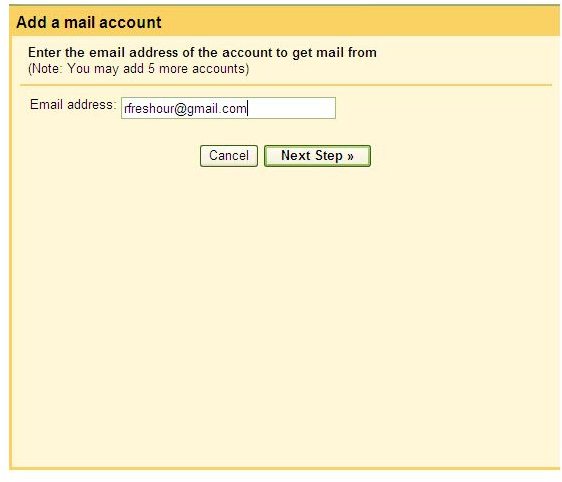
Enter the email address that you would like to fetch the incoming mail from.
Advertisement
-
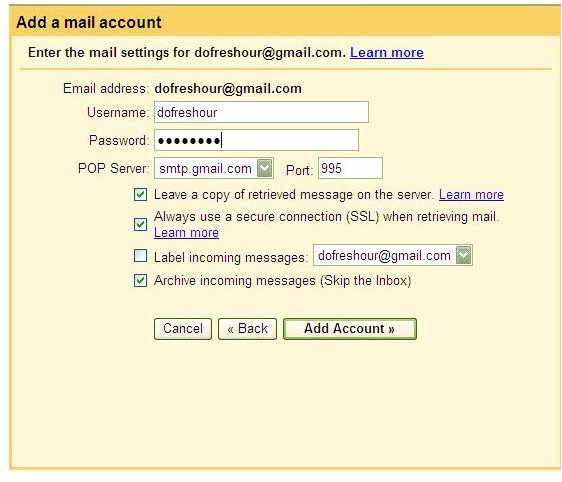
Enter the required information in the fields provided on the Add a mail account page. Be sure to choose the actions to take once the messages have been retrieved.
-
Select Add Account.
Advertisement -
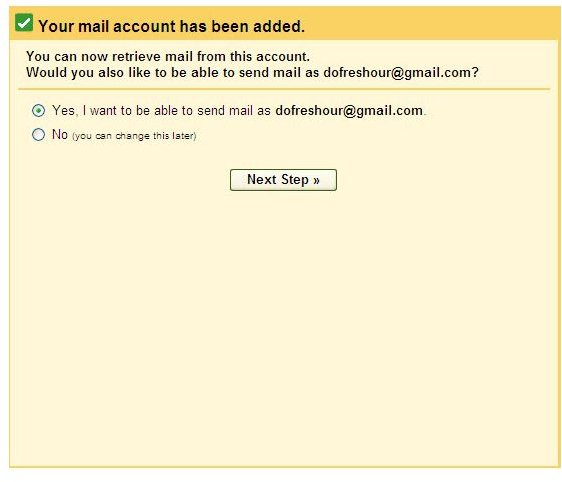
You will receive a confirmation that the account has been added. On this page, choose the radio button next to the yes or no choice to be able to send mail showing as it has been sent from that account.
-
Click Next Step. You can now choose to add another email account to retrieve mail from or select Cancel.
Advertisement
If you decide that you want to stop receiving mail from any of your other email accounts, they can be deleted. To delete an account, click on the Settings link to go into the Accounts tab and select the delete link next to the account to be deleted, and then select OK. The email account to retrieve from will then be deleted. You can add that account again (or a different one) at any time in the future as long as you have not reached the five account limit.
Images