Do you want to add news, maps, a calendar and/or a few handy documents to your website? Then, including Google Web Elements may be what you need. This article is intended for those who are getting started to or are already using Google Web Elements.
What is a Google Web Element?
Google Web Elements consist of a series of Google products that can be added to personal websites. All elements are powered by Google’s Developer APIs (Application Programmable Interface).
Available Google Web Elements
Google Web Elements - consist of a series of Google products that can be added to personal websites. All elements are powered by Google’s Developer APIs (Application Programmable Interface).
Available Google Web Elements include:
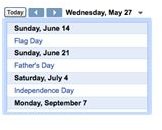
Google Calendar: a simple calendar that can keep track of important dates
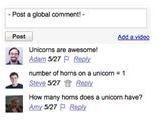
Conversation Element: website visitors can post comments on the website using this tool
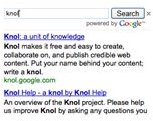
Custom Search: provides a search feature for the website
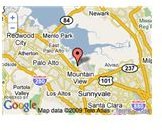
Google Maps: can help track a location
Google News: displays news on chosen topics
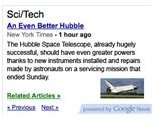
Available Google Web Elements (cont…)
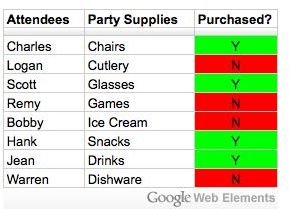
Google Docs Spreadsheets: just like for presentations, users can post a spreadsheet
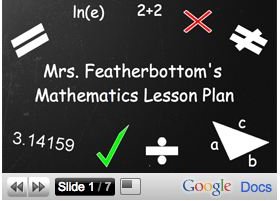
Google Docs Presentations: allows the posting of presentations that can be viewed directly from the website
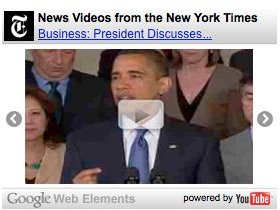
YouTube News Element: links to YouTube videos
More will likely be added in the future by Google as they do enhance a user’s Webpage. With Google Web Elements, users may see an increase in website visitors.
Working with Google Web Elements
Note: All users must do to use any Google Web Element is to add or embed the desired Google product to their website. This is done by including a Google code into the webpage. The code is provided by Google, and the user simply performs a copy and paste action of the wanted element.
Google Web Elements can be obtained in 3 easy steps; here’s how:
- Go to the Google Web Elements site
- Select the product of choice to include on the website
- Copy and paste the code provided by Google into the webpage
As a user might realize, it’s quite simple to include Google Web Elements to his or her website. However, here are a few suggestions:
- To run a Google Web Element, ensure the right source code is placed into the web page
- Become familiar with Google APIs and Tools
- Seek help from Google’s Website
- Search online blogs for other users who work with Google Web Elements for additional assistance
Here’s an example of how to set up and use the Google Web Element Calendar:
-
Go to Google Web Elements
Advertisement -
Click Calendar
-
Copy and Paste the code into your webpage (see below for an example)
Advertisement
Troubleshooting Common Issues
There are a number of common issues that can be easily fixed without contacting Google developers for help.
Page not refreshing:
If news or posts are not getting updated in your webpage, then maybe your web browser is not displaying the live page but a cached version of it. Clear the cache and refresh; the page should be updated.
Custom Search gives “forbidden” error
It’s probably not a code fault, but it might be your AdSense account that has been rejected for some reason.
Trouble with Maps
Incorrect displaying of maps could be due to a number of reasons. Before asking for help, there are a few steps that can be taken:
- Enable JavaScript and Active X
- Update DirectX
- Clear the cache of your browser
- Check the security settings of the browser
Google Docs
There are several known issues with the Spreadsheet and Presentations. Luckily, Google provides a “comprehensive troubleshooter” that can help sort things out.
References and Useful Websites
Google Code and Site Directory: https://code.google.com/more/#products-products-webelements
Add Google Calendar with Gogle Web Elements: https://www.blogdoctor.me/2009/05/add-google-calendar-with-google-web.html
Introducing Google Web Elements: https://www.blogcatalog.com/search.frame.php?term=google+web+elements&id=b462a3faed5d14840c8b61819ec0661b
Add Custom Search Google Web Element: https://tips.blogdoctor.me/2009/05/add-custom-search-google-web-element.html
Google Web Elements: https://www.webteacher.ws/2009/05/30/google-web-elements/
Related Articles
Intro To Google Web Elements, Calendar, and Conversation
Getting The Most From Google Calendar
Find any Location Using Google Maps
What’s new with Google Spreadsheets?
Google Docs: Sharing Presentations


