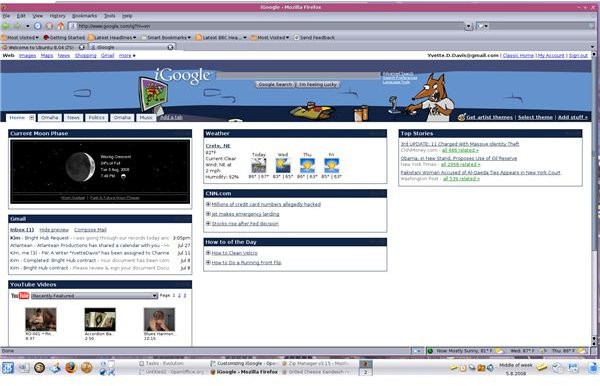
iGoogle makes it easy to fully customize your homepage. You can change themes, add gadgets, set language preferences, share tabs, and even change the page layout.
iGoogle Preferences (3 out of 5)
With just a few clicks, you can customize your iGoogle page layout, move gadgets, or share pages.
Choosing a theme:
iGoogle has two different types of themes. Artist themes and Google themes.Artists themes are themes created by world class artists, while the standard themes are created by everyday iGoogle users.To select a theme from either category, Click on the appropriate link at the top right of the window. Get artist themes will take you to only those themes created by word class artists, and Select theme will take you to themes created by iGoogle users.
If you’d like to further customize your iGoogle theme, you can create your own theme using the guidelines.
Moving Gadgets:
To move gadgets, place the curser at the top of the gadget window. The curser will change to a hand. Use this hand to move the gadget where you want it within your selected page layout.
iGoogle Preferences:
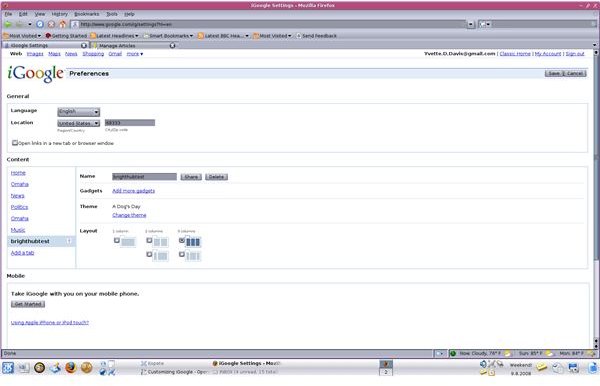
iGoogle allows you to set preferences like Language, Location, and page layout. This is also where you set mobile compatibility.
General Settings:
Language: Select your language from the drop down menu.
Location: Select your country from the first drop down menu, and your city from the second drop down menu. Residents of the US – enter your city or zip code in the text box.
Content:
The content box has two sections. On the left you can change the order of your tabs, and add tabs.
To change the tab order:
Click on the name of the tab you’d like to move. The name will highlight, and up and down arrows will appear to the right. Click on the appropriate arrow until the tab is where you want it.
To Add a tab:
Click on Add a tab at the bottom of the tab list. Enter the name of the new tab, and click Ok.
The right side of the content box allows you to change tab names, share individual tabs, add, delete or share gadgets, set the theme, and change the layout of each tab.
Select the tab you want to work with from the list on the left.
Name: To change the name of the selected tab, type a new name in the text box.
Share: Use this button to share tabs with friends. Click Share, check the components of the tab you’d like to share, enter the email address(es) of the people you’re sharing with, and enter a message, if desired. Click Send.
Gadgets: Your gadgets for each page are listed in this section. To share a specific gadget, click Share next to the gadget name. Select or enter the email address of the people you’re sharing with and hit Send Invites.
To delete a gadget, click Delete to the right of the gadget name.
Theme: To change your theme, click Change theme.
Layout: iGoogle offers 5 page layouts to choose from. Select the radio button in front of the layout you’d like. You can choose a different layout for each tab.
Mobile: This option is covered in the Brighthub article, iGoogle: On Your Mobile Device.
Troubleshooting: If you have problems with your iGoogle page or tabs, you can restore to an earlier saved version by clicking Restore Now.
To back up your iGoogle pages yourself, click Backup.
Export/Import:
iGoogle allows you to export your settings to your local computer. The file will be saved as an XML file.
To import previously saved iGoogle settings from your local computer to your online iGoogle page, click Browse, and locate the file on your computer. Click Upload.
Images