In today’s mobile world, the people you work with can be all over the place at any given time. And your schedule is probably pretty insane, too. Learn how to customize your Google Calendar so keeping up with your schedule and everyone else’s too, is a snap.
Customizing Calendar Settings
In today’s virtual world, it is entirely possible for you to work in Texas, while others on your team work across the four corners of the globe. How do you keep track of project deadlines with everyone in a different time zone? What if your work week starts on Saturday, instead of Monday, or you need a calendar that doesn’t show weekends?Google Calendar makes these and other custom settings a snap to manage.
In this article, we will learn how to use the General settings. Calendars, and Mobile Setup will be covered in a later article.
1. Log into your Google Calendar account
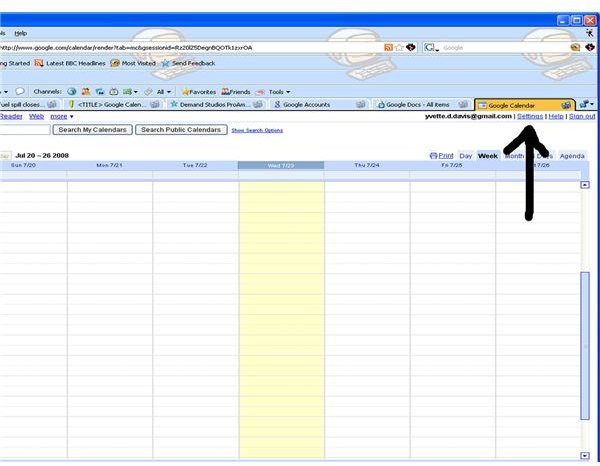
2. At the top of the window, to the right of your Google user ID or email address, you will see three links. Settings, Help, and Sign out. Click on Settings.
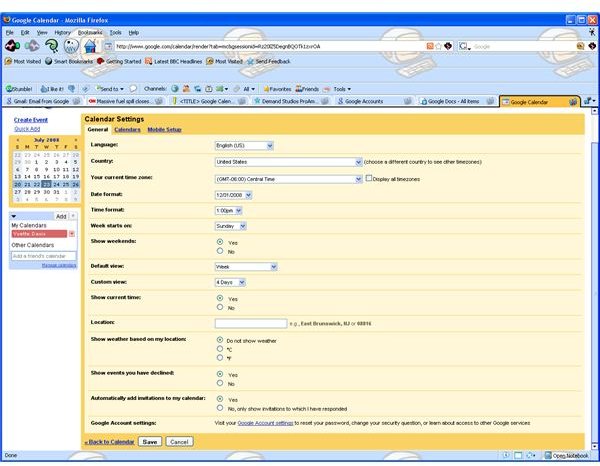
3. At the top of the yellow box, you will see three tabs, General, Calendars, and Mobile Setup. Ensure the General tab is selected.
4 The General settings:
Language - From the drop down menu, select the language you prefer.
Country - From the drop down menu, select your country. The purpose of choosing country is to help chose time zones, so it is independent of language settings. If you live in the US, but this calendar tracks the appointments of your boss in Stockholm, choose Sweeden.
Your current time zone - Choose your desired time zone from the drop down menu.
Date format - Choose your preferred date format from the drop down menu.
Time format - Choose between 12 or 24 hour time formats.
Week starts on - From the drop down menu, choose whether you want the calendar to start on Sunday, Monday or Saturday.
Show weekends - Select yes to show weekends, no to show only Monday - Friday.
Default view - From the drop down menu, specify how you’d like to view calendars. You can choose from Day, Week, Month, Custom view, and Agenda views.
Custom view - This is where you define the custom view setting. You can choose from 2, 3, 4, 5, 6, or 7 days, or 2, 3, or 4 weeks.
Show current time - Specify if you’d like Google Calendar to show your current time on your calendar. This is especially useful if you work with people in other time zones. If selected, current time will be indicated by a line across the day and time when in Day, Week and Custom views.
Location - Enter your location or zip code. This feature is used with calendar sharing, and weather features. It is optional.
Show weather based on my location - Specify either Do not show weather, C, for Celcius, or F for Fahrenheit.
Show events you have declined - This setting allows you to specify if declined invitations are auto entered into your calendar. This is useful if you decline an invitation, but want like to be reminded of the event.
Automatically add invitations to my calendar - This setting lets you choose to have all your invitations automatically added to your calender, or to only add those invitations you have responded to.
Google account settings - Click the link to change your Google password, secret security question, or read about other Google services.
5. Make your selections, and click Save, to save your new settings, and go back to Google Calendar.
Images